Numbers User Guide for iPhone
- Welcome
- What’s new
-
- Get started with Numbers
- Intro to images, charts, and other objects
- Create a spreadsheet
- Open spreadsheets
- Prevent accidental editing
- Personalize templates
- Use sheets
- Undo or redo changes
- Save your spreadsheet
- Find a spreadsheet
- Delete a spreadsheet
- Print a spreadsheet
- Change the sheet background
- Copy text and objects between apps
- Touchscreen basics
- Change Numbers privacy and analytics settings
- Copyright

Use the formula keyboard in Numbers on iPhone
You can use the formula keyboard to add mathematical calculations to your spreadsheet, and to choose functions from the Functions Browser.
To open the formula keyboard, tap a cell, tap  at the bottom of the screen, then tap
  above the keyboard on the left.
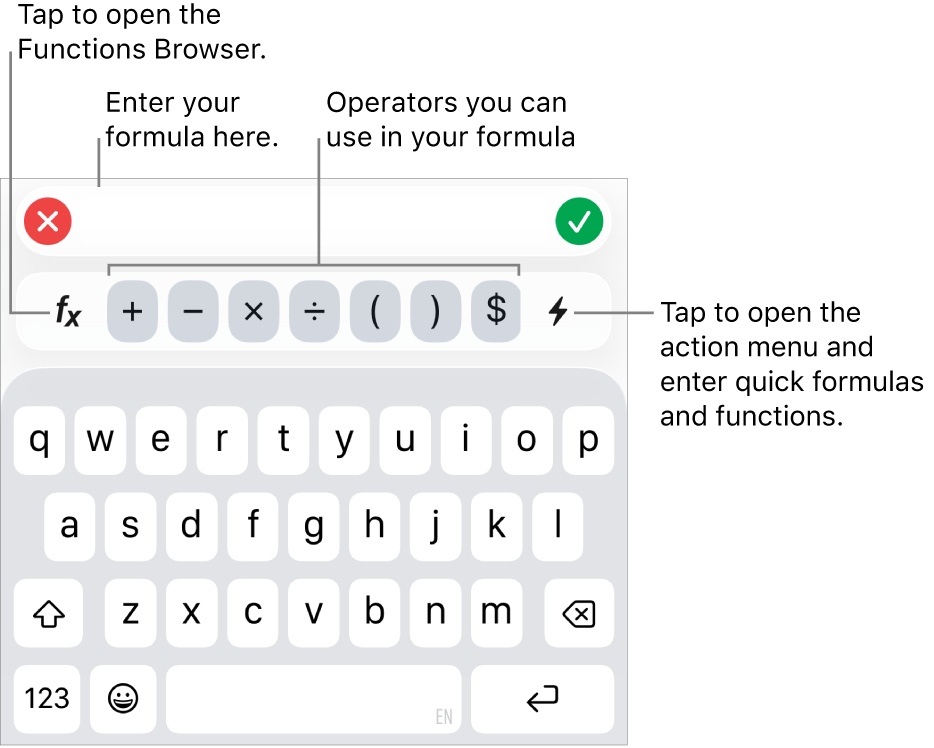
To enter data with the formula keyboard, do any of the following:
Add text: Tap the letter keys.
Add a function: If you know which function you want to enter, start typing it, then tap one of the suggestions that appears.
If you’re not sure which function you need, tap
 to open the Functions Browser, tap Categories at the bottom of the Functions Browser, then tap a function category. Tap a function to insert it in the Formula Editor (swipe up and down to see the available functions). To learn more about any function, tap
  next to it. (The first time you tap , it might take a few seconds to display the information.)
Add a number or symbol: Tap symbols in the top row of the keyboard, or to enter numbers, tap
 .
.
For instructions on entering formulas and functions into cells, see Calculate values using data in table cells.