Add stock information in Numbers on iPhone
When you’re connected to the internet, you can add stock information from the previous market close to any table. To simplify the entry of stock information, you can use a special stock template or a predesigned stock table style included with Numbers.
Add stock information to a table cell
You need to be connected to the internet to enter stock information in a table cell.
Go to the Numbers app
 on your iPhone.
Open a spreadsheet, tap a cell, then tap
 at the bottom of the screen (or tap
  in the top-right corner of the keyboard).
Tap Stock Quote (you may need to swipe up to see it).
Note: If Stock Quote is dimmed, the internet may be unavailable. Check your network connection.
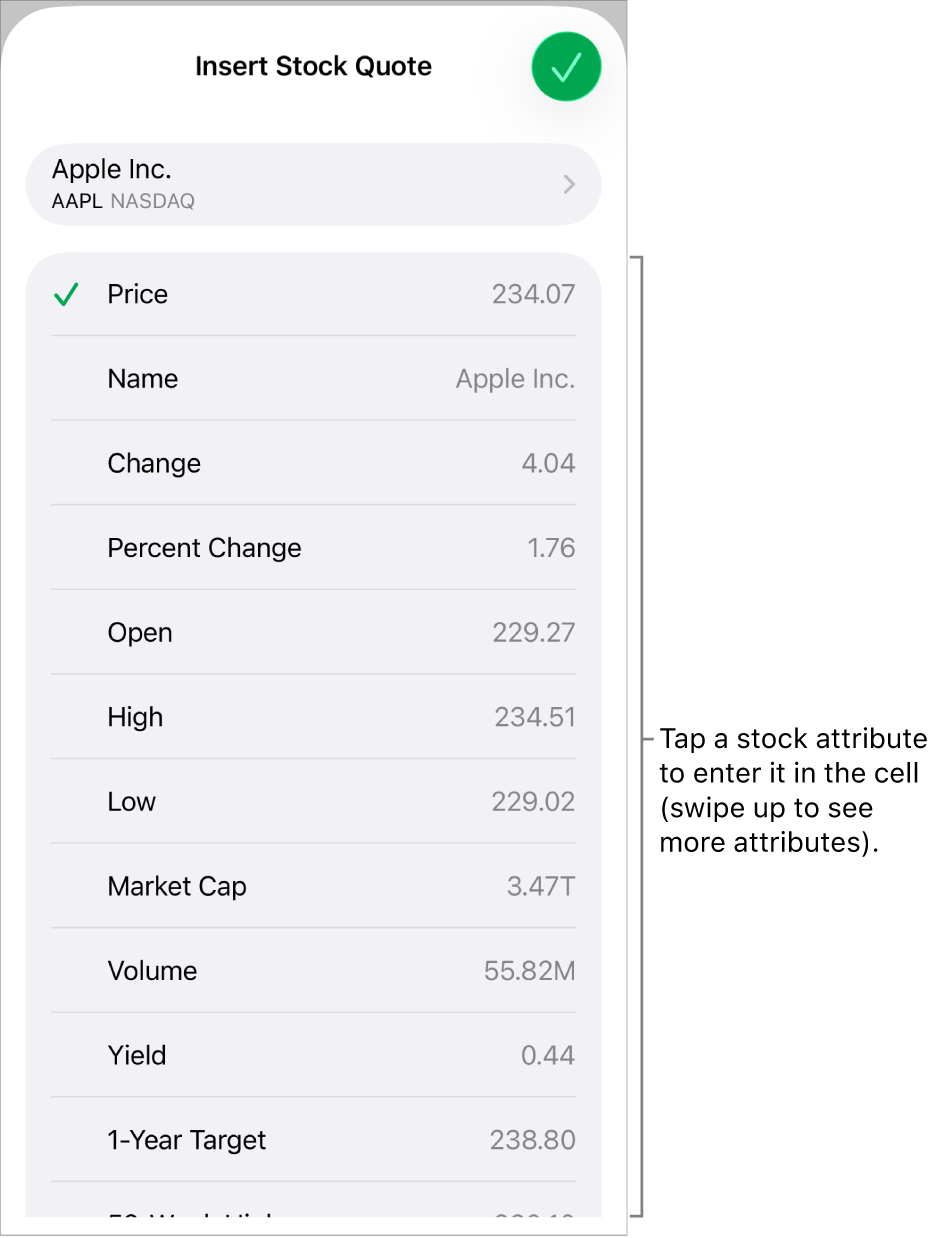
Tap a stock in the list, or to search for a stock, type its company name or stock symbol in the search field.
Tap the stock attribute you want to enter in the cell (you may need to swipe up to see all the options).
To go back and choose a different stock instead, tap the current stock name.
Tap
 when you’re finished.
Tip: To learn how to use the STOCK function to add stock information from the previous market close, see Insert a function. For details about the STOCK function, open the Functions Browser, tap Categories, then tap  next to STOCK (you may need to swipe up to see it).
Add stock information to predesigned tables
You need to be connected to the internet to enter stock information in the My Stocks template or to tables with the predesigned stock table style.
Go to the Numbers app
on your iPhone.Do any of the following:
In the My Stocks template: Open the template (from the template chooser), then tap the table near the bottom of the sheet. Tap
 in the bottom-left corner of the table to add a row, then enter a stock symbol (for example, AAPL) in column A to populate other cells of the row with information about that stock.
In a table with the stock style: To add a stock table to a sheet, tap
 , tap
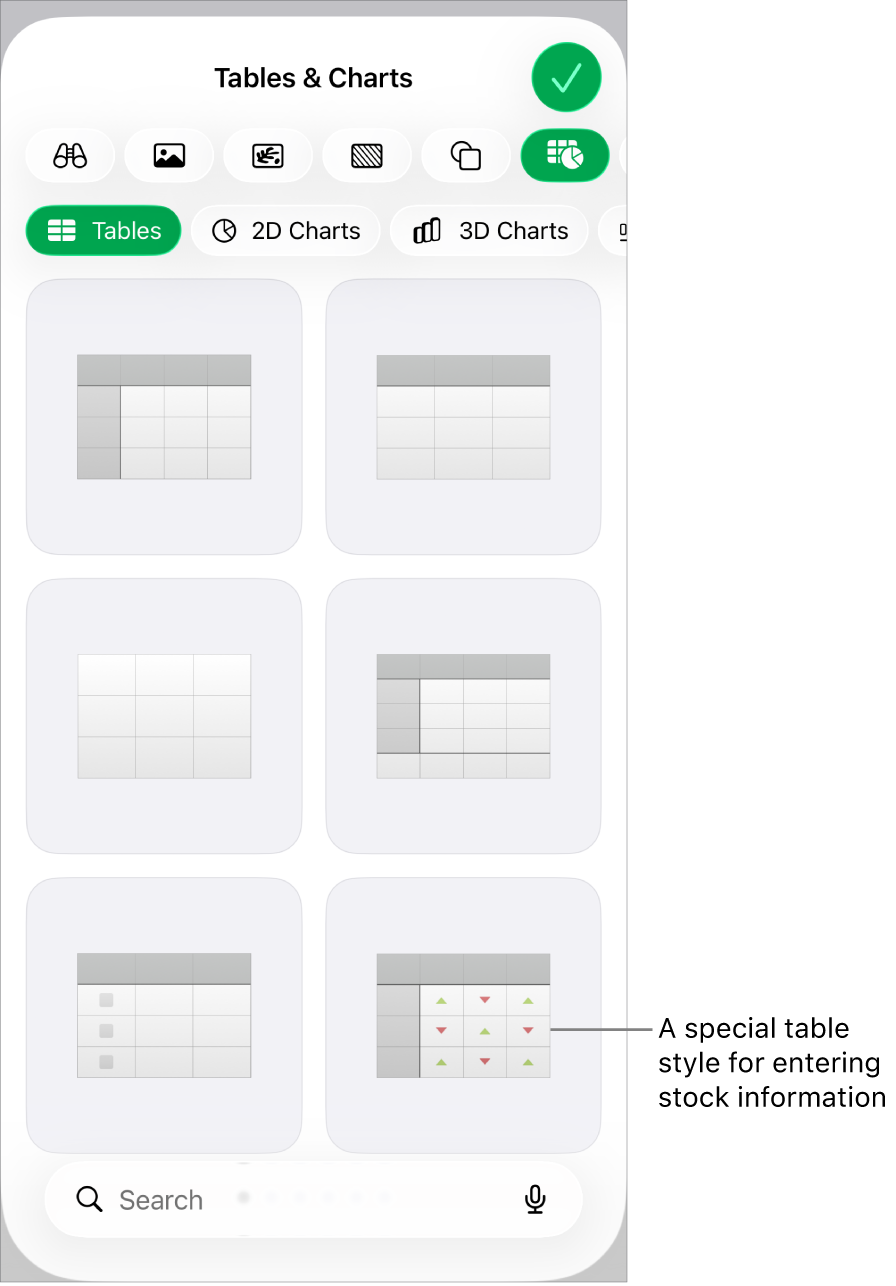
, tap  , then tap the stock table style (shown below). Enter a stock symbol (for example, AAPL) in column A. The other cells in the row fill with information about that stock.