
Add and arrange pivot table data in Numbers on iPhone
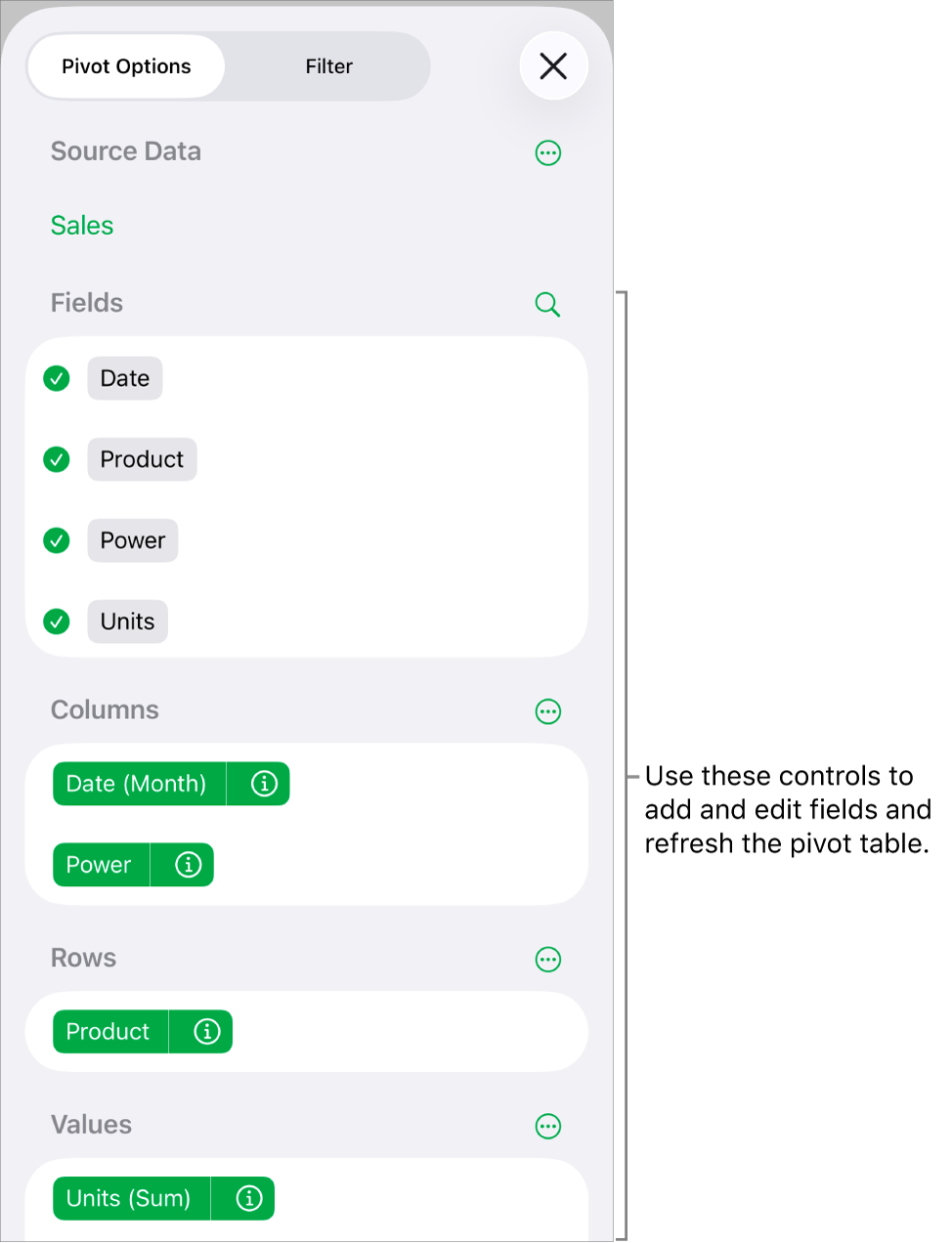
To choose the data you want to show in your pivot table, you can add fields into three sections: Columns, Rows, and Values. By default, numeric fields are added to Values, and other nonnumeric fields are added to Columns or Rows. You can move fields within a section or between sections, to change the way data is organized in the pivot table.
Add fields to a pivot table
Go to the Numbers app
 on your iPhone.
Open a spreadsheet, tap
 , tap Pivot Options, then do any of the following:
Automatically add fields to Rows, Columns, or Values: Tap the field you want to add.
The field appears in either the Columns, Rows, or Values section, based on the type of data in that field.
Manually add fields to Rows, Columns, or Values: Touch and hold a field, then drag it from the list to one of the sections.
After you add the source data you want to analyze, you can reorder and move the fields to change how data is grouped, as described in the next task.
If the pivot table is empty (such as when you first create it), you can also tap the link in the button that appears over the table to view Pivot Options.
Reorder and move fields
To change how data is grouped in a pivot table, you can reorder fields within a section in the Pivot Options menu, and move fields to other sections. When you reorder and move fields, the pivot table updates automatically to show the new organization.
Go to the Numbers app
on your iPhone.Open a spreadsheet, then select a pivot table.
Tap
, then tap Pivot Options.Touch and hold a field, then drag it within a section to change the order of the fields, or drag the field to another section.
To quickly swap Column and Row fields, tap
 next to Columns or Rows, then tap Swap Column and Row Fields.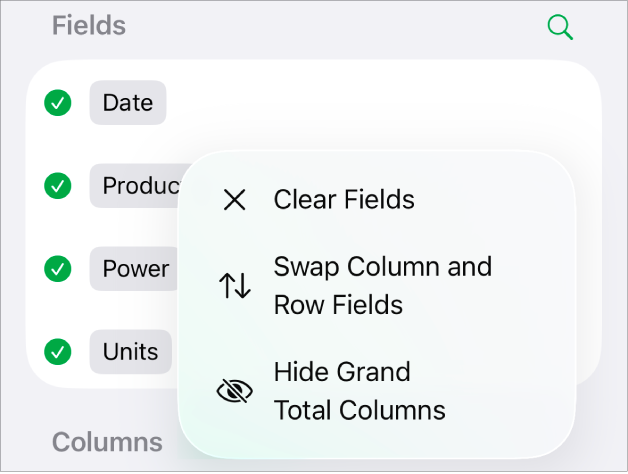
Remove fields
You can remove information from a pivot table by deleting individual fields from a section of the Pivot Options menu, or deleting all fields in a section. Removing fields does not affect the source data.
Go to the Numbers app
on your iPhone.Open a spreadsheet, then select a pivot table.
Tap
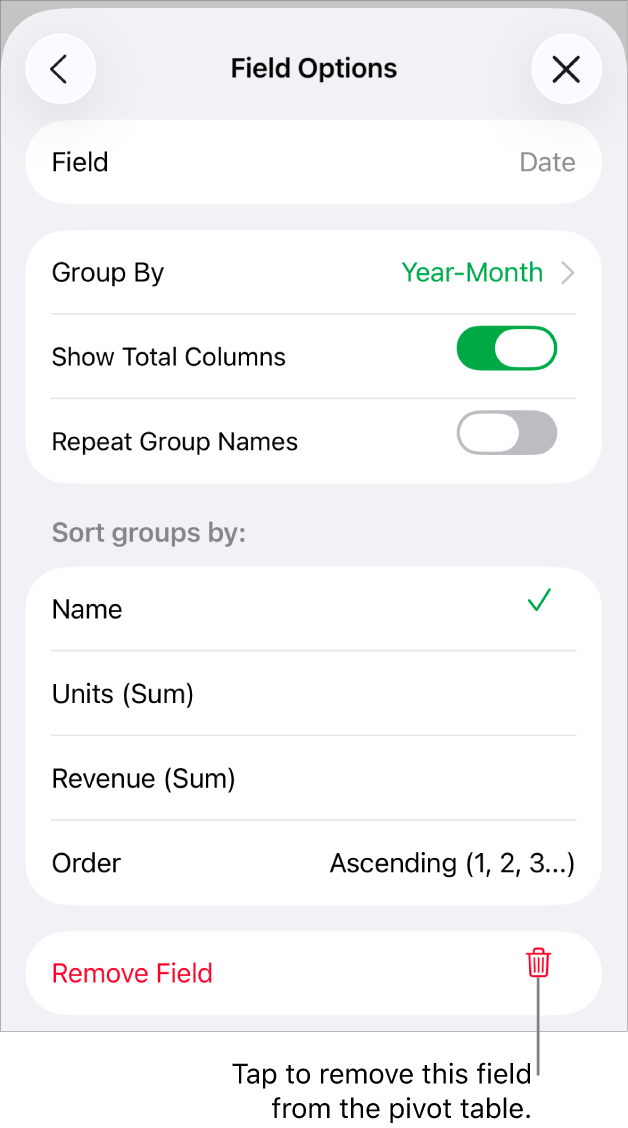
, tap Pivot Options, then do any of the following:Remove individual fields: Tap
 next to the field you want to remove, then tap Remove Field.
Remove all fields from a section: Tap
next to Columns, Rows, or Values (depending on the section you want to clear), then tap Clear Fields.
After you add fields, you can change how the data is sorted, grouped, calculated, and more. See Change how pivot table data is sorted, grouped, and more.