Logic Pro X User Guide
- Welcome
-
- What is Logic Pro?
- Workflow overview
- Logic Pro project basics
- Advanced tools and additional options
- Undo and redo edits
- Manage Logic Pro content
- How to get help
-
- Projects overview
- Create projects
- Open projects
- Save projects
- Delete projects
-
- Play a project
- Set the playhead position
- Control playback with the transport buttons
- Use transport shortcut menus
- Use transport keyboard shortcuts
- Customize the control bar
- Change the LCD display mode
- Monitor and reset MIDI events
- Use the cycle area
- Use the Chase Events function
- Control Logic Pro using Apple Remote
- Control Logic Pro projects using Logic Remote
- Preview projects in the Finder
- Close projects
- View project information
-
- Overview
-
- Before recording software instruments
- Play software instruments
- Record software instruments
- Record additional software instrument takes
- Overdub software instrument recordings
- Spot erase software instrument recordings
- Use Note Repeat
- Record to multiple software instrument tracks
- Replace software instrument recordings
- Record multiple MIDI devices to multiple tracks
- Record software instruments and audio simultaneously
- Use step input recording techniques
- Use the metronome
-
- Overview
-
- Regions overview
- Select regions
- Select parts of regions
- Cut, copy, and paste regions
- Move regions
- Add or remove gaps
- Delay region playback
- Loop regions
- Repeat regions
- Resize regions
- Mute and solo regions
- Time stretch regions
- Split regions
- Demix MIDI regions
- Join regions
- Create regions in the Tracks area
- Normalize audio regions in the Tracks area
- Create aliases of MIDI regions
- Clone audio regions
- Change the color of regions
- Convert audio regions to Sampler sample zones
- Rename regions
- Delete regions
-
- Overview
-
- Add notes
- Select notes
- Snap items to the grid
- Move notes
- Copy notes
- Change the pitch of notes
- Resize notes
- Edit note velocity
- Quantize the timing of notes
- Quantize the pitch of notes
- Change note articulations
- Lock the position of events
- Mute notes
- Change note color
- View note labels
- Delete notes
- Time stretch notes
- View multiple MIDI regions
- Split chords
- Automation/MIDI area in the Piano Roll Editor
- Open other editors
-
- Flex Time and Pitch overview
-
- Flex Pitch algorithm and parameters
- Edit the pitch of audio in the Audio Track Editor or a zoomed in track
- Edit the pitch of audio in the Tracks area when the track is not zoomed in
- Correct the timing of audio regions with Flex Pitch
- Quantize the pitch of audio regions
- Create MIDI from audio recordings
- Change the gain of audio regions
- Use Varispeed to alter the speed and pitch of audio
-
- Mixing overview
- Set channel strip input formats
- Set channel strip pan or balance positions
- Mute and solo channel strips
-
- Plug-ins overview
- Add, remove, move, and copy plug-ins
- Insert a plug-in on a track using drag and drop
- Activate plug-ins on inactive channels
- Use the Channel EQ
- Work in the plug-in window
- Work with plug-in settings
- Work with plug-in latencies
- Work with Audio Units plug-ins
- Support for ARA 2 compatible plug-ins
- Use the Plug-in Manager
- Work with channel strip settings
- Surround panning
- Use the I/O Labels window
- Undo and redo Mixer and plug-in adjustments
-
- Smart Controls overview
- Show Smart Controls for master effects
- Choose a Smart Control layout
- Automatic MIDI controller assignment
- Map screen controls automatically
- Map screen controls
- Edit mapping parameters
- Use parameter mapping graphs
- Open the plug-in window for a screen control
- Rename a screen control
- Use articulation IDs to change articulations
- Assign hardware controls to screen controls
- Compare Smart Control edits with saved settings in Logic Pro
- Use the Arpeggiator
- Automate screen control movements
-
- Live Loops overview
- Start and stop cells
- Work with Live Loops cells
- Change loop settings for cells
- How the Live Loops grid and Tracks area interact
- Edit cells
- Edit scenes
- Work in the Cell Editor
- Record a Live Loops performance
- Change Live Loops grid settings
- Control Live Loops in Logic Pro with other devices
-
- Overview
- Add notes
-
- Part box overview
- View score symbols
- Select score symbols
- Add notes and rests
- Add notes and symbols to multiple Logic Pro regions
- Add key and time signature changes
- Change the clef sign
- Add dynamic marks, slurs, and crescendi
- Change note heads
- Add symbols to notes
- Add trills, ornaments, and tremolo symbols
- Add sustain pedal markings
- Add chord symbols
- Add chord grids and tablature symbols
- Add bar lines, repeats, and coda signs
- Add page and line break symbols
-
- Select notes
- Move and copy notes
- Change note pitch, duration, and velocity
- Change note articulations
- Quantize the timing of notes
- Restrict note input to the current key
- Control how ties are displayed
- Add and edit tuplets
- Override display quantization using tuplets
- Add grace notes and independent notes
- Delete notes
- Use automation in the Score Editor
-
- Staff styles overview
- Assign staff styles to tracks
- Staff Style window
- Create and duplicate staff styles
- Edit staff styles
- Edit staff, voice, and assign parameters
- Add and delete staffs or voices in the Logic Pro Staff Style window
- Copy staffs or voices in the Logic Pro Staff Style window
- Copy staff styles between projects
- Delete staff styles
- Assign notes to voices and staffs
- Display polyphonic parts on separate staffs
- Change the staff assignment of score symbols
- Beam notes across staffs
- Use mapped staff styles for drum notation
- Predefined staff styles
- Share a score
-
- Environment overview
- Common object parameters
- Customize the Environment
-
-
- Fader objects overview
- Use fader objects
- Play back fader movements
- Work with object groups
- Fader styles
- Fader functions: MIDI events
- Fader functions: range, value as
- Fader functions: filter
- Vector fader
- Special faders overview
- Cable switchers
- Meta event faders
- SysEx faders
- Work with SysEx messages
- Special functions
- Ornament objects
- MMC record buttons
- Keyboard objects
- Monitor objects
- Channel splitter object
- Physical input objects
- Physical input objects
- MIDI click objects
-
-
- Key commands overview
- Browse, import, and save key commands
- Assign key commands
- Copy and print key commands
-
- Global Commands key commands
- Global Control Surfaces Commands
- Various windows
- Windows Showing Audio files
- Main Window Tracks and Various Editors
- Live Loops Grid
- Various Editors
- Views showing Time Ruler
- Main Window Tracks
- Mixer
- MIDI Environment
- Piano Roll
- Score Editor
- Event Editor
- Step Editor
- Step Sequencer
- Project Audio
- Audio File Editor
- Smart Tempo Editor
- Sampler
- Step Input Keyboard
- Tool key commands in Logic Pro
- Touch Bar shortcuts
-
-
- Working with your control surface
- Connect control surfaces
- Add a control surface to Logic Pro
- Automatic assignment for USB MIDI controllers
- Grouping control surfaces
- Control Surfaces preferences overview
- Modal dialog display
- Tips for using your control surface
- Control surfaces supported by Logic Pro
- Software and firmware
-
-
- Learn about Effects
-
- Learn about Amps and Pedals
-
- Bass Amp Designer overview
- Bass amplifier models
- Bass cabinet models
- Build a custom combo
- Amplifier signal flow
- Pre-amp signal flow
- Use the D.I. box
- Amplifier controls
- Bass Amp Designer effects overview
- Bass Amp Designer EQ
- Bass Amp Designer compressor
- Bass Amp Designer Graphic EQ
- Bass Amp Designer Parametric EQ
- Bass Amp Designer microphone controls
-
- Use MIDI plug-ins
-
- Arpeggiator overview
- Arpeggiator control parameters
- Note order parameters overview
- Note order variations
- Note order inversions
- Arpeggiator pattern parameters overview
- Use Live mode
- Use Grid mode
- Arpeggiator options parameters
- Arpeggiator keyboard parameters
- Use keyboard parameters
- Assign controller parameters
- Modifier MIDI plug-in controls
- Note Repeater MIDI plug-in controls
- Randomizer MIDI plug-in controls
-
- Use the Scripter MIDI plug-in
- Use the Script Editor
- Scripter API overview
- MIDI processing functions overview
- HandleMIDI function
- ProcessMIDI function
- GetParameter function
- SetParameter function
- ParameterChanged function
- Reset function
- JavaScript objects overview
- Use the JavaScript Event object
- Use the JavaScript TimingInfo object
- Use the Trace object
- Use the MIDI event beatPos property
- Use the JavaScript MIDI object
- Create Scripter controls
- Transposer MIDI plug-in controls
-
- Learn about included Instruments
-
- Alchemy overview
- Name bar
-
- Alchemy source overview
- Source master controls
- Import browser
- Source subpage controls
- Source filter controls
- Source filter use tips
- Source elements overview
- Additive element controls
- Additive element effects
- Spectral element controls
- Spectral element effects
- Pitch correction controls
- Formant filter controls
- Granular element controls
- Sampler element controls
- VA element controls
- Source modulations
- Morph controls
- Master voice section
- Alchemy extended parameters
-
- Logic Pro Quick Sampler overview
- Add content to Logic Pro Quick Sampler
- Logic Pro Quick Sampler waveform display
- Use Flex in Logic Pro Quick Sampler
- Logic Pro Quick Sampler Pitch controls
- Logic Pro Quick Sampler Filter controls
- Quick Sampler filter types
- Logic Pro Quick Sampler Amp controls
- Logic Pro Quick Sampler extended parameters
-
- Sculpture overview
- Sculpture interface
- Global parameters
- Amplitude envelope parameters
- Use the Waveshaper
- Filter parameters
- Output parameters
- Use surround range and diversity
- Assign MIDI controllers
- Extended parameters
-
-
- Ultrabeat overview
- Ultrabeat interface
- Synthesizer section overview
- Filter section controls
- Distortion circuit controls
- Glossary

Graphically edit Logic Pro Sampler zones and groups
You can edit zone and group parameters numerically in the Mapping pane zone view and group view. You can also graphically edit a number of zone and group parameters in the Mapping pane keyboard view and the Zone pane.
You can also edit the audio file of a zone in the Logic Pro Audio File Editor.
Within each group mapping area (notes and velocities), zones can’t overlap. When you force an overlap by dragging zones one above the other within the same group, the Key Mapping Editor automatically cuts zones in order to make space for other zones. This allows you to add zones or delete mapped areas without having to edit all affected zones directly. You can protect either the selected or unselected zones when dragging zones.
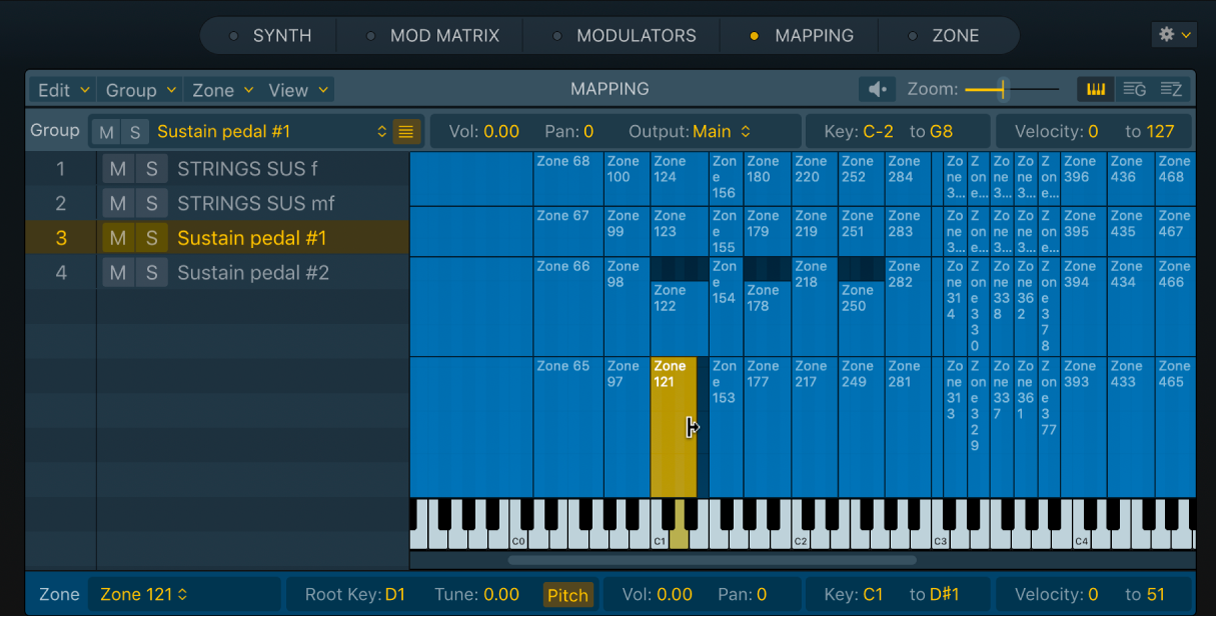
Move one or more zones by dragging
In the Logic Pro Sampler Mapping pane keyboard view:
Drag the zone to the target Key Mapping Editor position.
Shift-click or drag (from an empty area outside any zone) to select multiple zones, and drag them to the target Key Mapping Editor position.
Move one or more selected zones to the left or right with a key command
In the Logic Pro Sampler Mapping pane keyboard view:
Select one or more zones, then use one of the following key commands:
Shift Selected Zone(s)/Group(s) Left: Option-Left Arrow key
Shift Selected Zone(s)/Group(s) Right: Option-Right Arrow key
Restrict zone dragging to one direction
In the Logic Pro Sampler Mapping pane keyboard view:
Hold Command, then drag the zone (or multiple selected zones) to the target Key Mapping Editor position.
Movement is restricted to the initial horizontal or vertical drag direction while the Command key is held.
Change the root key when moving a zone
In the Logic Pro Sampler Mapping pane keyboard view do one of the following:
Drag the zone.
Note: The default behavior when dragging a zone to a key in the Mapping pane keyboard view is set with the Always Move Root Key with Zone option in the Zone menu.
If the Always Move Root Key with Zone option in the Zone menu is not active, hold down Option-Command while dragging the zone.
Select a zone, then use one of the following key commands:
Shift Selected Zone(s)/Group(s) Left (Zones incl. Root Key): Option-Shift-Left Arrow key
Shift Selected Zone(s)/Group(s) Right (Zones incl. Root Key: Option-Shift-Right Arrow key
Change the start or end note of a zone
In the Logic Pro Sampler Mapping pane keyboard view:
Move the pointer to the beginning or end of a zone (the pointer changes to the resize icon).
Shift-click to select multiple zones if you want to simultaneously adjust their key range.
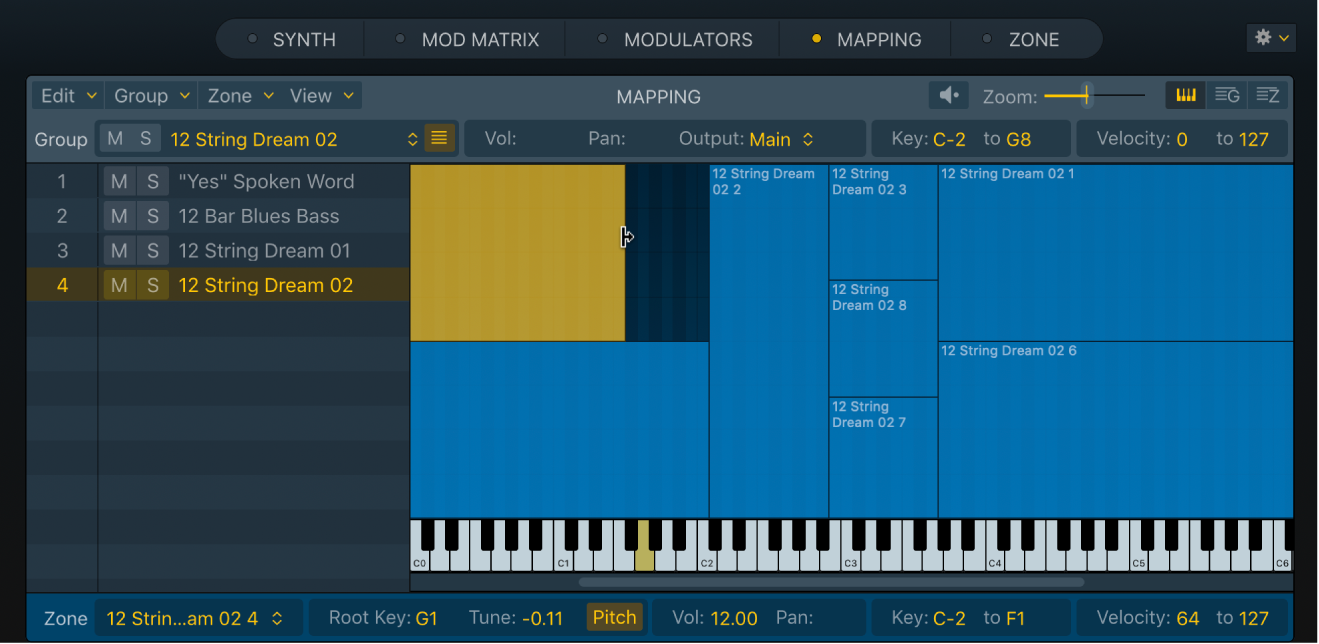
Drag the start or end point of the zone or group to the target position.
Change the velocity range of a zone
In the Logic Pro Sampler Mapping pane keyboard view:
Move the pointer to the top or bottom of a zone (the pointer changes to the resize icon).
Shift-click to select multiple zones if you want to simultaneously adjust their velocity range.
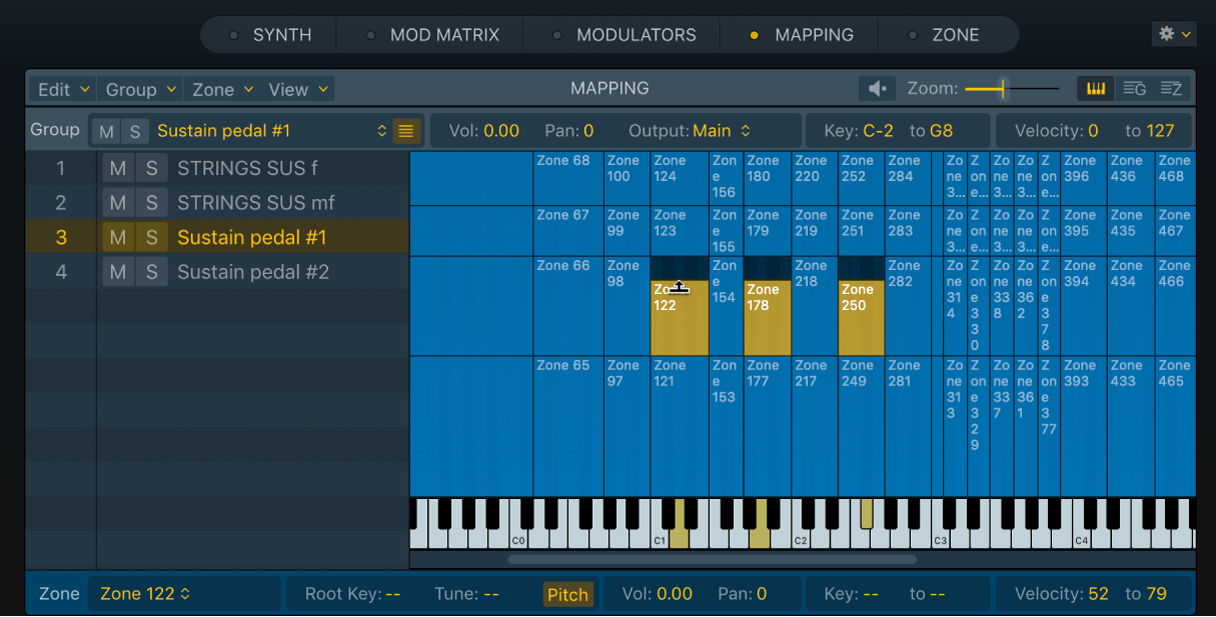
Drag upward to raise the value, or downward to lower the value.
If you drag over (overlap) another zone assigned to the same key range in the group, its velocity range will be resized. If you want to layer zones, use different groups.
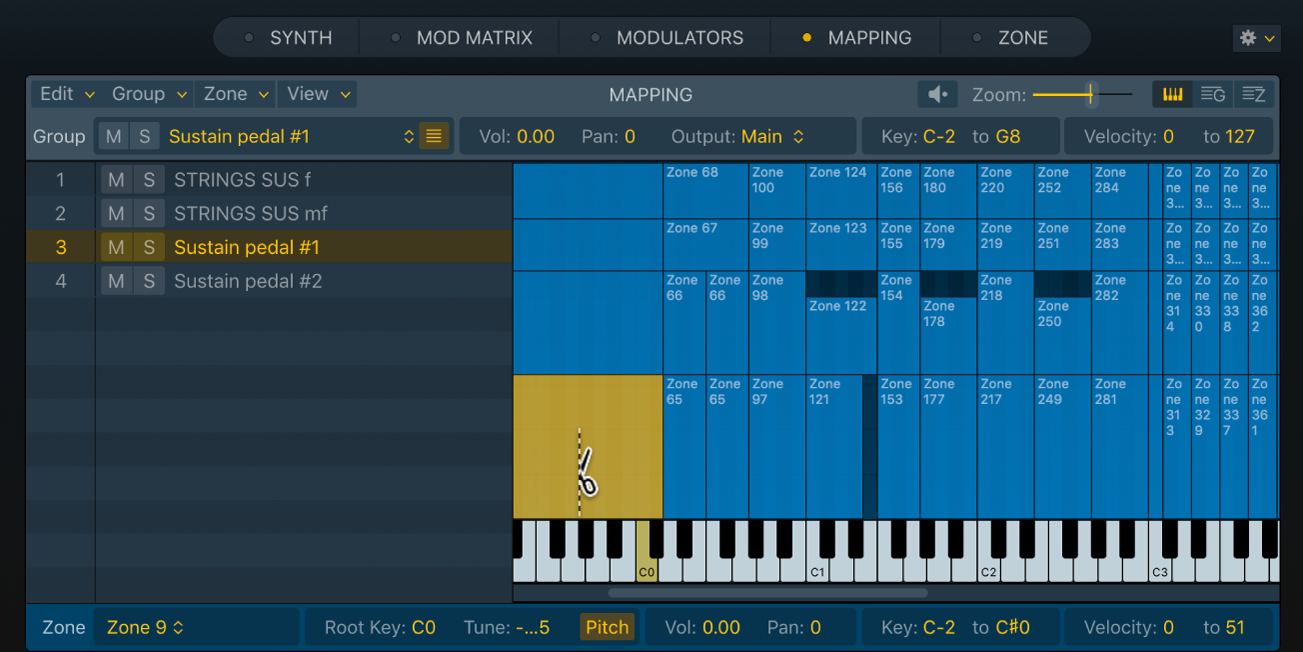
Divide a zone vertically
In the Logic Pro Sampler Mapping pane keyboard view:
Select a zone.
Hold Command-Option to display a vertical cut icon at the pointer position, then click the zone.
The zone is divided vertically and a new zone is created. Each zone can be independently edited.
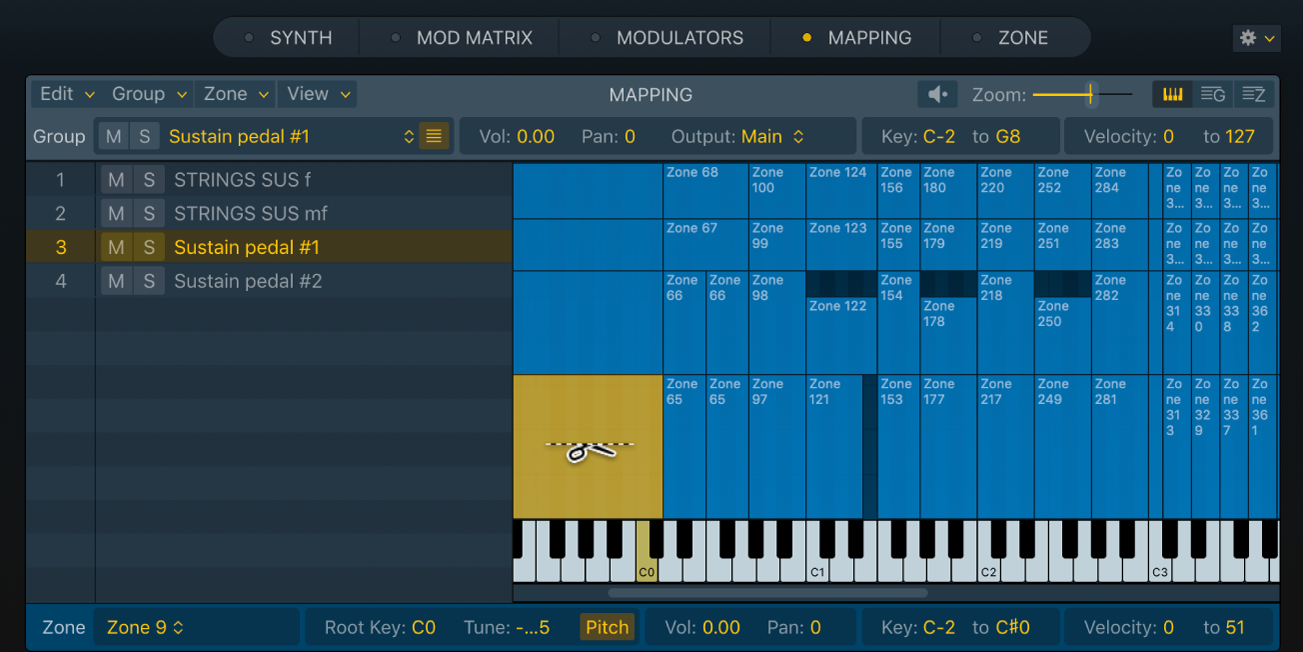
Divide a zone horizontally
In the Logic Pro Sampler Mapping pane keyboard view:
Select a zone.
Hold Shift-Option to display a horizontal cut icon at the pointer position, then click the zone.
The zone is divided horizontally and a new zone is created. Each zone can be independently edited.
Move one or more selected zones to another group by dragging
In the Logic Pro Sampler Mapping pane keyboard view or zone view:
Drag a single zone to the target group name in the Group List on the left side.
Click the Group List Display button if the Group List is hidden in the Mapping pane keyboard view.
Shift-click or drag (from an empty area outside any zone) to select multiple zones, then drag them to the target group name on the left side.
Note: You can also drag audio files from the Finder, Loop Browser, and File Browser directly into a group. This creates new zones within the group.