Izmjenom te kontrole stranica će se automatski ažurirati
Final Cut Pro User Guide for Mac
- Welcome
- What’s new
-
- Intro to importing media
- If it’s your first import
- Organize files during import
-
- Import from Image Playground
- Import from iMovie for macOS
- Import from iMovie for iOS or iPadOS
- Import from Final Cut Pro for iPad
- Import from Final Cut Camera
- Import from Photos
- Import from Music
- Import from Apple TV
- Import from Motion
- Import from GarageBand and Logic Pro
- Import using workflow extensions
- Record into Final Cut Pro
- Memory cards and cables
- Supported media formats
-
- Intro to effects
-
- Intro to transitions
- How transitions are created
- Add transitions and fades
- Quickly add a transition with a keyboard shortcut
- Set the default duration for transitions
- Delete transitions
- Adjust transitions in the timeline
- Adjust transitions in the inspector and viewer
- Merge jump cuts with the Flow transition
- Adjust transitions with multiple images
- Modify transitions in Motion
- Add adjustment clips
-
- Add storylines
- Use the precision editor
- Conform frame sizes and rates
- Use XML to transfer projects
-
- Intro to sharing projects
- Share to Apple devices
- Share on the web
- Send a video frame to Pixelmator Pro
- Share in email
- Share stereo or spatial video
- Batch sharing
- Share using Compressor
- Create share destinations
- Change metadata for shared items
- View the status of shared items
- Speed up exports with simultaneous processing
- Glossary
- Copyright and trademarks
Speed up a clip with jump cuts in Final Cut Pro for Mac
To compress time in a long clip without playing the clip at fast speed, you can create jump cuts to periodically skip over a specific number of frames. For example, if you have a 10-second shot of a person walking down a hallway, rather than playing the entire 10 seconds, you can create jump cuts every 2 seconds that skip 30 frames each, so the action happens in a fraction of the time.
In the Final Cut Pro timeline, select the clip that you want to speed up, then add a marker at each frame where you want a jump cut to occur.
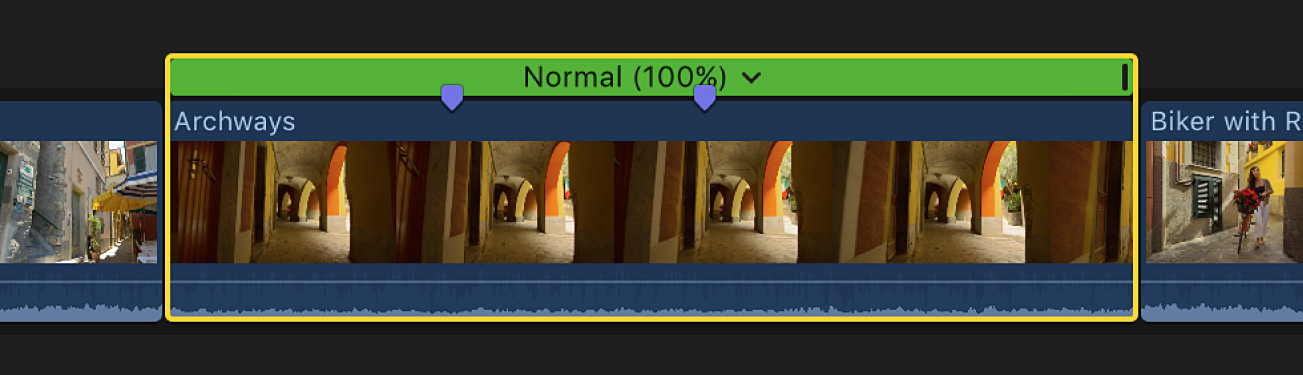
Click the Retime pop-up menu below the viewer and choose Jump Cut at Markers, then choose a number of frames from the submenu.

You can skip 3, 5, 10, 20, or 30 frames.

Download this guide: PDF
Hvala vam na komentarima.