Keynote User Guide for iPhone
- Welcome
- What’s new
-
- Get started with Keynote
- Intro to images, charts, and other objects
- Create a presentation
- Choose how to navigate your presentation
- Open a presentation
- Save and name a presentation
- Find a presentation
- Print a presentation
- Copy text and objects between apps
- Basic touchscreen gestures
- Create a presentation using VoiceOver
- Change Keynote privacy and analytics settings
-
- Send a presentation
- Intro to collaboration
- Invite others to collaborate
- Collaborate on a shared presentation
- See the latest activity in a shared presentation
- Change a shared presentation’s settings
- Stop sharing a presentation
- Shared folders and collaboration
- Use Box to collaborate
- Create an animated GIF
- Post your presentation in a blog
- Copyright

Layer, group, and lock objects in Keynote on iPhone
You can work with and arrange the objects on a slide in a number of ways:
Layer (or stack) objects to create the appearance of depth
Group objects to more easily move, resize, or rotate them as a single unit
Lock objects to avoid inadvertently moving, modifying, or deleting them
Layer objects
Go to the Keynote app
 on your iPhone.
Open a presentation with multiple objects.
Drag an object so that it overlaps with one or more other objects.
Tap
 , then tap Arrange.
Tap an object, then do one of the following:
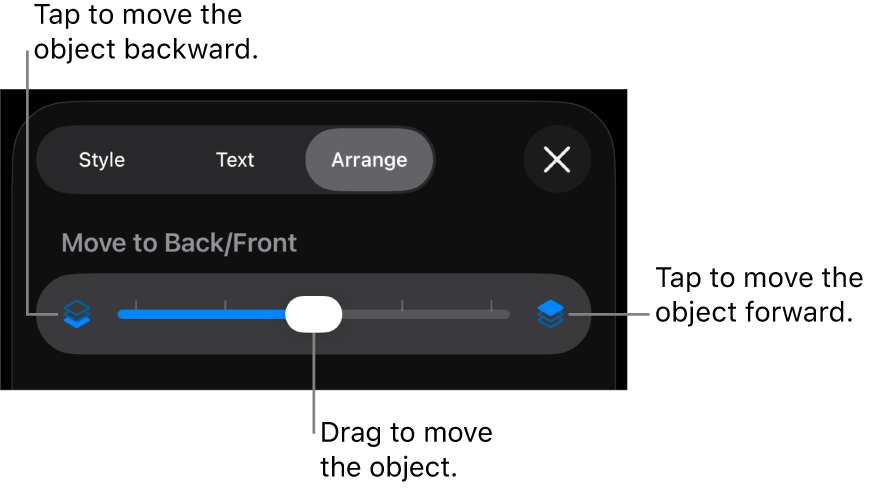
Drag the slider until the object is layered where you want it.
Tap the icons to move the selected object forward or backward.
You can select multiple objects to layer them all at once.
Group or ungroup objects
Go to the Keynote app
on your iPhone.Open a presentation with multiple objects.
Touch and hold an object, then with another finger, tap the other objects you want to group.
Lift your fingers, then tap Group.
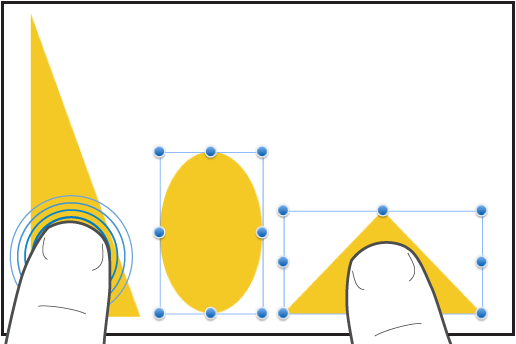
To ungroup objects, tap the group, then tap Ungroup.
Lock or unlock objects
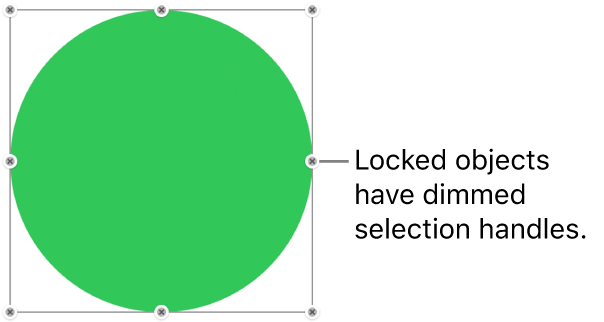
When an object is locked, you can’t move, delete, or modify it in any way until you unlock it.
Go to the Keynote app
on your iPhone.Open a presentation, then tap an object to select it, or select multiple objects.
Tap
, tap Arrange, then tap Lock.
To unlock an object, tap it, then tap Unlock.