iPad User Guide
- iPad User Guide
- What’s new in iPadOS
- Supported models
-
- Wake and unlock
- Adjust the volume
- Change or turn off sounds
- Access features from the Lock screen
- Open apps on the Home screen
- Take a screenshot or screen recording
- Change or lock the screen orientation
- Change the wallpaper
- Zoom an app to fill the screen
- Drag and drop
- Search with iPad
- Use AirDrop to send items
- Perform quick actions
- Use and customize Control Center
- View and organize Today View
- Charge and monitor the battery
- Learn the meaning of the status icons
- Travel with iPad
-
-
- View photos and videos
- Edit photos and videos
- Edit Live Photos
- Edit Portrait mode photos
- Organize photos in albums
- Search in Photos
- Share photos and videos
- View Memories
- Find people in Photos
- Browse photos by location
- Use iCloud Photos
- Share photos with iCloud Shared Albums
- Use My Photo Stream
- Import photos and videos
- Print photos
- Shortcuts
- Stocks
- Tips
-
-
- Get started with accessibility features
-
-
- Turn on and practice VoiceOver
- Change your VoiceOver settings
- Learn VoiceOver gestures
- Operate iPad using VoiceOver gestures
- Control VoiceOver using the rotor
- Use the onscreen keyboard
- Write with your finger
- Use VoiceOver with an Apple external keyboard
- Type onscreen braille using VoiceOver
- Use a braille display
- Customize gestures and keyboard shortcuts
- Use VoiceOver with a pointer device
- Use VoiceOver in apps
- Zoom
- Magnifier
- Display & Text Size
- Motion
- Spoken Content
- Audio Descriptions
-
-
- Important safety information
- Important handling information
- Get information about your iPad
- View or change cellular settings
- Find more resources for software and service
- FCC compliance statement
- ISED Canada compliance statement
- Class 1 Laser information
- Apple and the environment
- Disposal and recycling information
- ENERGY STAR compliance statement
- Copyright
Learn gestures for iPad models with Face ID
Here’s a handy reference to the gestures you use for interacting with iPad Pro 11-inch and iPad Pro 12.9-inch (3rd generation and later).
Note: Many of these gestures also work on an iPad with a Home button, as indicated below.
Gesture | Description |
|---|---|
 | Go Home. Swipe up from the bottom edge of the screen to return to the Home screen at any time (on all iPad models). See Open apps on the iPad Home screen. |
 | Quickly access controls. Swipe down from the top-right corner to open Control Center; touch and hold a control to reveal more options (on all iPad models). To add or remove items, go to Settings > Control Center > Customize Controls. See Use and customize Control Center on iPad. |
 | Open the App Switcher. Swipe up from the bottom edge, pause in the center of the screen, then lift your finger (on all iPad models). To browse the open apps, swipe right, then tap the app you want to use. See Switch between apps on iPad. |
 | Switch between open apps. Swipe left or right along the bottom edge of the screen to quickly switch between open apps. (On an iPad with a Home button, swipe with a slight arc.) See Switch between apps on iPad. |
 | Open the Dock within an app. Swipe up from the bottom edge of the screen and pause to reveal the Dock (on all iPad models). To quickly open another app, tap it in the Dock. See Open an app from the Dock. |
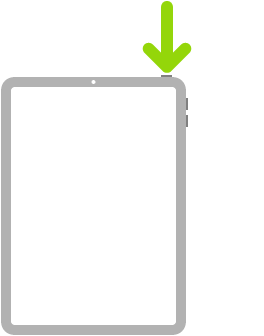 | Ask Siri. Just say, “Hey Siri.” Or press and hold the top button and make your request. Siri listens until you release the button. See Ask Siri on iPad. |
 | Use Accessibility Shortcut. Triple-click the top button. See Use accessibility shortcuts on iPad. |
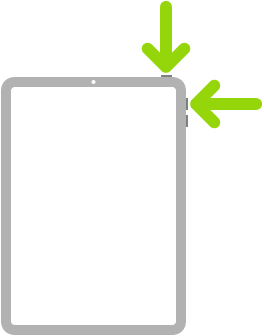 | Take a screenshot. Simultaneously press and quickly release the top button and volume up button. See Take a screenshot or screen recording on iPad. |
 | Turn off. Simultaneously press and hold the top button and either volume button until the sliders appear, then drag the top slider to power off. Or go to Settings > General > Shut Down. See Turn iPad off and on. |
 | Force restart. Press and release the volume up button, press and release the volume down button, then press and hold the top button until the Apple logo appears. See Force restart iPad. |
If you’re using Magic Trackpad or Magic Mouse, see Trackpad gestures for iPad or Mouse actions and gestures for iPad for gestures that work on your trackpad or mouse.