
Add or delete a table in Numbers on iPhone
When you add a table, you choose from a number of predesigned styles that match your template. After you add a table, you can customize it however you like. You can add as many tables as you want to a sheet.
Add a new table
Go to the Numbers app
 on your iPhone.
Open a spreadsheet, then tap
 in the toolbar, then tap
  .
.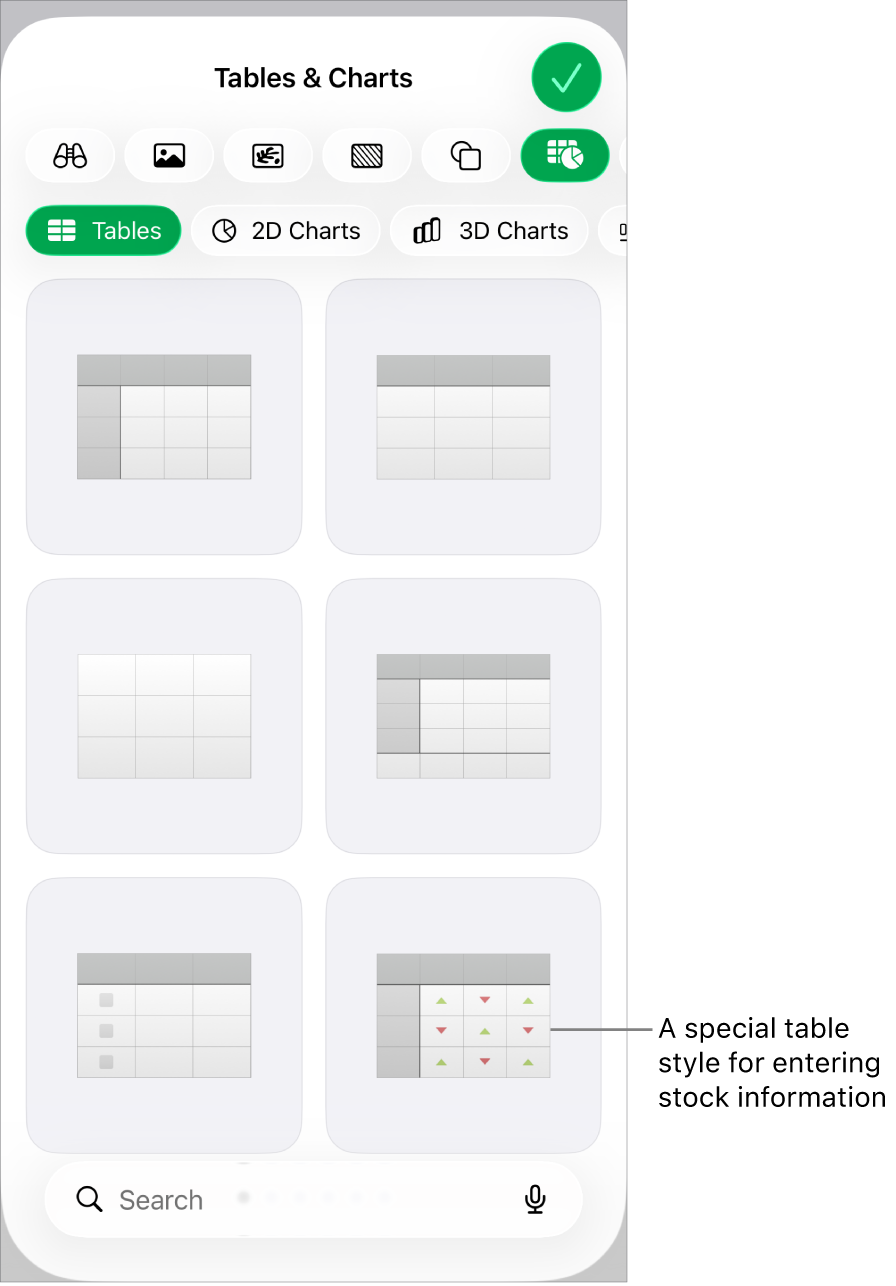
Swipe right and left to see more style options.
Tap a table to add it to the sheet.
To add content to a cell, double-tap the cell (or tap it, then tap
 at the bottom of the screen), then start typing.
For more ways to enter content, see Add text to tables.
To move or edit the table, do any of the following:
Move the table: Tap the table, then drag
 in the top-left corner of the table.
Add or remove rows: Tap
 in the bottom-left corner of the table to add one row, then drag down or up to add or delete multiple rows.
Resize the table: Tap the table, tap
in the top-left corner of the table, then drag the blue dot in bottom-right corner to resize the table proportionally.Change the alternating row color setting: Tap the table, tap
 , tap Table, then turn Alternating Rows off or on.
Change the look of a table: Tap the table, tap
, then use the formatting controls to make changes.
Create a table from existing cells
When you create a new table from cells in an existing table, the original cell data is moved, not copied. The original table is left with empty cells, which you can delete.
Go to the Numbers app
on your iPhone.Open a spreadsheet, then select the cells or select entire rows or columns with the data you want to use to create the new table.
Touch and hold the selection until it appears to lift, then drag it to another place on the spreadsheet.
To delete the empty cells from the original table, select the empty cells, then tap Delete.
Delete a table
Go to the Numbers app
on your iPhone.Open a spreadsheet, then tap the table.
Tap
in the top-left corner of the table, then tap Delete.
Copy and paste a table
Go to the Numbers app
on your iPhone.Open a spreadsheet, then tap the table.
Tap
in the top-left corner of the table, then tap Copy.Tap outside the table to deselect it, tap an empty space on the sheet, then tap Paste.