Numbers User Guide for iPhone
- Welcome
- What’s new
-
- Get started with Numbers
- Intro to images, charts, and other objects
- Create a spreadsheet
- Open spreadsheets
- Prevent accidental editing
- Personalize templates
- Use sheets
- Undo or redo changes
- Save your spreadsheet
- Find a spreadsheet
- Delete a spreadsheet
- Print a spreadsheet
- Change the sheet background
- Copy text and objects between apps
- Touchscreen basics
- Change Numbers privacy and analytics settings
- Copyright

Autofill cells in Numbers on iPhone
You can quickly fill cells, or a row or column, with the same formula, data, or a logical sequence of data—for example, a series of numbers, letters, or dates.
Autofill cells
Go to the Numbers app
 on your iPhone.
Open a spreadsheet, then do any of the following:
Autofill one or more cells with content from one or more adjacent cells: Select the cell or cells with the content you want to copy, tap
 at the bottom of the screen, tap Autofill Cells, then drag the yellow border to encompass the cells where you want to add the content.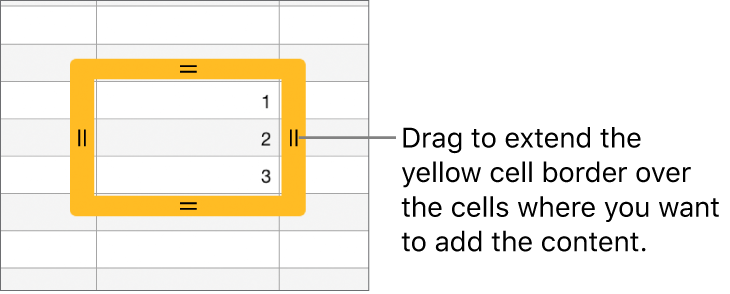
Any data, cell format, formula, cell border, or fill associated with the selected cells is added, but comments aren’t. Autofilling overwrites existing data.
Autofill cells with sequential content or patterns from adjacent cells: Type the first two items of the series in the first two body cells of the row or column you want to fill; for example, type A and B. Select the cells, tap
, tap Autofill Cells, then drag the yellow border over the cells you want to fill.You can also autofill cells using a pattern of values. For example, if two selected cells contain 1 and 4, the values 7 and 10 are added when you drag over the adjacent two cells (values are incremented by 3).
Autofilling doesn’t establish an ongoing relationship among cells in the group. After autofilling, you can change the cells independently of each other.
When you autofill cells, any formulas that refer to those cells are updated automatically to use the new value.