
Change the working view in Keynote on iPhone
You can view your slides in different ways to help you organize and edit your presentation:
Slide view: Displays a single slide for editing. This is the default view when you create a presentation from a theme. You can show or hide the slide navigator in this view.
Light table: Displays slide thumbnails as if on a light table. This view is useful for organizing your presentation because you can see more slides at once. It’s also the best view for editing multiple slides at the same time (for example, adding the same transition to every slide, skipping multiple slides, or duplicating more than one slide).
Outline: Displays a text outline of your slides with thumbnails of your slides in the slide navigator. This is the default view when you create a presentation outline. You can add and edit text, place images and videos, and change the format of slides in outline view. This is useful for creating a rough draft of a presentation, seeing the flow of text-rich presentations, or focusing on the structure of your presentation.
View slides in slide view
Go to the Keynote app
 on your iPhone.
Open a presentation.
Tap
 at the top of the screen, tap View Options, then tap Slide View (if Slide View is already selected, tap Done).
Do any of the following:
Show the slide navigator (if it’s not visible): Tap the slide navigator button (shown below) in the top-left corner of the slide canvas, or pinch closed on the slide.

Hide the slide navigator: Pinch open on the current slide (in the slide canvas on the right).
Select a slide to edit: Tap a slide thumbnail in the slide navigator.
Reorder slides: In the slide navigator, touch and hold a slide thumbnail until it appears to lift, then drag it up or down.
Group slides: In the slide navigator, touch and hold a slide thumbnail until it appears to lift, then drag to the right to indent the slide in relation to the slide above.
Show or hide presenter notes: To see your presenter notes, tap
at the top of the screen, tap View Options, then tap Show Presenter Notes. The presenter notes appear at the bottom of the screen.To hide the presenter notes, tap
, tap View Options, then tap Hide Presenter Notes.
View slides on the light table
Go to the Keynote app
on your iPhone.Open a presentation, tap
at the top of the screen, tap View Options, then tap Light Table (if Light Table is already selected, tap Done).Do any of the following:
Select slides: Tap a thumbnail. To select multiple slides, tap Select in the bottom-right corner of the screen, then tap thumbnails. Tap a thumbnail again to deselect it. Tap Done when you’re finished.
Reorder slides: Drag a thumbnail to a new location.
Quickly add, skip and unskip, duplicate, or delete slides: Select one or more slides, then tap a button at the bottom of the screen.

Change the size of the thumbnails: Pinch open to enlarge thumbnails, or pinch closed to shrink them.
Show or hide presenter notes: To see your presenter notes, tap
at the top of the screen, tap View Options, tap Show Presenter Notes, then tap Done. The presenter notes appear at the bottom of the screen.To hide the presenter notes, tap
, tap View Options, then tap Hide Presenter Notes.Show or hide skipped slides: Tap
at the top of the screen, tap View Options, then tap Hide Skipped Slides or Show Skipped Slides.Return to slide view: Double-tap a slide.
View slides as text outlines
Go to the Keynote app
on your iPhone.Open a presentation, tap
at the top of the screen, tap View Options, then select Outline.If Outline is already selected, tap Done.
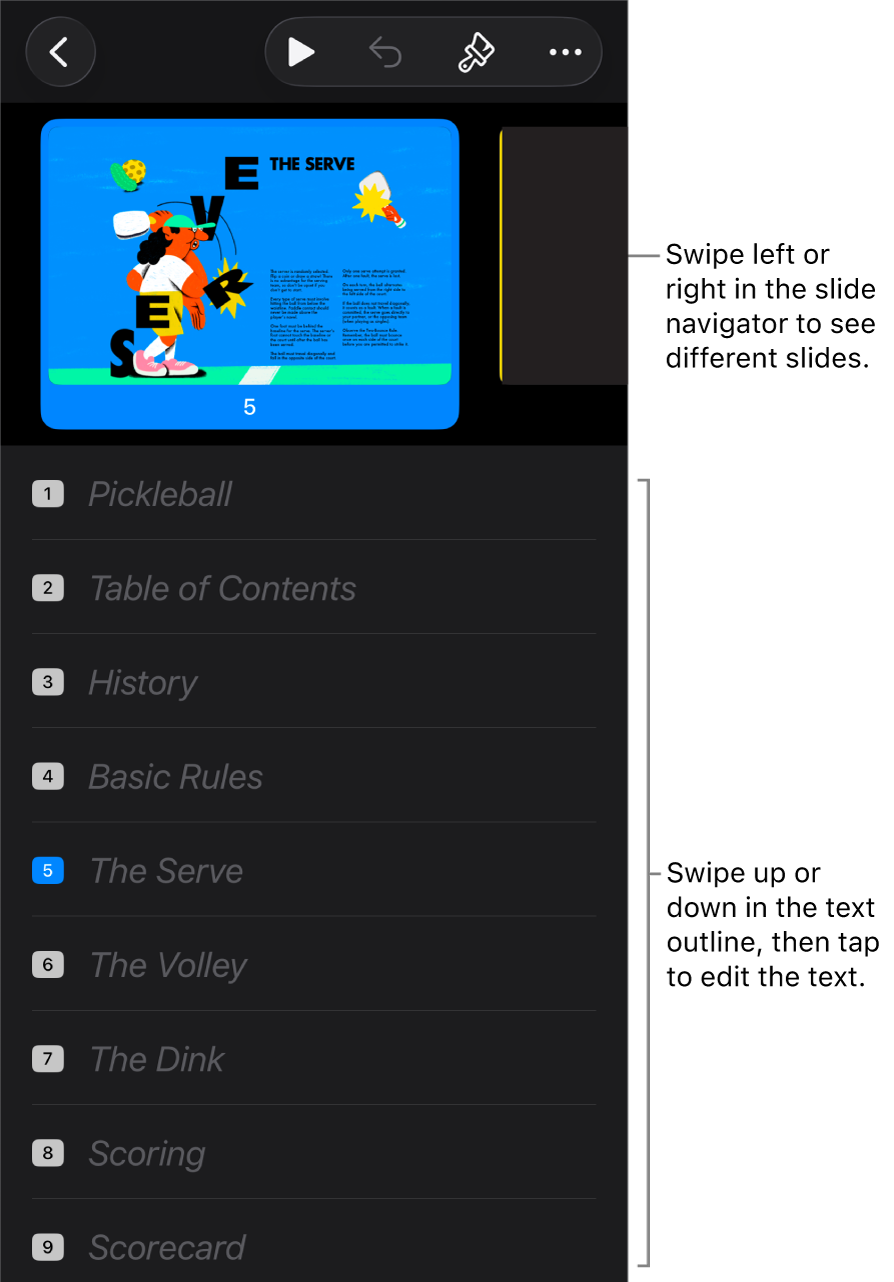
Do any of the following:
Navigate between slides: Swipe on the slide navigator to view a different slide.
Add a slide: Tap a row in the text outline, then tap
 . A new slide is added after the slide you selected.
To quickly add a slide while typing in the last row of a slide, tap Return twice.
Delete a slide: Tap the top row of the slide you want to delete, tap
 , then tap Delete.
Apply a different slide layout: Select the slide you want to edit, tap
 , then pick a layout from the menu. Tap
  to close the slide layout menu.
Reorder slides: In the text outline, tap the top row of the slide you want to move, touch and hold
until the slide appears to lift up, then drag it to a new location.Skip or unskip a slide: Tap the top row of the slide in the text outline, tap
, then tap Skip Slide or Unskip Slide.Add text to a slide: Tap a row to place the insertion point in the text outline, then type.
Delete a row of text: Tap the row of text you want to delete, tap
, then tap Delete.To delete multiple rows of text, tap a row of text, tap
, drag the white selection handles to select all the text you want to delete, then tap Delete.Move text: Tap the text you want to move, touch and hold
until the text appears to lift up, then drag it to a new location.To move multiple lines of text, tap a line of text you want to move, tap
, then drag the white selection handles to select the text you want to move. Touch and hold until the text appears to lift up, then drag it to a new location.Add a photo or video to a slide with a media placeholder: If the slide has only one placeholder, tap
 .
.If the slide has multiple media placeholders, tap
 and select the placeholder you want to use. Navigate to the image or video, then tap it to add it to the slide.
Return to slide view: Double-tap a thumbnail to view and edit it in slide view.