
Place objects inside a text box or shape in Keynote on iPhone
You can place images, image galleries, videos, shapes, and equations inside a text box or shape. The inner (nested) object is automatically placed inline with any text in the outer text box or shape (parent object), so that it sits with and moves with the text as you type.
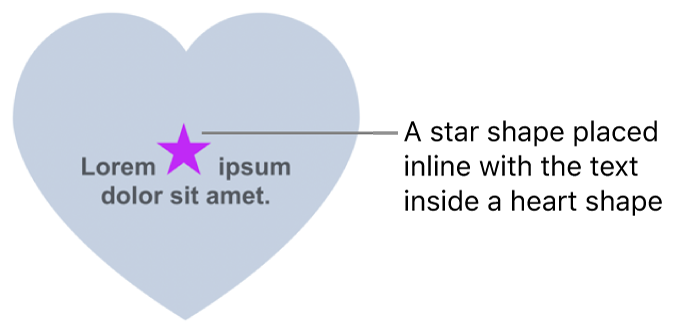
Place objects inline with text in a text box or shape
Go to the Keynote app
 on your iPhone.
Open a presentation.
If you haven’t already added a text box or shape to your slide, or haven’t added the object you want to paste inside it, tap
 in the toolbar, tap
  , then tap to add the object you want to work with.
Select the object you want to nest inside a text box or shape, then tap Cut.
If the object is on the slide, tap to select it; if it’s inline with text, double-tap to select it.
Double-tap the text box or shape where you want to paste the object so the insertion point appears inside it, tap it again, then tap Paste.
The pasted object is nested inside the parent object. If you see a clipping indicator
 at the bottom of the object, you need to resize it to see all of its contents.
To add text after the nested object, double-tap inside the parent object, tap again so you see the insertion point, then type.
If you accidentally select the nested object (three selection handles appear), tap outside it to move the insertion point into the parent object.
Tip: If the nested object is a shape, you can place an image, shape, or equation inside it. Double-tap to see the insertion point in the nested shape, then type or paste the new text or object inside it.
Move an inline object to the slide
You can move an inline object to the slide so that it’s no longer nested inside another object.
Go to the Keynote app
on your iPhone.Open the presentation with the inline object you want to work with.
Double-tap the inline object to select it.
Tap
 , then tap Arrange.
Tap Move to Slide.