Apple Watch User Guide
- Welcome
- What’s new
- Run with Apple Watch
-
- Alarms
- Audiobooks
- Blood Oxygen
- Calculator
- Calendar
- Camera Remote
- ECG
- Medications
- Memoji
- Music Recognition
- News
- Now Playing
- Remote
- Shortcuts
- Siren
- Stocks
- Stopwatch
- Tides
- Timers
- Use the Tips app
- Translate
- Vitals
- Voice Memos
- Walkie-Talkie
- World Clock
- Copyright and trademarks
Use Now Playing on Apple Watch
With the Now Playing app, you can control media playback on your Apple Watch, iPhone, and other devices.
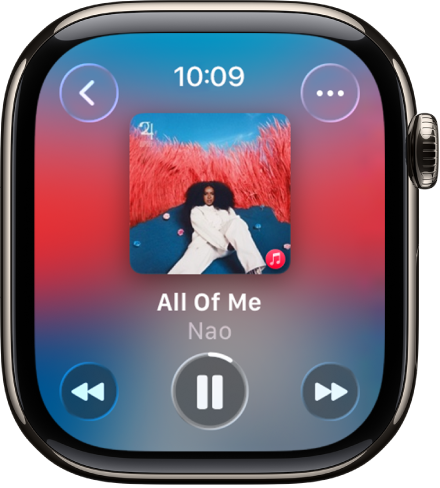
Open Now Playing
Do any of the following:
Go to the Now Playing app
 on your Apple Watch.
Tap the Now Playing complication if you’ve added it to the watch face.
When media is playing, tap the Now Playing widget in the Smart Stack.
Now Playing launches automatically when you’re near a HomePod that’s playing audio, allowing you to control playback on it.
Control media on your iPhone
Start playing media—such as a song, podcast, or movie—on your iPhone.
Go to the Now Playing app
on your Apple Watch.Do any of the following:
Control playback: Tap the play, pause, backward, and forward buttons.
Adjust the volume: Turn the Digital Crown.
Control media on a different device
Go to the Now Playing app
on your Apple Watch.If more than one device is playing media—for example, a HomePod or iPad—the device’s icon appears in the top-right corner.
Tap
 , tap the device you want to control, then use the media controls.
Switch to or add another AirPlay device
While controlling audio on an AirPlay device such as HomePod, you can switch to or add additional AirPlay devices. For example, if you’re listening to HomePod mini in your living room, you can add the HomePod speakers in the kitchen and bedroom.
Go to the Now Playing app
on your Apple Watch.On the Now Playing screen, tap
 .
.Tap AirPlay, then add devices by tapping them.
To stop playback on any device, tap it.
See music and podcast suggestions when near your HomePod
When you’re near a HomePod and nothing is playing on it or on your Apple Watch, suggestions from the Music and Podcast apps appear in a widget at the top of the Smart Stack. To display those suggestions, turn the Digital Crown to scroll up. Tap a suggestion to play it on HomePod.
Note: Music and podcast suggestions are available on Apple Watch and HomePod models with Ultra Wideband.