Final Cut Pro User Guide for Mac
- Welcome
- What’s new
-
- Intro to importing media
- If it’s your first import
- Organize files during import
-
- Import from Image Playground
- Import from iMovie for macOS
- Import from iMovie for iOS or iPadOS
- Import from Final Cut Pro for iPad
- Import from Final Cut Camera
- Import from Photos
- Import from Music
- Import from Apple TV
- Import from Motion
- Import from GarageBand and Logic Pro
- Import using workflow extensions
- Record into Final Cut Pro
- Memory cards and cables
- Supported media formats
-
- Intro to effects
-
- Intro to transitions
- How transitions are created
- Add transitions and fades
- Quickly add a transition with a keyboard shortcut
- Set the default duration for transitions
- Delete transitions
- Adjust transitions in the timeline
- Adjust transitions in the inspector and viewer
- Merge jump cuts with the Flow transition
- Adjust transitions with multiple images
- Modify transitions in Motion
- Add adjustment clips
-
- Add storylines
- Use the precision editor
- Conform frame sizes and rates
- Use XML to transfer projects
-
- Intro to sharing projects
- Share to Apple devices
- Share on the web
- Send a video frame to Pixelmator Pro
- Share in email
- Share stereo or spatial video
- Batch sharing
- Share using Compressor
- Create share destinations
- Change metadata for shared items
- View the status of shared items
- Speed up exports with simultaneous processing
- Glossary
- Copyright and trademarks
Arrange the main window in Final Cut Pro for Mac
The main areas of the Final Cut Pro window include the browser, viewer, timeline, sidebar, and inspector. You can show, hide, and resize these areas to suit both your working style and the task at hand, even across multiple displays.
Final Cut Pro also comes with a set of predefined workspace layouts, and you can create and save your own custom workspace layouts. See Change the workspace layout.

Resize areas of the Final Cut Pro window
Drag the border between two areas of the Final Cut Pro window.
As you drag, one area gets larger, and the other gets smaller.
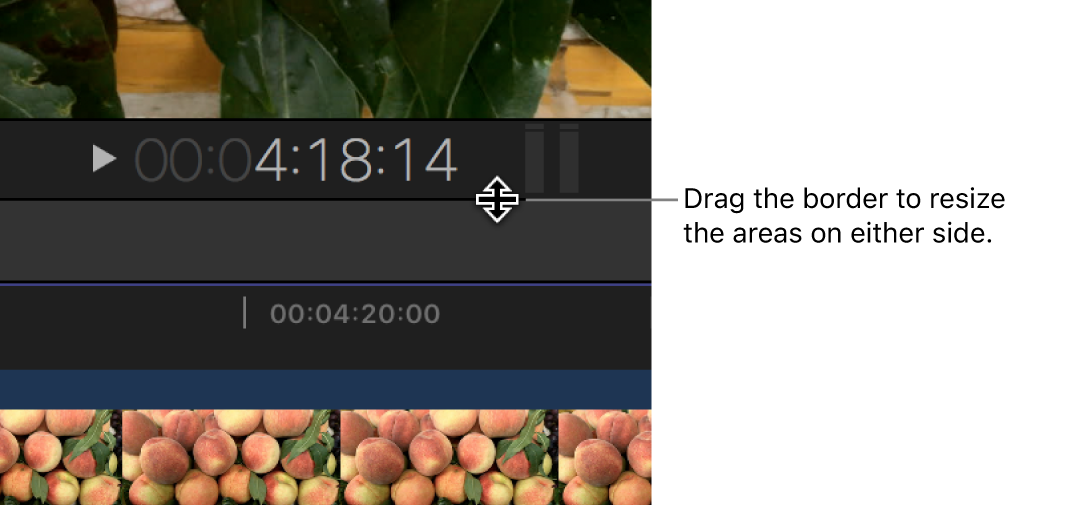
When both the browser and viewer are shown, the bottom of the browser and viewer acts as a single border—resizing one resizes the other as well.
Show or hide the browser, the timeline, or the inspector
In Final Cut Pro, do any of the following:
Show or hide the browser: Click the Browser button in the toolbar (or press Control-Command-1).

The image below shows the Final Cut Pro window with the browser hidden and just the viewer and the timeline showing:

Show or hide the timeline: Click the Timeline button in the toolbar (or press Control-Command-2).

Note: You can’t hide both the browser and the timeline at the same time.
Show or hide the inspector: Click the Inspector button in the toolbar (or press Command-4).

Tip: To switch the inspector between full-height view and half-height view, double-click the top bar of the inspector. You can also choose View > Toggle Inspector Height (or press Control-Command-4).
Show or hide the sidebar
The sidebar appears to the left of the browser and contains three panes for selecting different types of media: the Libraries sidebar, the Photos, Videos, and Audio sidebar, and the Titles and Generators sidebar. When you select an item in the sidebar (such as an event containing clips, or a category of sound effects or 3D titles), the item’s contents are displayed in the browser. You can show or hide any of the sidebars.

In Final Cut Pro, do any of the following:
Show the Libraries sidebar: Click the Libraries button in the top-left corner of the Final Cut Pro window, or choose Window > Go To > Libraries (or press Command-1).
Show the Photos, Videos, and Audio sidebar: Click the Photos, Videos, and Audio button in the top-left corner, or choose Window > Go To > Photos, Videos, and Audio (or press Shift-Command-1).
Show the Titles and Generators sidebar: Click the Titles and Generators button in the top-left corner, or choose Window > Go To > Titles and Generators (or press Option-Command-1).
Show or hide the sidebar: Choose Window > Show in Workspace > Sidebar, or press Command-Grave Accent (`). You can also hide the sidebar by clicking the button for the sidebar that’s currently shown (the button is highlighted).
Download this guide: PDF