Final Cut Pro User Guide for Mac
- Welcome
- What’s new
-
- Intro to importing media
- If it’s your first import
- Organize files during import
-
- Import from Image Playground
- Import from iMovie for macOS
- Import from iMovie for iOS or iPadOS
- Import from Final Cut Pro for iPad
- Import from Final Cut Camera
- Import from Photos
- Import from Music
- Import from Apple TV
- Import from Motion
- Import from GarageBand and Logic Pro
- Import using workflow extensions
- Record into Final Cut Pro
- Memory cards and cables
- Supported media formats
-
- Intro to effects
-
- Intro to transitions
- How transitions are created
- Add transitions and fades
- Quickly add a transition with a keyboard shortcut
- Set the default duration for transitions
- Delete transitions
- Adjust transitions in the timeline
- Adjust transitions in the inspector and viewer
- Merge jump cuts with the Flow transition
- Adjust transitions with multiple images
- Modify transitions in Motion
- Add adjustment clips
-
- Add storylines
- Use the precision editor
- Conform frame sizes and rates
- Use XML to transfer projects
-
- Intro to sharing projects
- Share to Apple devices
- Share on the web
- Send a video frame to Pixelmator Pro
- Share in email
- Share stereo or spatial video
- Batch sharing
- Share using Compressor
- Create share destinations
- Change metadata for shared items
- View the status of shared items
- Speed up exports with simultaneous processing
- Glossary
- Copyright and trademarks
Save audio effects presets in Final Cut Pro for Mac
You can save any combination of audio effects and audio effect parameter settings as an audio effects preset, which appears in the Effects browser and functions like any other audio effect. You can create an effects preset from any combination of built-in effects and clip effects. After you create an effects preset, you can share it with friends and colleagues so that the same preset (with its specific combination of effects and parameter settings) is available in their Effects browser.
Save an audio effects preset
Apply any combination of built-in effects and clip effects to an audio clip (or a video clip with audio) in the Final Cut Pro timeline, then make any adjustments to the effects.
See Add audio effects and Adjust audio effects.
Select the clip in the timeline.
Do one of the following:
Choose File > Save Audio Effects Preset.
Open the Audio inspector and click Save Effects Preset at the bottom of the inspector.
The Save Audio Effects Preset window appears, with any applied or adjusted effects selected in the Attributes list.
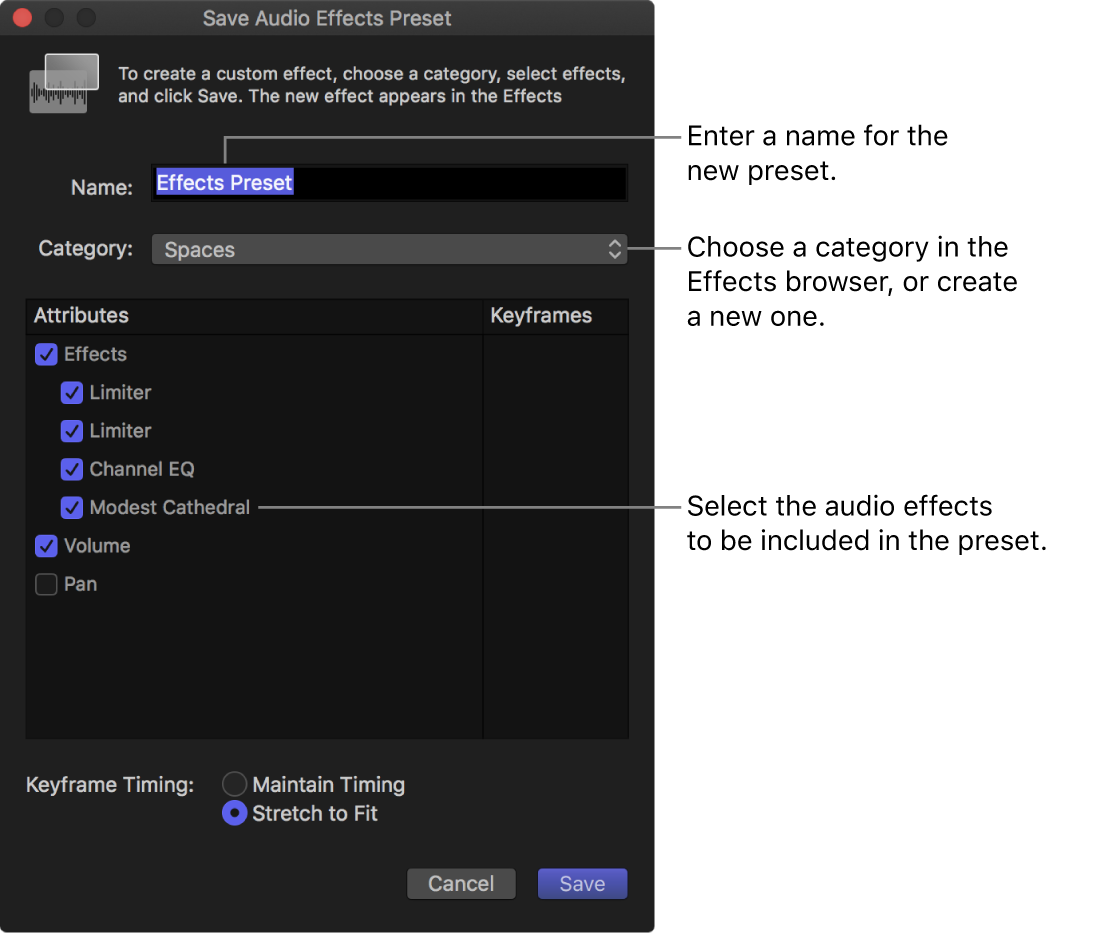
Enter a name for the new preset in the Name field.
Click the Category pop-up menu and choose an Effects browser category in which to store the new preset.
In the Attributes list, select the audio effects you want to include in the preset.
If you made any keyframe adjustments to the source clip, select either Maintain or Stretch to Fit in the Keyframe Timing section. If you select Stretch to Fit, Final Cut Pro adjusts the keyframes in time to match the duration of any clip to which you apply the preset.
Click Save.
The new audio effects preset appears in the Effects browser category you chose. To apply the preset to a clip, see Add audio effects.
Share an audio effects preset
In the Final Cut Pro Effects browser, Control-click the effects preset you want to share, then choose Reveal in Finder.
In the Finder, select the effects preset file and choose File > Compress.
Note: Compressing the file prevents any change to the preset during transit.
Transfer the resulting .zip file to your friend or colleague using email or another convenient method.
On the receiving Mac, double-click the .zip file to decompress it.
In the Finder, hold down the Option key and choose Go > Library.
Drag the effects preset file to the following location in the Library folder:
/Users/username/Library/Application Support/ProApps/Effects Presets/
If Final Cut Pro is open, quit and reopen it.
The transferred audio effects preset appears in the Effects browser, in the same category as on the original Mac.
Download this guide: PDF