Control your home with Apple Watch
The Home app provides a secure way to control HomeKit and Matter-enabled accessories, such as lights, locks, smart TVs, thermostats, window shades, and smart plugs. You can also send and receive Intercom messages on supported devices and view the video streams of HomeKit Secure Video cameras.
The first time you open the Home app on your iPhone, the setup assistant helps you create a home. Then you can define rooms, add compatible accessories, and create scenes. Accessories, scenes, and rooms that you add on your iPhone are available on your Apple Watch. See Set up accessories with Home in the iPhone User Guide for information about setting up the Home app on your iPhone.
View your home status
Go to the Home app
 on your Apple Watch.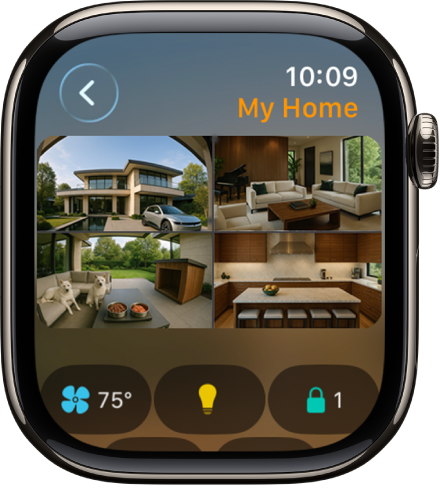
Scroll to see the following:
Cameras: Video from up to four cameras appears near the top of the display. Tap a camera to see its video stream.
Categories: Tap a category such as Climate, Lights, Security, Speakers and TV, or Energy to show related information on one screen, organized by room. A number appearing next to a category indicates an accessory that could use your attention—for example, the temperature registered by your thermostat or an unlocked front door. Just tap a button to control the accessory or learn more.
Tip: You can quickly control all the lights and speakers in your home. For example, if multiple lights are on, tap the Lights category, then tap All Lights Off. In the Speakers category, tap Pause All to pause any speakers that are playing.
Relevant accessories: The relevant scenes and accessories for that moment appear near the top of the screen. For example, a coffee maker may appear in the morning and be replaced by your bedside lamp at night.
Control smart home accessories and scenes
Siri: Ask Siri something like, “Turn on the lights” or “Set my reading scene.” See Control your Apple Watch and smart home accessories with Siri.
Or without using Siri:
Go to the Home app
on your Apple Watch.Do any of the following:
Turn an accessory on or off: Tap the accessory—a light, for example—or, if you want to unlock a compatible lock, a home key.
Adjust an accessory’s settings: Tap
 for an accessory.
The available controls depend on the type of accessory. For example, with some lightbulbs, there are controls for both brightness and changing colors. Swipe left to see additional controls.
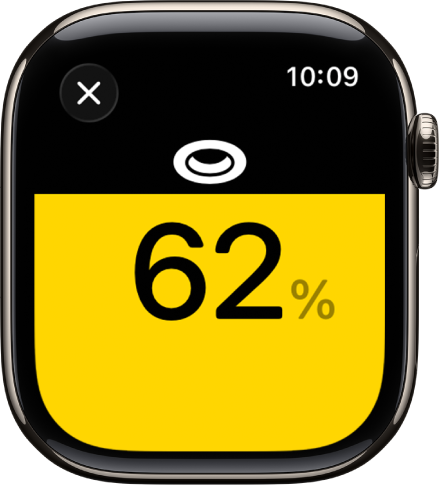
Tap
 to return to the list of accessories.
Control favorite accessories, scenes, or accessories in a room: Tap
 , tap Favorites, Scenes, or a room, then tap a scene or an accessory, or tap to adjust the accessory’s settings.
View a camera’s video stream: Tap a camera. If you have more than four cameras, tap the + button to see them all.
You can also tap a room with a camera in it, then tap the camera.
Run a scene: Tap
, tap Scenes, then tap a scene.
View a different home
If you have more than one home set up, you can choose which one to view on your Apple Watch.
Go to the Home app
on your Apple Watch.Tap
twice, then tap a home.