Numbers User Guide for iPhone
- Welcome
- What’s new
-
- Get started with Numbers
- Intro to images, charts and other objects
- Create a spreadsheet
- Open spreadsheets
- Prevent accidental editing
- Personalise templates
- Use sheets
- Undo or redo changes
- Save your spreadsheet
- Find a spreadsheet
- Delete a spreadsheet
- Print a spreadsheet
- Change the sheet background
- Copy text and objects between apps
- Touchscreen basics
- Change Numbers privacy and analytics settings
- Copyright

Use sheets in Numbers on iPhone
You can add multiple sheets (or tabs) to a spreadsheet to help you better organise your tables, charts, and other information. For example, you could separate your party planning into sheets for the budget, seating chart, vendor information and task list. You can also add colours to tabs to visually distinguish between sheets, or hide sheets you don't need straightaway.
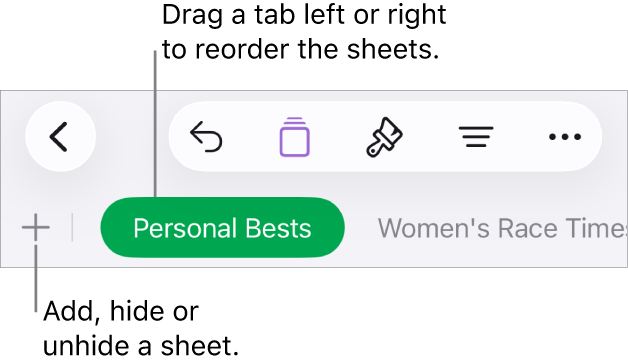
Organise sheets
Do any of the following:
Go to the Numbers app
 on your iPhone.
Open a spreadsheet, then do any of the following:
Rename a sheet: Double-tap the name of the sheet so the insertion point appears, then type a new name.
Duplicate a sheet: Tap the tab you’re currently viewing, then tap Duplicate.
Reorder sheets: Drag a tab left or right to reorganise sheets.
Add a colour to a tab: Tap an empty area on the sheet, tap
 in the toolbar, tap Tab Colour, then choose a colour.
Hide a sheet: Tap the tab you're currently viewing, then tap Hide.
Show a hidden sheet: Tap the tab you're currently viewing, tap Unhide, then choose Unhide All Sheets or the sheet you want to show.
Delete a sheet: Tap the tab you're currently viewing, then tap Delete.
Note: When you share a spreadsheet that contains hidden sheets, the people you share it with can still access those sheets.
If your spreadsheet includes bidirectional text (text written in both left-to-right and right-to-left languages), you can also reverse the direction of your sheets. See Format tables for bidirectional text.