
Use the Touch Bar on Mac
If your Mac has a Touch Bar, you can use familiar gestures—like tap, swipe, or slide—directly on the Touch Bar to adjust settings, use Siri, access function keys, and do tasks in different apps.
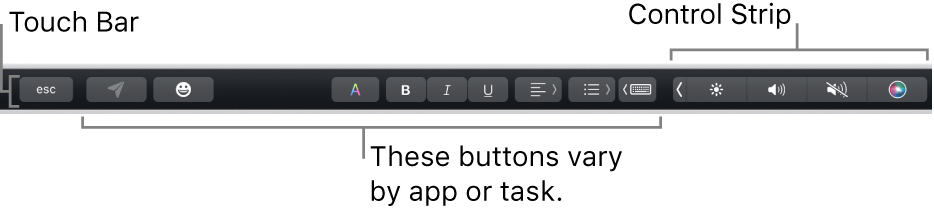
Control Strip
The Control Strip, located at the right end of the Touch Bar, lets you use Siri or easily adjust common settings—just tap the buttons or, for settings like brightness and volume, quickly swipe left or right on the buttons. You can also expand the Control Strip to access more buttons.
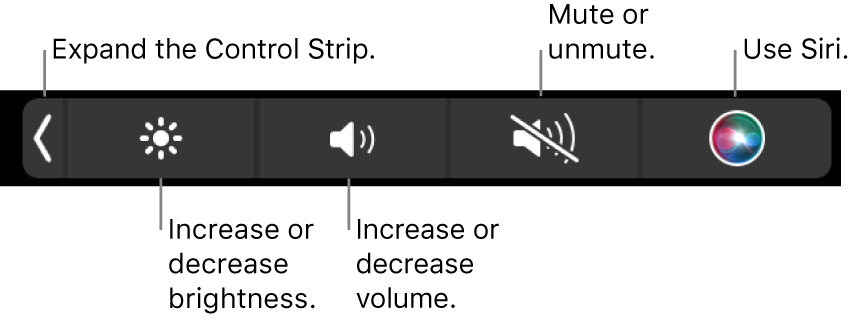
Expand the Control Strip: Tap
 .
.Depending on your Mac model and how you customize the Touch Bar, you can also press and hold the Fn key or the Globe key
 on the keyboard to expand the Control Strip.
Use Control Strip buttons: Tap the buttons to adjust settings or control video or music playback. For some settings—such as display brightness—you can touch and hold the button to change the setting.
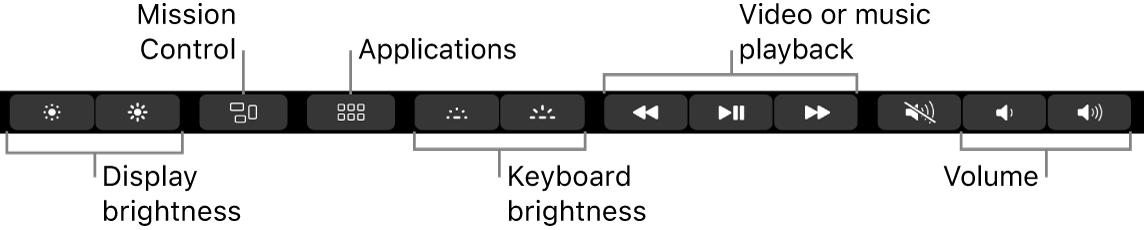
Collapse the Control Strip: Tap
 .
.
App buttons
Other buttons in the Touch Bar vary depending on the app you’re using or the task you’re doing. Each app is different—try out the Touch Bar to learn what you can do.
For example, here are the buttons available to tap in the Touch Bar when you select a file in the Finder:

You can use the Touch Bar to quickly add emoji to your text in some apps. Just tap  , swipe to scroll through the emoji (organized by category, such as Frequently Used or Smileys & People), then tap the one you want to use.
Tip: In some apps, you can customize the Touch Bar to add buttons for the tasks you do most often.
Typing suggestions
When you’re typing text on your Mac, the Touch Bar can show words or phrases you might want to use next (called typing suggestions), to help you save time.
Show typing suggestions: Tap
 .
.
Use typing suggestions: Tap a word, phrase, or emoji. Spelling corrections are shown in blue.

Hide typing suggestions: Tap
 in the Touch Bar.
If isn’t shown in the Touch Bar, choose View > Customize Touch Bar, then select “Show typing suggestions.” Or choose Apple menu  in the sidebar (you may need to scroll down), click Touch Bar Settings, then turn on “Show typing suggestions.”
Colors
In apps where you can change the color of text or objects, you can use the Touch Bar to select a color, shade, or mode (such as RGB or HSB).

Select a color: Touch and hold
 , then slide your finger to a color.
Select a shade: Tap
, touch and hold a color, then slide your finger to a shade.Select a mode or custom color: Tap
, tap the color list on the left, then tap a color mode, such as RGB. To use a custom color you saved, tap Swatches.
Use the sliders for a mode to change values, such as hue or saturation. To save your changes to Swatches, tap the color (a + appears), then tap it again (a checkmark appears).
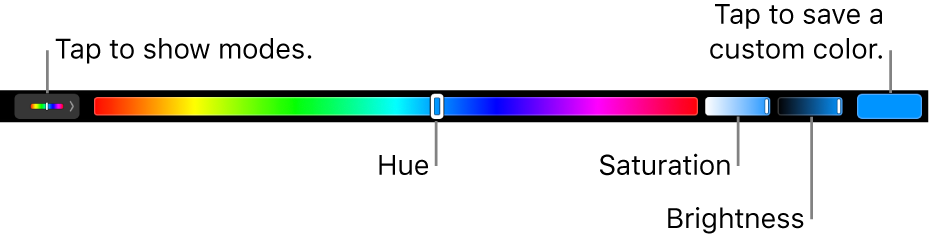
Hide colors or the color values: Tap
in the Touch Bar.
Function keys
Many macOS keyboard shortcuts use function keys (F1 through F12)—for example, F11 shows the desktop. On a Mac with a Touch Bar, the function keys are buttons in the Touch Bar instead of physical keyboard keys.
To show the function keys in the Touch Bar, press and hold the Fn key or the Globe key
(depending on your Mac model) on the keyboard.Make sure to customize the Touch Bar in Keyboard settings so the function keys are shown when you press and hold the key.

Tap a function key in the Touch Bar.
If a keyboard shortcut includes a modifier key, such as Option or Command, press and hold the Fn key or the Globe key
with the modifier key. For example, to use Fn-Control-F3 to move to the Dock, press and hold the Fn key or the Globe key and the Control key together, then tap F3 in the Touch Bar.
See the Apple Support article Use the function keys on MacBook Pro with Touch Bar.