
Use Apple Intelligence on your Mac
With macOS Tahoe, Apple Intelligence* is integrated across your apps and experiences to help you communicate, express yourself, and get things done more easily. It delivers intelligence that’s useful and relevant to you, all while protecting your privacy.
Note: Apple Intelligence is not available on all Mac models or in all languages or regions.** To access the most recent available features, make sure you’re using the latest version of macOS.
Turn on Apple Intelligence
If Apple Intelligence is off, you can turn it on to access the latest features that it powers across macOS Tahoe. Go to the System Settings app  , click Apple Intelligence & Siri , then do one of the following:
Click the button next to Apple Intelligence.
Click Turn on Apple Intelligence.
The option you see is based on the version of macOS you have and if you’ve previously set up Apple Intelligence.

Communicate across languages
With Live Translation, you can automatically translate messages in the Messages app, display live translated captions in FaceTime, and get spoken translations for calls in the Phone app.

Create one-of-a-kind images and emoji
Produce fun, original images in moments with Image Playground, or make custom emoji from simple text descriptions with Genmoji.
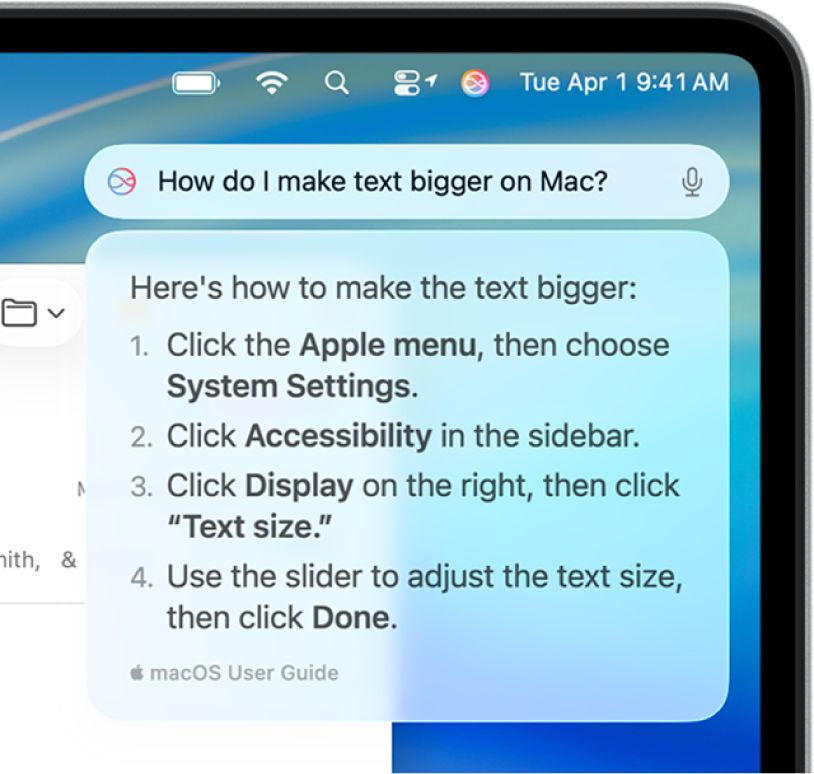
Do more with Siri
Type requests to Siri, get answers to questions about your Apple products, and more.
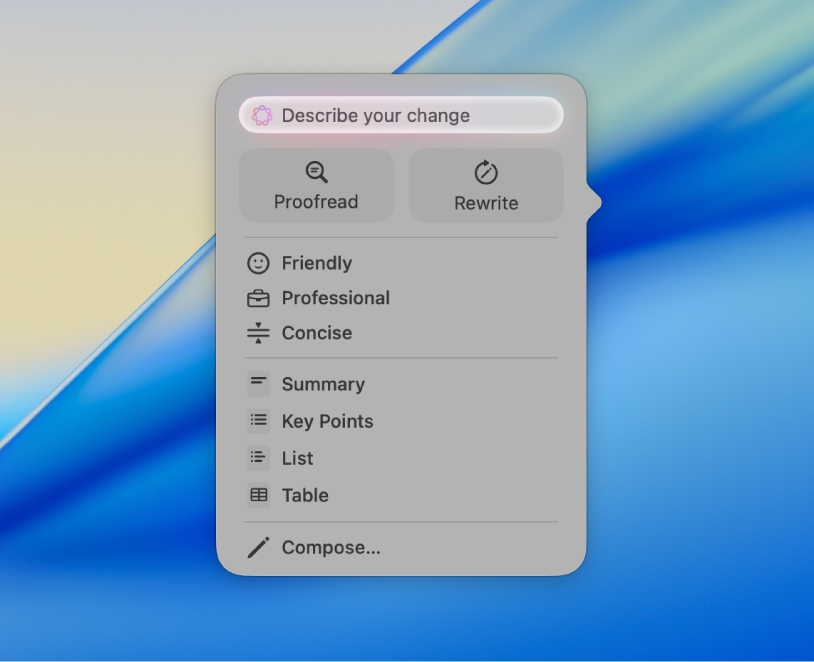
Find the perfect words
Transform how you communicate using Writing Tools that can summarize text, proofread your work, and help you find the right wording and tone.
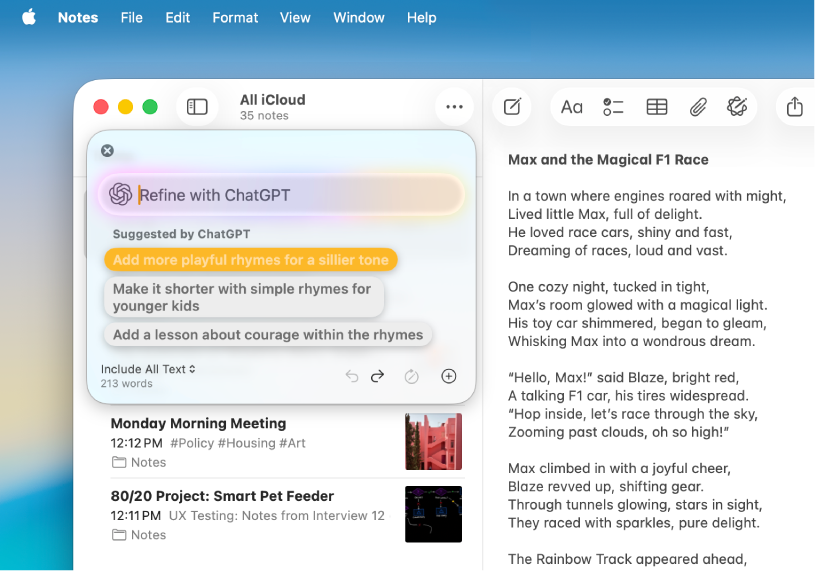
Tap into ChatGPT
Access ChatGPT within Apple Intelligence experiences, and tap into even more expertise when you use Siri, Writing Tools, Image Playground, and more.
Use Apple Intelligence with apps
 View your most urgent emails, craft quick email responses with Smart Reply, and summarize long emails. |  Messages See summaries of unread conversations, send original images and customize backgrounds with Image Playground, craft fast responses with Smart Reply, and more. |
 Notes After you record audio, use Apple Intelligence to generate a summary of the transcript. |  Phone Generate a summary of a phone call you record, and view voicemail summaries. |
 Photos Find photos with natural-language search, create memory movies, and remove distracting objects with Clean Up. |  Reminders Use Apple Intelligence to get suggested reminders, and automatically categorize related reminders into sections within a list. |
 Safari Use Apple Intelligence to generate a summary of a webpage in the Safari app. |  Shortcuts Intelligent actions in Shortcuts can summarize text, create images, and tap directly into Apple Intelligence models. |
 And more… Check the Apple Intelligence website for more information about features, supported devices, and languages. |
Turn off Apple Intelligence
Go to the System Settings app , click Apple Intelligence & Siri , then click the button next to Apple Intelligence.