Final Cut Pro User Guide for Mac
- Welcome
- What’s new
-
- Intro to importing media
- If it’s your first import
- Organize files during import
-
- Import from Image Playground
- Import from iMovie for macOS
- Import from iMovie for iOS or iPadOS
- Import from Final Cut Pro for iPad
- Import from Final Cut Camera
- Import from Photos
- Import from Music
- Import from Apple TV
- Import from Motion
- Import from GarageBand and Logic Pro
- Import using workflow extensions
- Record into Final Cut Pro
- Memory cards and cables
- Supported media formats
-
- Intro to effects
-
- Intro to transitions
- How transitions are created
- Add transitions and fades
- Quickly add a transition with a keyboard shortcut
- Set the default duration for transitions
- Delete transitions
- Adjust transitions in the timeline
- Adjust transitions in the inspector and viewer
- Merge jump cuts with the Flow transition
- Adjust transitions with multiple images
- Modify transitions in Motion
- Add adjustment clips
-
- Add storylines
- Use the precision editor
- Conform frame sizes and rates
- Use XML to transfer projects
-
- Intro to sharing projects
- Share to Apple devices
- Share on the web
- Send a video frame to Pixelmator Pro
- Share in email
- Share stereo or spatial video
- Batch sharing
- Share using Compressor
- Create share destinations
- Change metadata for shared items
- View the status of shared items
- Speed up exports with simultaneous processing
- Glossary
- Copyright and trademarks
Add 360° video effects in Final Cut Pro for Mac
Final Cut Pro includes special 360° versions of some standard effects (such as blur, glow, and sharpen effects). You can apply these effects to 360° clips without creating seams, unwanted distortions, or other artifacts.
Select a 360° clip in the Final Cut Pro timeline, then click the Effects button in the top-right corner of the timeline (or press Command-5).
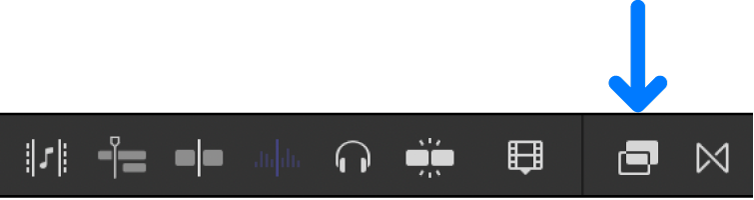
In the Effects browser, select the 360° category below Video, then double-click an effect to apply it to the selected clip.
You can also apply an effect by dragging it directly to a clip in the timeline.
For more information about adding clip effects, see Intro to clip effects.
You can use the 360° Patch effect to cover up unwanted imagery (such as a camera or tripod) in a 360° scene. See Add the 360° Patch effect.
Download this guide: PDF