
- Grid Methods and Properties
- grid.addRow()
- grid.clear()
- grid.deleteRow()
- grid.disableDelete()
- grid.disableValidation()
- grid.enableDelete()
- grid.enableValidation()
- grid.getControl()
- grid.getNumberRows()
- grid.getSummary()
- grid.getText()
- grid.getValue()
- grid.hideColumn()
- grid.onAddRow()
- grid.onDeleteRow()
- grid.onShowRowDialog()
- grid.setText()
- grid.setTextAsync()
- grid.setValue()
- grid.setValueAsync()
- grid.showColumn()
- Known Issues - grid.addRow() and grid.setValue()
Grid Methods and Properties
The following methods and properties are available in grid objects. Most methods are available in both the jQuery grid object and Backbone grid object.
grid.addRow()
The grid.addRow() method appends a row to the end of a grid. It can either be a blank row:
or it can include data to be inserted into the new row. The data is an array of objects that contains a value. The value in the first object will be inserted in the first control in the new row, the value in the second object will be inserted in second control, etc. It is not necessary to include values for all the controls in the new row.
Examples:
To insert data in the new row:
var aData = [
{value: "Sarah Means"}, //textbox
{value: "1" }, //checkbox is "1" or "0"
{value: "2015-10-25" }, //datetime must have "YYYY-MM-DD" or "YYYY-MM-DD HH:MM:SS" format
{value: null } //file field can't be set
];
$("#clientsGrid").addRow(aData);
} );
grid.clear()
Available Version: As of ProcessMaker 3.3.0.
The grid.clear() deletes all rows in a grid. To correctly run this function, apply the function to grid controls in edit mode.
Warning: The function does not save changes to the app data. To save changes, the user needs to submit the form or save the data by other means.
Example:
grid.deleteRow()
The grid.deleteRow() deletes a row in a grid. The row number to be deleted can be specified and the counting of rows starts from the number 1. A grid must have at least one row, so the row will not be deleted if it is the only one in the grid. If the row number isn't included, then the last row in the grid will be deleted.
Examples:
//first delete all rows except for the first:
var rows = $("#clientsGrid").getNumberRows();
for (var i=1; i < rows; i++) {
$("#clientsGrid").deleteRow();
}
//clear all fields in the grid:
var aValues = $("#clientsGrid").getValue();
for (var i=1; i <= aValues[0].length; i++) {
$("#clientsGrid").setValue("", 1, i);
}
} );
grid.disableDelete()
Available Version: As of ProcessMaker 3.7.2
The grid.disableDelete() method deactivates the deletion option of all rows in a grid. The delete row option represents a trash icon. Using this method, the trash icon is disabled.
grid.disableValidation()
The grid.disableValidation() method deactivates the validation of a column of fields inside a grid when the form is submitted. Executing this method prevents a form from checking whether a column of fields in a grid has the required values, and prevents the form from checking whether the fields' values match its validate expression. Note that if the field is not required and does not have a validate expression, then this method has no effect.
Parameter:
colIndex: The index number of the column to hide, where the first control is located in column1, the second control in column2, etc.
Example:
Using the "clientsGrid" from above, the following code checks to see whether the value of the "amount" field is less than 500 when it is changed. If it is less than 500, then it disables the validation of the fourth column of the grid (which holds the "contractFile" field), so the user doesn't have to upload a contract file.
//if "amount" field is less than 500
if (newVal < 500)
$("#clientsGrid").disableValidation(4);
else // if >= 500
$("#clientsGrid").enableValidation(4);
});
grid.enableDelete()
Available Version: As of ProcessMaker 3.7.2
The grid.enableDelete() method activates the deletion option of all rows in a grid. The delete row option represents a trash icon. Using this method, the trash icon is disabled.
grid.enableValidation()
The grid.enableValidation() method activates the validation of a column of fields inside a grid when the form is submitted. This method turns on validation, so that the values in a column of fields will be checked if the grid field is marked as required and/or its values match its validate expression.
Parameter:
colIndex: The index number of the column of fields where validation will be enabled, where the first control is located in column1, the second control in column2, etc.
Note: This method cannot be used to make a field required or to add a validate expression to a field. The field must already be marked as required and/or must have a validate expression in its fixed properties. This method just reactivates the validation after the disableValidation() method has turned off the validation. If needing the validation of a grid column to be turned off by default, then execute grid.disableValidation() when the Dynaform initially loads and then execute grid.enableValidation() at some later point during an event. See the code below for an example.
Example:
Using the "clientsGrid" from above, the following code enables the validation of the second column of the grid (which holds the "clientName" field) if the "requireName" checkbox is marked. If unmarked, then it disables the second column.
$("#clientsGrid").disableValidation(2);
//turn on/off the validation if the "requireName" checkbox is marked:
$("#requireName").setOnchange(function(newVal, oldVal) {
//if "requireName" checkbox is marked.
if (newVal == '["1"]' || newVal == "1")
$("#clientsGrid").enableValidation(2);
else // if checkbox is unmarked
$("#clientsGrid").disableValidation(2);
});
grid.getControl()
The getControl() method returns the jQuery object for a table's cell.
Parameters:
row: The row number of the control in the grid, which starts counting from the number1.col: The column number of the control in the grid, which starts counting from the number1.
The getControl() method will return an empty array in the following cases:
- The grid name doesn't exist or the ID is incorrect.
- The row or column index doesn't exist.
- No parameters are set (row, column).
row: The row number of the control in the grid, which starts counting from the number1.col: The column number of the control in the grid, which starts counting from the number1.row: The row number of the control in the grid, which starts counting from the number1.col: The column number of the control in the grid, which starts counting from the number1.colIndex: The index number of the column to hide, where the first control is located in column1, the second control in column2, etc.aNewRow: An array of jQuery objects for each control in the new row that was added to the grid. The first control in the added row can be accessed asaNewRow[0], the second control asaNewRow[1], the third control asaNewRow[2], etc.oGrid: The Backbone object for the grid that includes the new row that has been added.rowIndex: The number of the new row, where the first row is1, the second row is2, etc.oGrid: The Backbone object for the current grid that has already had the row removed.aRow: The row that was deleted from the grid. It is an array that encloses an array of jQuery objects for each control in the row. The first control in the deleted row can be accessed asaRow[0][0], the second control asaRow[0][1], the third control asaRow[0][2], etc.rowIndex: The index number of the deleted row, where the first row is1, the second row is2, etc.row: An array of views corresponding to the controls in the grid. The order of the elements in the array is given by the order of the elements in the grid. The first control in the added row can be accessed asaNewRow[0], the second control asaNewRow[1], the third control asaNewRow[2], etc.grid: The grid object.rowIndex: When adding items, this value is the number index of the new row that is about to be created. When editing items, this value will be the row index of the element edited.rowModel: The grid row model. This parameter is null for new rows because these rows do not exist in the grid yet."text": The text to be set, which depends on the type of control.row: The row number of the control in the grid, which starts counting from the number1.col: The column number of the control in the grid, which starts counting from the number1."text": The text to be set, which depends on the type of control.row: The row number of the control in the grid, which starts counting from the number1.col: The column number of the control in the grid, which starts counting from the number1.function(){}: Anonymous funtion that executes other asynchonous helpers."value": The value to be set, which depends on the type of control. An empty string,"", can be used to clear a control's value.row: The row number of the control in the grid, which starts counting from the number1.col: The column number of the control in the grid, which starts counting from the number1."value": The value to be set, which depends on the type of control. An empty string,"", can be used to clear a control's value.row: The row number of the control in the grid, which starts counting from the number1.col: The column number of the control in the grid, which starts counting from the number1.function(){}: Anonymous funtion that executes other asynchonous helpers.colIndex: The index number of the column to show, where the first control is located in column1, the second control in column2, etc.- Both methods do not work with links.
- In Mobile, dropdown controls are displaying the stored value (key) for the selected option instead of related text. For example, if the user applies the following code
grid.addRow(['BO'])to a dropdown control that lists countries, the mobile grid shows BO instead of Bolivia.
Note: This function does not work with a Link, Multiple File Uploader control or with any control inside the grid set to View mode. This method also does not work with Mobile controls.
Example:
In a grid with the ID "productsGrid", this code example checks whether the datetime fields in the second column of the grid are empty when the Dynaform is submitted. If so, the border of the datetime field will be outlined in red and the form won't be submitted. If the fields are not empty, it will be outlined in green.
$("#780975341580e46f630efa7099844839").setOnSubmit(function() {
var numRows = $("#productsGrid").getNumberRows();
var count=0;
for (var i=1; i <= numRows; i++) {
if ($("#productsGrid").getText(i, 2) == "") {
$("#productsGrid").getControl(i, 2).css("border","red solid 1px");
count++;
}
else {
$("#productsGrid").getControl(i, 2).css("border","green solid 1px");
}
}
if (count > 0) {
return false; //return false to prevent submit
}
else {
return true;
}
});

grid.getNumberRows()
The getNumberRows() method returns the number of rows in a grid.
Take into consideration that grids in the ProcessMaker Web Edition are created with 1 empty row by default that can be deleted manually. This behavior is different in ProcessMaker Mobile where grids start with no elements.
Example:
The "products" grid contains the "price" and "taxRate" fields, which are the second and third fields, respectively. When the user clicks on the "checkGrid" button, the following code loops through the "products" grid and checks to see whether the total price of all the products is between $200 and $500.
var totalPrice = 0;
if ($("#products").getNumberRows()!== 0) {
for (var i = 1; i <= $("#products").getNumberRows(); i++) {
var price = $("#products").getValue(i, 2);
var taxRate = $("#products").getValue(i, 3);
totalPrice = Number(totalPrice) + (Number(price) + (price * taxRate));
}
if (totalPrice < 200 || totalPrice > 500) {
alert("The total price of the products is $" + totalPrice +
"\nIt must be between $200 and $500. \nPlease adjust the prices.");
}
}
else {
alert("There are no records.")
}
});
An alert message will be displayed if the total price is out of range or if the grid has no rows:

grid.getSummary()
The grid.getSummary() method returns the summary of a grid column that has been summed or averaged. The column can be specified by the ID of its grid control:
Alternatively, the column can be specified by the number of the column in the grid. Remember that columns start counting from the number 1.
Example:

This code obtains the summary where the total cost is calculated and checks to see whether it is less than $500 before submitting the Dynaform.
var totalCost = parseFloat($("#officeSupplies").getSummary("cost"));
if (totalCost > 500) {
alert("Please reduce the total cost of Office Supplies\nwhich is $" +
totalCost + " to less than $500.")
return false; //stop submit action
}
else {
return true; //allow submit action
}
} );
grid.getText()
The grid.getText() method returns a control's text inside a grid. See control.setText() for a description of text for each type of control.
Parameters:
Example:
"true" if marked or "false" if unmarked.
var numRows = $("#clientsGrid").getNumberRows();
for (var i=1; i <= numRows; i++) {
if ($("#clientsGrid").getText(i, 2) == "false") {
alert("Error: All clients must have a contract.")
return false; //return false to prevent submit
}
}
return true;
} );
grid.getValue()
The grid.getValue() method returns all the values inside a grid if no parameters are specified. It returns an array of arrays, where the outer array holds the rows in the grid and the inner arrays hold the values of the fields in each row.
Alternatively, grid.getValue() returns the value of a single control inside a grid, if the row and column number is specified.
Parameters:
Example:
The following grid with the ID "clientsGrid" has three rows with 4 fields in each row:
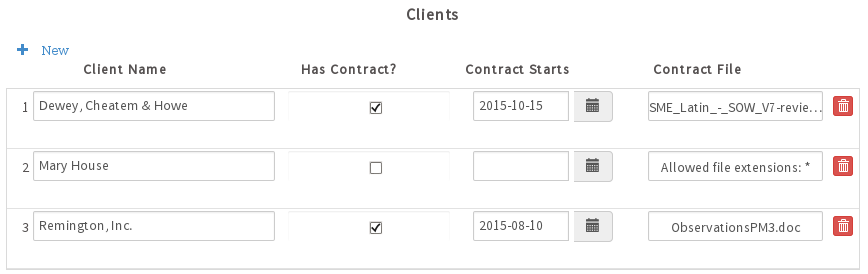
Calling $("#clientsGrid").getValue() returns:
["Dewey, Cheatem & Howe", "1", "2015-10-15 14:50:47", "SME_Latin_-_SOW_V7-reviewed.doc"],
["Mary House", "0", "", [] ],
["Remington, Inc.", "1", "2015-08-10 15:15:45", "ObservationsPM3.doc" ]
]
Note that empty File fields have their value set to [] (an empty array).
Calling $("#clientsGrid").getValue(1, 1) returns "Dewey, Cheatem & Howe", and calling $("#clientsGrid").getValue(3, 4) returns "ObservationsPM3.doc".
Example with getValue():
var aClients = $("#clientsGrid").getValue()
for (var i=0; i < aClients.length; i++) {
//if empty "Contract File" field
if (aClients[i][2] == []) {
alert("Please add a Contract Start Date in row " + (i+1) + ".");
return false; //return false to stop submit action
}
}
return true;
} );
Note that the counting in the aClients array starts from 0, so that aClients[1][2] is the field in the second row and the third column in the grid.
Example with getValue(row, col)
The following code does exactly the same thing as the previous example, but it uses the getValue(row, col) method to get the value of the "Contract File" field in each row.
var grd = $("#clientsGrid");
for (var i=1; i <= grd.getNumberRows(); i++) {
//if empty "Contract File" field
if (grd.getValue(i, 3) == []) {
alert("Please add a Contract File in row " + i + ".");
return false; //return false to stop submit action
}
}
return true;
} );
grid.hideColumn()
The grid.hideColumn() method hides a column in a grid.
Parameter:
Example:
Using the "clientsGrid" from above, the following code shows the fourth column of the grid (which holds the "contractFile" field) if the "uploadContracts" checkbox is marked. If unmarked, then it hides the fourth column.
//if "uploadContracts" checkbox is marked in all versions of PM 3
if (newVal == "1" || newVal == '"1"' || newVal == '["1"]') {
$("#clientsGrid").showColumn(4);
}
else { // if checkbox is unmarked
$("#clientsGrid").hideColumn(4);
}
});
grid.onAddRow()
Note: The grid.onAddRow() method has restrictions on how grid rows are created or edited in a different dialog in ProcessMaker Mobile. Therefore, it is strongly recommended to use the method grid.onShowRowDialog(row,grid,index,rowModel) if working with ProcessMaker Mobile.
grid.onAddRow() sets a custom event handler to be fired when a new row is added to a grid.
Parameters in the custom event handler function:
Example:
[2] in the array of controls in the new row. It also sets the background color of the entire row to orange to draw the user's attention.
//if an even row in the grid
if (rowIndex % 2 == 0) {
//mark the checkbox:
aNewRow[2].setValue("1");
//set the background color of the new row to orange:
aNewRow[2].el.parentNode.parentNode.style.backgroundColor = "orange";
}
});
Note that aNewRow[2] is the jQuery object for the checkbox, whereas aNewRow[2].el is the DOM object for the checkbox.
grid.onDeleteRow()
grid.onDeleteRow() sets a custom event handler to be fired when a row is deleted from a grid.
Parameters in the custom event handler function:
Example:
Using the "clientsGrid" from above, the following code adds an event handler function that is executed when a row is deleted from the grid. When a row is deleted, the custom event handler function takes the value in the "clientName" field, which is the first control of the deleted row, and adds it as an option in a dropdown box with the ID "selectClient" that is located outside the grid.
//get value from the "clientName" field in the deleted row
var clientName = aRow[0][0].getValue();
//if not empty name, then add as option in the "selectClient" dropdown
if (clientName != "") {
var opt = document.createElement("OPTION");
opt.text = clientName;
opt.value = clientName;
$("#selectClient").el.options.add(opt);
}
});
grid.onShowRowDialog()
Note: This helper is designed to work only when running Dynaforms on ProcessMaker Mobile.
grid.onShowRowDialog() sets a custom event handler to be fired when a new row is added to a grid and the Add/Edit pop-up is displayed.
This method is equivalent to the grid.onAddRow() method.
Parameters in the custom event handler function:
Example:
First, create a Dynaform with a dropdown control and a grid control. Inside the grid control, place a textbox control and a second dropdown control as shown in the image below:

Create a string variable with the following options and assign it to the "Country" dropdown.

To trigger the dependency from the external value and to facilitate the dependency inside the grid, the textbox field will be used to store the value selected in the "Country" dropdown.
Select the "States" dropdown and define a SQL SELECT statement to populate the "States" dropdown options with values from the wf_<workspace>.ISO_SUBDIVISION table of the PM_database.

The ISO_SUBDIVISION table is part of the ProcessMaker database. This table is created and populated with data about the provincies in countries by default when ProcessMaker is installed.

In the SQL Editor, place the following SQL code. This code selects the states of a country based on the textbox field value.

Finally, click on the empty space of the Dynaform to display its properties on the left side of the screen. Then, click on the "edit" button in the javascript property.

Add the following code in the Javascript window:
//---attach event to update each extra country with the value of the country dropdown when it changes---//
$("#Country").setOnchange(function(newValue){
iRows = $("#gridVar").getNumberRows();
for (i = 1; iRows >= i; i++) {
$("#gridVar").setValue(newValue,i,1);
}
});
//---attach event handler to copy the "Country" value when new rows are added---//
$var = PMDynaform.getEnvironment(); //identify if the application is running in Mobile or Web
if ($var.indexOf("android") >= 0) { //if mobile
$("#gridVar").onShowRowDialog(function(row,grid,index,rowModel){ //attach the event handler when the row pop-up is displayed
//row[0] is the first element of the grid, "auxiliar country"
row[0].setValue($("#Country").getValue()); //set the "country" dropdown value in the "auxiliary country" field
row[0].$el.hide(); //hide the "auxiliary country" field
})
} else { //if Web
$("#gridVar").onAddRow(function(newArrayRow, gridObject, indexAdd){ //attach the event handler when the row is created
$("#gridVar").setValue($("#Country").getValue(),indexAdd,1); /set the "country" dropdown value in the "auxiliary country" field
});
}

This code adds an event handler function that is executed when a new row is added into the grid. It uses PMDynaform.getEnvironment() to identify the environment where the case is running. If the case is running on ProcessMaker Mobile for Android, it will use the grid.onShowRowDialog() method. Otherwise, the grid.onAddRow() method will be used.
Now, let's run the case in the ProcessMaker Web Version. If you click on the "Country" dropdown to select an option, the "States" dropdown will display a list of options based on the selected country.

Let's run the case on ProcessMaker Mobile and tap the "Country" dropdown to select an option. In this example, the "United States" option is selected.

When adding a new row to the grid, the "States" dropdown in the pop-up window will display a list of states belonging to the country "United States".

grid.setText()
The grid.setText() method sets a control's text inside a grid. See control.setText() for a description of text for each type of control.
Parameters:
Example:
if (newVal == "execute_with_contract") {
var lastRow = $("#clientsGrid").getNumberRows();
$("#clientsGrid").setText("true", lastRow, 2);
}
}
grid.setTextAsync()
Available Version: As of ProcessMaker 3.5.0
The grid.setTextAsync() method sets a control's text asynchronously inside a grid. See control.setTextAsync() for a description of text for each type of control.
This asynchronous helper must be always used in PM Mobile and the web application only if there is a direct dependency and it is asynchronous. For indirect dependencies, this method can not be used along nested async helpers: only use setOnchange() helper structure with the async helpers. If there is a static dependency that is not SQL, as a best practice use setValue() and setText() helpers instead.
Parameters:
Example
This example shows how to usesetTextAsync() with a text control. Consider the following tables COUNTRIES, SUBDIVISION and LOCATION:

As seen in the SQL querys used, the LOCATION table has a double direct dependency with COUNTRIES and SUBDIVISION tables.
This is the code to set asynchronously LOCATION text control text that depend directly from SUBDIVISION and COUNTRIES fields:
$("#SUBDIVISION").setTextAsync("La Paz",1,2,function(){
$("#LOCATION").setTextAsync("Guaqui",1,3,function(){});
});
});
grid.setValue()
The grid.setValue() method sets the value of a control inside a grid. Note that this method can not be used to add new rows to grids; it can only be used to set the value of an existing control.
Parameters:
Example:
getMonthFormatted() and getDateFormatted() methods to the date's prototype to ensure that there are two digits in the month and day, so that the value will be in "YYYY-MM-DD" format.
Date.prototype.getMonthFormatted = function() {
var month = this.getMonth() + 1;
return month < 10 ? '0' + month : '' + month;
}
//add function to Date definition to return two digits of day of the month between "01" and "31":
Date.prototype.getDateFormatted = function() {
var day = this.getDate();
return day < 10 ? '0' + day : '' + day;
}
$("#updateDate").find("button").on("click" , function() {
var d = new Date();
d.setDate(d.getDate() + 7); //set to 7 days in future
var nextWeek = d.getFullYear() +'-'+ d.getMonthFormatted() +'-'+ d.getDateFormatted();
var lastRow = $("#clientsGrid").getNumberRows();
$("#clientsGrid").setValue(nextWeek, lastRow, 3);
} );
grid.setValueAsync()
Available Version: As of ProcessMaker 3.5.0.
The grid.setValueAsync() method sets the control's value asynchronously inside a grid. Note that this method can not be used to add new rows to grids; it can only be used to set the value of an existing control.
This asynchronous helper must always be used in PM Mobile and the web application only if there is a direct dependency and it is asynchronous. For indirect dependencies, this method can not be used with nested async helpers: only use setOnchange() helper structure with the async helpers. If there is a static dependency that is not SQL, as a best practice use setValue() and setText() helpers instead.
Parameters:
Example
This example shows how to usesetValueAsync() with a text control. Consider the following tables COUNTRIES, SUBDIVISION and LOCATION:
As seen in the SQL querys used, the LOCATION table has a double direct dependency with COUNTRIES and SUBDIVISION tables.
This is the code to set asynchronously LOCATION text control value that depend directly from SUBDIVISION and COUNTRIES fields:
$("#SUBDIVISION").setValueAsync("La Paz",1,2,function(){
$("#LOCATION").setValueAsync("Guaqui",1,3,function(){});
});
});
grid.showColumn()
The grid.showColumn() method shows a column in a grid.
Parameter:
Example:
Known Issues - grid.addRow() and grid.setValue()
Take into consideration the following known issues:


