Final Cut Pro User Guide for Mac
- Welcome
- What’s new
-
- Intro to importing media
- If it’s your first import
- Organize files during import
-
- Import from Image Playground
- Import from iMovie for macOS
- Import from iMovie for iOS or iPadOS
- Import from Final Cut Pro for iPad
- Import from Final Cut Camera
- Import from Photos
- Import from Music
- Import from Apple TV
- Import from Motion
- Import from GarageBand and Logic Pro
- Import using workflow extensions
- Record into Final Cut Pro
- Memory cards and cables
- Supported media formats
-
- Intro to effects
-
- Intro to transitions
- How transitions are created
- Add transitions and fades
- Quickly add a transition with a keyboard shortcut
- Set the default duration for transitions
- Delete transitions
- Adjust transitions in the timeline
- Adjust transitions in the inspector and viewer
- Merge jump cuts with the Flow transition
- Adjust transitions with multiple images
- Modify transitions in Motion
- Add adjustment clips
-
- Add storylines
- Use the precision editor
- Conform frame sizes and rates
- Use XML to transfer projects
-
- Intro to sharing projects
- Share to Apple devices
- Share on the web
- Send a video frame to Pixelmator Pro
- Share in email
- Share stereo or spatial video
- Batch sharing
- Share using Compressor
- Create share destinations
- Change metadata for shared items
- View the status of shared items
- Speed up exports with simultaneous processing
- Glossary
- Copyright and trademarks
Remove color correction effects in Final Cut Pro for Mac
You can reset color correction effects or turn them off and on to quickly see the result of your adjustments. You can also remove color correction effects from a clip.
Reset or turn off color corrections in the Video inspector
In the Final Cut Pro timeline, select a clip with color corrections you want to reset or turn off.
In the Effects section of the Video inspector, do any of the following:
Turn off a color correction effect without resetting it: Deselect the checkbox for the correction.

Tip: You can use the Command Editor to assign a keyboard shortcut to turn color corrections on and off while making adjustments, and to assign keyboard shortcuts to many other color correction functions. In the Command Editor, search for “Toggle color correction.” See Modify keyboard shortcuts.
Reset the entire color correction effect to its neutral state: Move the pointer over the color correction effect you want to reset, then click the pop-up menu that appears on the far right and choose Reset Parameter.
Reset or turn off color corrections in the Color inspector
In the Final Cut Pro timeline, select a clip with color corrections you want to reset or turn off.
If the Color inspector isn’t already shown, do one of the following:
Click the Enhancements pop-up menu below the viewer and choose Show Color Inspector.
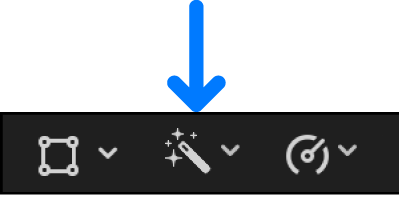
Choose Window > Go To > Color Inspector (or press Command-6).
In the Video inspector, click the Color Inspector button
 for the color correction effect you want to reset or turn off.
In the Color inspector, do any of the following:
Turn off a color correction effect without resetting it: Deselect the checkbox for the correction.
Turning the corrections off and on makes it easy to quickly see the effect of your adjustments.
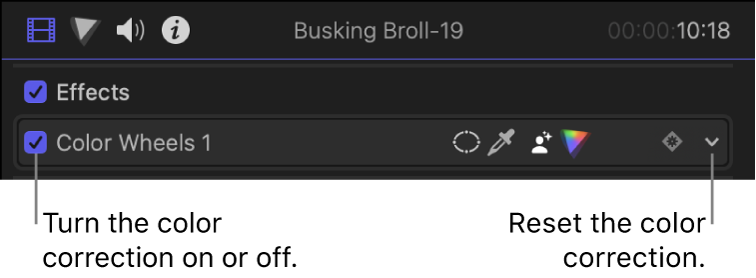
Reset the entire color correction effect to its neutral state: Click the pop-up menu on the far-right end of the name bar and choose Reset Parameter.
Reset an individual pane, wheel, curve, or other section of a color correction effect: Click the Reset button
 for that section or control.
Remove a color correction
In the Final Cut Pro timeline, select the clip with the color correction you want to remove.
Do one of the following:
Select the color correction effect in the Video inspector, then press Delete.
Click the pop-up menu at the top of the Color inspector and choose the color correction effect, then click the empty gray area to the right of the correction name and press Delete.
Download this guide: PDF