Keynote User Guide for iPhone
- Welcome
- What’s new
-
- Get started with Keynote
- Intro to images, charts, and other objects
- Create a presentation
- Choose how to navigate your presentation
- Open a presentation
- Save and name a presentation
- Find a presentation
- Print a presentation
- Copy text and objects between apps
- Basic touchscreen gestures
- Create a presentation using VoiceOver
- Change Keynote privacy and analytics settings
-
- Send a presentation
- Intro to collaboration
- Invite others to collaborate
- Collaborate on a shared presentation
- See the latest activity in a shared presentation
- Change a shared presentation’s settings
- Stop sharing a presentation
- Shared folders and collaboration
- Use Box to collaborate
- Create an animated GIF
- Post your presentation in a blog
- Copyright

Intro to images, charts, and other objects in Keynote on iPhone
An object is any item you place on a slide. Tables, charts, text boxes, shapes, and photos are examples of objects. To add an object to a slide, tap  , tap one of the object categories at the top of the menu, then select an object.

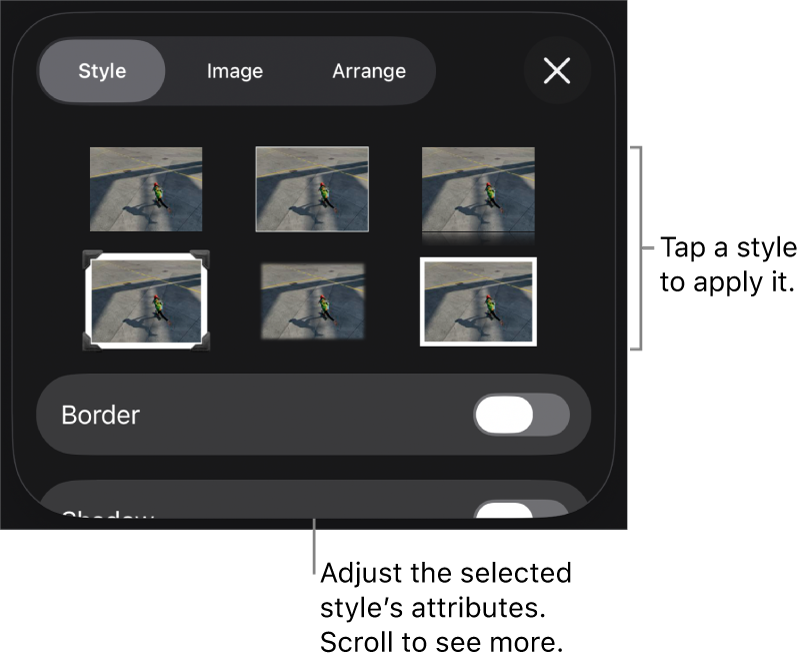
You can change the look of an object by modifying individual attributes of it—like its fill color, border, shadow, and more—or you can quickly change the overall appearance of an object by applying a predesigned object style to it. Object styles are combinations of attributes that are designed to match the theme you’re using.
To see controls for changing the look of objects, tap an object to select it, then tap  . Each object has its own formatting options; for example, when you select an image you see only controls for formatting images.
You can layer objects on a slide, resize them, or nest them so they appear inline with the text inside a text box or shape. You can also add a link to an object so that when you tap the object, a new slide, webpage, or email opens.