Apple Vision Pro User Guide
- Welcome
-
- Change notification settings and device sounds
- Set the date, time, language, and region
- Change your device name
- Change the appearance of text and windows
- Unlock your iPhone with Apple Vision Pro
- See your keyboard, game controller, or iPhone while immersed
- See people around you while immersed
- Use Apple Vision Pro in Travel Mode
- Refresh apps in the background
- Set content restrictions in Screen Time
- Let others use your Apple Vision Pro
-
- Get started with Apple Intelligence
- Use Writing Tools
- Create original images with Image Playground
- Create Genmoji
- Use Image Wand
- Get webpage summaries
- Summarize an audio recording
- Summarize notifications and reduce interruptions
- Use ChatGPT with Apple Intelligence
- Apple Intelligence and privacy
- Block access to Apple Intelligence features
-
- Apple Music Classical
- Books
- Calendar
- Capture
- Clock
- Encounter Dinosaurs
- Home
- Maps
- Mindfulness
- News
- Numbers
- Pages
- Podcasts
- Reminders
- Shazam
- Shortcuts
- Spatial Gallery
- Stocks
- Tips
- Voice Memos
-
- Get started with accessibility features
- Turn on features with the Accessibility Shortcut
- Change Siri accessibility features
- Use Guided Access
- Copyright and trademarks
Rehearse a Keynote presentation in an Environment on Apple Vision Pro
You can rehearse your presentation in a realistic setting, like a conference room or a theater, and see your presentation on the screen. You can even control the lights, adjust the volume of the Environment sounds, and more.
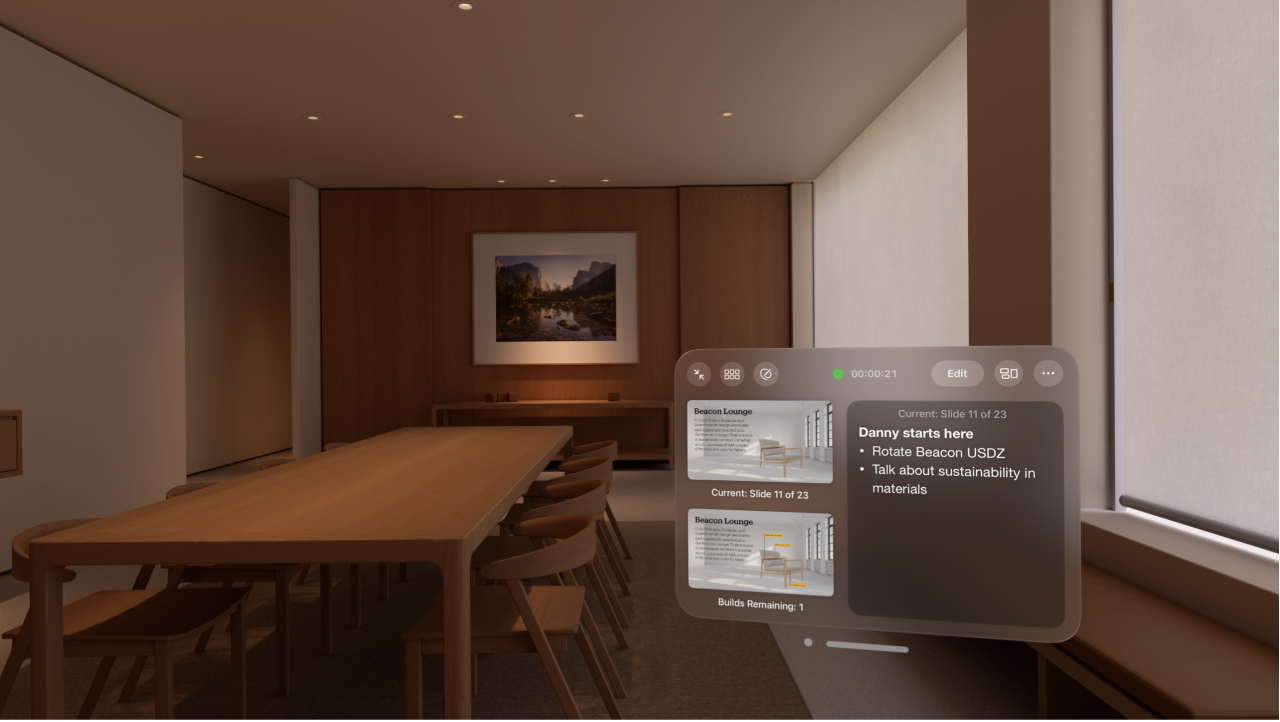
Rehearse your presentation
Open the presentation, then tap to select the first slide in the slide navigator on the left.
Tap

Environments have their own sounds that suit the setting you chose. To turn down the volume, turn the Digital Crown and look at

While rehearsing, you can adjust the following:
Go to the next slide: Look at the slides on the presenter display (or the virtual screen where your presentation is displayed), then tap or swipe left.
Go back a slide: Look at the slides on the presenter display (or the virtual screen where your presentation is displayed), then swipe right.
Move and customize the presenter display: Pinch and drag the window bar below the display. To customize, tap

Switch positions (Conference Room only): Tap


Turn the light up or down: Tap
Change the Environment: Tap
Show a laser pointer: Tap

To stop rehearsing, tap
