Navigate Apple TV 4K
Use the remote to navigate to and select items on your TV screen, see more options, scroll through lists, and more.
Navigate to apps and items
To move around on Apple TV 4K and highlight apps or items, do either of the following on your remote:
Press up, down, left, or right on the clickpad ring, or tap up, down, left, or right on the touch surface.
Swipe vertically or horizontally on the clickpad or touch surface.


A highlighted app or item expands slightly.

Tip: When you highlight certain apps in the top row of the Home Screen, a preview of their content plays in the background. Swipe up to see the preview in full screen and view more options; press  or
or  to return to the Home Screen.
To customize the top row of your Home Screen, see Rearrange apps on the Apple TV 4K Home Screen.
Select an app or item
Use the remote to navigate to an app or item, then press the clickpad center or touch surface.

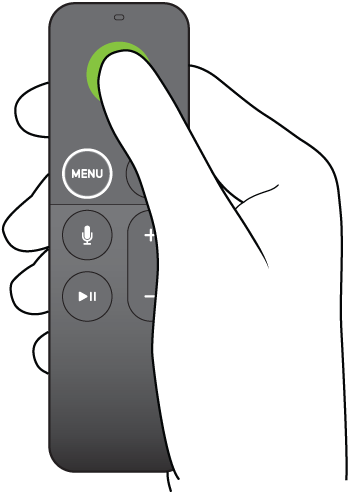
Select an app to open it. Select a movie, TV show, song, or podcast to begin playing it.
View more options
When certain apps or onscreen items are highlighted, you can open a pop-up menu with more options.
Use your remote to navigate to an item, then press and hold the clickpad center or touch surface.

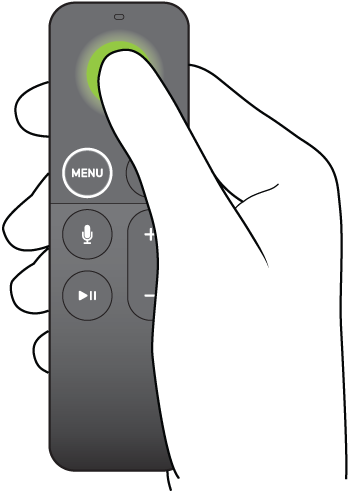
Press and hold an app to change the order of apps on the Home Screen. Press and hold a movie, TV show, song, or podcast to see a pop-up menu of additional options.
Scroll lists
To scroll through lists, do any of the following on your remote:
Swipe vertically or horizontally on the clickpad or touch surface.
Press and hold up, down, left, or right on the clickpad ring to scroll quickly (silver remote only).
Circle your finger around the clickpad ring for more precise control (silver remote only).


Go to the previous screen or Home Screen
Do either of the following on your remote:
Press
or to go to the previous screen.Press and hold
or to go to the Home Screen.
 on your
  on
on