Use your iPhone, iPad, or Apple Watch as a remote for Apple TV 4K
You can use your iPhone, iPad, or Apple Watch as a remote control for your Apple TV.
Tip: Apple TV 4K automatically switches to your profile when you wake up Apple TV 4K using Remote controls on a device that’s connected to your Apple Account.
Use your iPhone or iPad as a remote for Apple TV 4K
On your iPhone or iPad, open Control Center, then tap the Apple TV Remote icon
 .
.The Remote app opens on your device.
For information on using Control Center on your iPhone or iPad, see Use and customize Control Center on iPhone or Use and customize Control Center on iPad.
Note: If you have an iPhone with iOS 12 or later or an iPad with iPadOS 13 or later, remote controls are automatically activated when the device connects with Apple TV 4K.
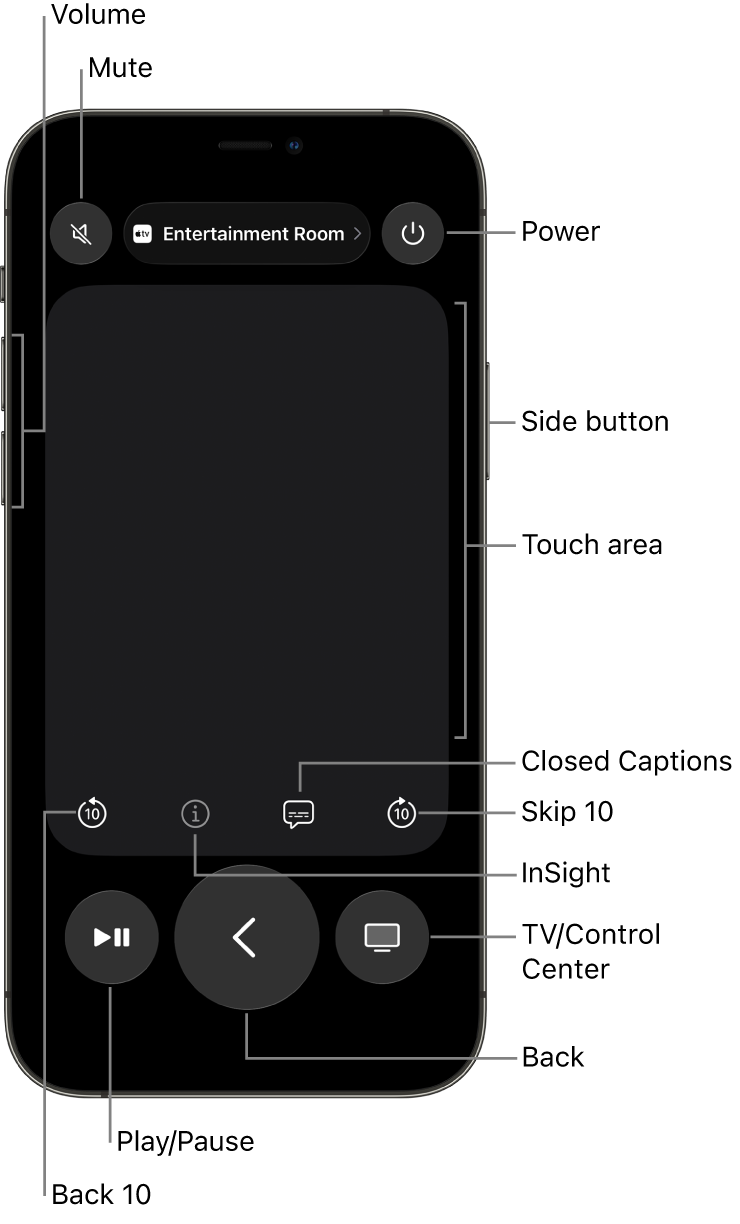
On your iPhone or iPad, use the touch area and buttons to do any of the following:
Apple TV 4K action
iPhone or iPad gesture
Navigate to and highlight items.
Swipe left, right, up, or down in the touch area.
Scroll lists.
Swipe up or down a few times in the touch area.
Select the highlighted item.
Tap in the touch area.
View additional menu options for the highlighted item.
Touch and hold the touch area.
Return to the previous screen.
Tap
 .
.Return to the Home Screen.
Touch and hold
.Go to the TV app.
Tap
 to go to the Home screen in the Apple TV app. Tap again to go to the Home Screen on Apple TV 4K.
Adjust the volume.
Press the volume buttons on your iPhone or iPad.
Note: This works only with supported audio/video receivers. For information about setting up Apple TV 4K to control your TV or receiver, see Use the Apple TV 4K remote to control your TV and receiver.
View open apps.
Tap
twice.Open Apple TV 4K Control Center.
Touch and hold
.Use Siri to control Apple TV 4K, search, or make a query.
Press and hold the side button, speak a command, search term, or query, then release the button.
Note: In countries or regions where Siri is not supported, pressing and holding the side button opens the Search app.
Use dictation to search in supported apps.
Press and release the side button. When the search field appears, press and hold the button, dictate a search term, then release the button.
Use dictation to enter passwords or other text.
When you see a text field, press and hold the side button to dictate text, then release the button.
Play or pause during playback.
Tap
 .
.Skip forward or back during playback.
Tap
 to skip backward 10 seconds. Tap
  to skip forward 10 seconds.
Turn subtitles on or off during playback.
Tap
 .
.Go to Info, InSight, and Continue Watching during playback.
Tap
 to access InSight and other information directly on your iPhone or iPad without interrupting the viewing experience on your TV. For more information, see Get information about shows, characters, actors, and music.
Access the TV guide in supported live TV apps.
Tap the Guide button.
Change the channel or page up or down in guides or menus in supported live TV apps.
Tap the Up or Down button.
Use your Apple Watch as a remote for Apple TV 4K
Go to the Remote app
 on your Apple Watch.
For more information on pairing your Apple Watch with your Apple TV, see Control Apple TV with Apple Watch in the Apple Watch user guide.
Choose your Apple TV, then do any of the following:
Apple TV 4K action
Apple Watch gesture
Navigate to and highlight items.
Swipe up, down, left, or right.
Scroll lists.
Swipe up or down a few times.
Select an item.
Swipe to highlight the item, then tap the screen.
Return to the previous screen.
Tap
 .
.Return to the Home Screen.
Touch and hold
.Go to the TV app.
Tap
 to go to the Home screen in the Apple TV app. Tap again to go to the Home Screen on Apple TV 4K.
Pause or resume playback.
Tap
 .
.Adjust the volume.
Turn the Digital Crown.
Mute or unmute audio.
Tap
 , then tap Mute & Unmute.
Turn on captions.
Tap
, then tap Captions.Turn Apple TV on or off.
Tap
, then tap Power.
To see which Apple devices can control your Apple TV 4K, go to Settings  on Apple TV 4K, then go to Remotes and Devices > Remote App and Devices. To remove a device from the list, select the device, then select Forget This Device.