
Share notes on iCloud.com
You can invite people to view and edit a note. When you share a note, only people you invite can view and edit it, even if someone else has a link to the note.
Note: You cannot share a locked note.
When you share a note, the Shared icon  appears next to the note in the notes list, and when the note is selected, the View Participants button
  is highlighted and shows a tick.
Note: You need to be on a tablet or computer to share folders and manage sharing; however, you can still make updates to shared folders and delete shared folders on a phone.
Share notes
Go to icloud.com/notes, then sign in to your Apple Account (if necessary).
Select or write the note you want to share.
If you’re on a phone or tablet and you don’t see your notes, make sure the notes list is open.
Select
 in the Notes toolbar.
 Select a sharing option.
Email: Select Email, choose the permission level of the participants and whether they can add or remove other people, then select Share. In the window that appears, add email addresses in the To field, write an optional message, then select
 .
.Copy Link: Select Copy Link, then add the email addresses or phone numbers of your participants. Choose their permission level and whether they can add or remove other people, then select Share.
Only the people you invite can view and edit the note.
Note: You can invite people using any email address or phone number, although participants need an Apple Account to view and edit a note.
Manage participants
The owner of a note can add and remove participants. Anyone who has been added to the note and given permission to add other people can also add and remove participants. Any participant can always remove themselves.
Go to icloud.com/notes, then sign in to your Apple Account (if necessary).
Select the shared note in the notes list.
If you’re on a phone or tablet and you don’t see your notes, make sure the notes list is open.
Select
, then do any of the following:Add participants: Select Add People at the bottom of the participants list. When a person has been invited but has not yet accepted, Invited appears under the person’s name.
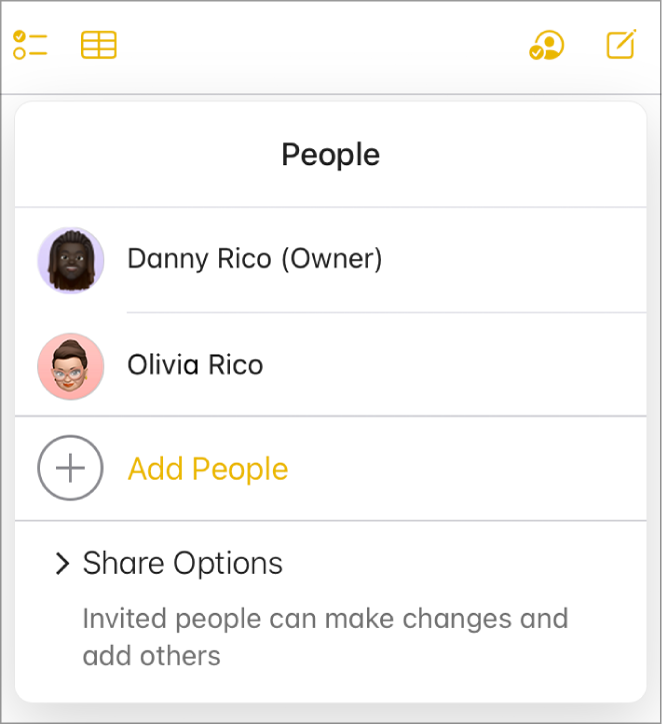
Note: The image above shows Notes on iCloud.com on a computer. The appearance may vary slightly on a phone or tablet.
Manage permissions: Tap or hold the pointer over the person’s name, select
 , then choose whether the person can make changes or only view the note. You can also allow the person to add other people.
Remove participants: Tap or hold the pointer over the person’s name, then select
and choose Remove Access.
If you want to manage permissions on a note in a shared folder, you must adjust them at the folder level. In a note that’s in a shared folder, select in the toolbar, then select Manage Shared Folders. See Share folders in Notes on iCloud.com.
Remove yourself from a shared note
If you are a participant, you can remove yourself from a shared note.
Go to icloud.com/notes, then sign in to your Apple Account (if necessary).
Select the note you want to remove yourself from, then select
.If you’re on a phone or tablet and you don’t see your notes, make sure the notes list is open.
Tap or hold the pointer over your name, then select
and choose Remove Me.
Stop sharing notes
You must be the owner of a note to stop sharing it.
Go to icloud.com/notes, then sign in to your Apple Account (if necessary).
Select the note you want to stop sharing in the notes list.
If you’re on a phone or tablet and you don’t see your notes, make sure the notes list is open.
Select
, then do one of the following:Stop sharing with all participants: Select Stop Sharing.
Stop sharing with just one participant: Tap or hold the pointer over the person’s name, then select
and choose Remove Access.
If you share a folder, all of the notes in that folder automatically take on the sharing permissions of that folder. See Share folders in Notes on iCloud.com.