iPhone User Guide
- Welcome
-
- Supported models
- iPhone 8
- iPhone 8 Plus
- iPhone X
- iPhone XR
- iPhone XS
- iPhone XS Max
- iPhone 11
- iPhone 11 Pro
- iPhone 11 Pro Max
- iPhone SE (2nd generation)
- iPhone 12 mini
- iPhone 12
- iPhone 12 Pro
- iPhone 12 Pro Max
- iPhone 13 mini
- iPhone 13
- iPhone 13 Pro
- iPhone 13 Pro Max
- iPhone SE (3rd generation)
- iPhone 14
- iPhone 14 Plus
- iPhone 14 Pro
- iPhone 14 Pro Max
- What’s new in iOS 16
-
- Adjust the volume
- Multitask with Picture in Picture
- Access features from the Lock Screen
- View activities in the Dynamic Island
- Perform quick actions
- Search from the Home Screen or Lock Screen
- Use AirDrop to send items
- Take a screenshot or screen recording
- Get information about your iPhone
- View or change cellular data settings
- Travel with iPhone
-
- Change sounds and vibrations
- Change the wallpaper
- Adjust the screen brightness and color balance
- Keep the iPhone display on longer
- Magnify the screen
- Change the name of your iPhone
- Change the date and time
- Change the language and region
- Use and customize Control Center
- Change or lock the screen orientation
-
- Calculator
- Compass
-
- Set up FaceTime
- Make and receive calls
- Create a FaceTime link
- Take a Live Photo
- Turn on Live Captions in a FaceTime call
- Use other apps during a call
- Make a Group FaceTime call
- View participants in a grid
- Use SharePlay to watch, listen, and play together
- Share your screen
- Hand off a FaceTime call to another device
- Change the video settings
- Change the audio settings
- Add camera effects
- Leave a call or switch to Messages
- Block unwanted callers
-
- Intro to Home
- Upgrade to the new Home architecture
- Set up accessories
- Control accessories
- Control your home using Siri
- Configure HomePod
- Control your home remotely
- Create and use scenes
- Create an automation
- Configure cameras
- Face Recognition
- Unlock your door with a home key
- Configure a router
- Share controls with others
- Add more homes
-
- View maps
- Get rides
-
- Set up Messages
- Send and reply to messages
- Unsend and edit messages
- Keep track of messages and conversations
- Forward and share messages
- Start a group conversation
- Add photos and videos
- Send and receive content
- Watch, listen, or play together using SharePlay
- Collaborate on projects
- Animate messages
- Use iMessage apps
- Use Memoji
- Send recorded audio messages
- Send a Digital Touch effect
- Send, receive, and request money with Apple Cash
- Change notifications
- Block, filter, and report messages
- Delete messages
- Recover deleted messages
-
- View photos
- Play videos and slideshows
- Delete or hide photos and videos
- Edit photos and videos
- Trim video length and adjust slow motion
- Edit Cinematic mode videos
- Edit Live Photos
- Edit Portrait mode photos
- Use photo albums
- Edit and organize albums
- Filter and sort photos and videos in albums
- Duplicate and copy photos and videos
- Find and delete duplicate photos and videos
- Search for Photos
- Find and identify people in Photos
- Browse photos by location
- Share photos and videos
- Share long videos
- View photos and videos shared with you
- Use Live Text to interact with content in a photo or video
- Use Visual Look Up to identify objects in your photos
- Lift a subject from the photo background
- Watch memories
- Personalize your memories
- Manage memories and featured photos
- Import photos and videos
- Print photos
- Shortcuts
- Tips
-
- Keep cards and passes in Wallet
- Set up Apple Pay
- Use Apple Pay for contactless payments
- Use Apple Pay in apps, App Clips, and Safari
- Use Apple Cash
- Use Apple Card
- Use Savings
- Manage payment cards and activity
- Pay for transit
- Use digital keys
- Use your driver’s license or state ID
- Use student ID cards
- Apple Account Card
- Add and use passes
- Manage passes
- Use COVID-19 vaccination cards
-
- Share your internet connection
- Allow phone calls on your iPad, iPod touch, and Mac
- Use iPhone as a webcam
- Hand off tasks between devices
- Wirelessly stream video, photos, and audio to Mac
- Cut, copy, and paste between iPhone and other devices
- Connect iPhone and your computer with a cable
-
- Transfer files between devices
- Transfer files with email, messages, or AirDrop
- Automatically keep files up to date with iCloud
- Transfer files with an external storage device
- Use a file server to share files between your iPhone and computer
- Share files with a cloud storage service
- Sync content or transfer files with the Finder or iTunes
-
- Intro to CarPlay
- Connect to CarPlay
- Use Siri
- Use your vehicle’s built-in controls
- Get turn-by-turn directions
- Report traffic incidents
- Change the map view
- Make phone calls
- Play music
- View your calendar
- Send and receive text messages
- Announce incoming text messages
- Play podcasts
- Play audiobooks
- Listen to news stories
- Control your home
- Use other apps with CarPlay
- Rearrange icons on CarPlay Home
- Change settings in CarPlay
-
- Get started with accessibility features
-
-
- Turn on and practice VoiceOver
- Change your VoiceOver settings
- Learn VoiceOver gestures
- Operate iPhone when VoiceOver is on
- Control VoiceOver using the rotor
- Use the onscreen keyboard
- Write with your finger
- Use VoiceOver with an Apple external keyboard
- Use a braille display
- Type onscreen braille
- Customize gestures and keyboard shortcuts
- Use VoiceOver with a pointer device
- Use VoiceOver for images and videos
- Use VoiceOver in apps
- Zoom
- Display & Text Size
- Motion
- Spoken Content
- Audio Descriptions
-
-
- Use built-in privacy and security protections
- Keep your Apple ID secure
-
- Sign in with passkeys
- Sign in with Apple
- Automatically fill in strong passwords
- Change weak or compromised passwords
- View your passwords and related information
- Share passkeys and passwords securely with AirDrop
- Make your passkeys and passwords available on all your devices
- Automatically fill in verification codes
- Automatically fill in SMS passcodes
- Sign in with fewer CAPTCHA challenges on iPhone
- Manage two-factor authentication for your Apple ID
- Use security keys
- Create and manage Hide My Email addresses
- Protect your web browsing with iCloud Private Relay
- Use a private network address
- Use Advanced Data Protection
- Lockdown Mode
-
- Important safety information
- Important handling information
- Find more resources for software and service
- FCC compliance statement
- ISED Canada compliance statement
- Ultra Wideband information
- Class 1 Laser information
- Apple and the environment
- Disposal and recycling information
- Unauthorized modification of iOS
- Copyright
Organize your tabs with Tab Groups in Safari on iPhone
In the Safari app  , you can create Tab Groups to keep tabs organized and make them easier to find again later.
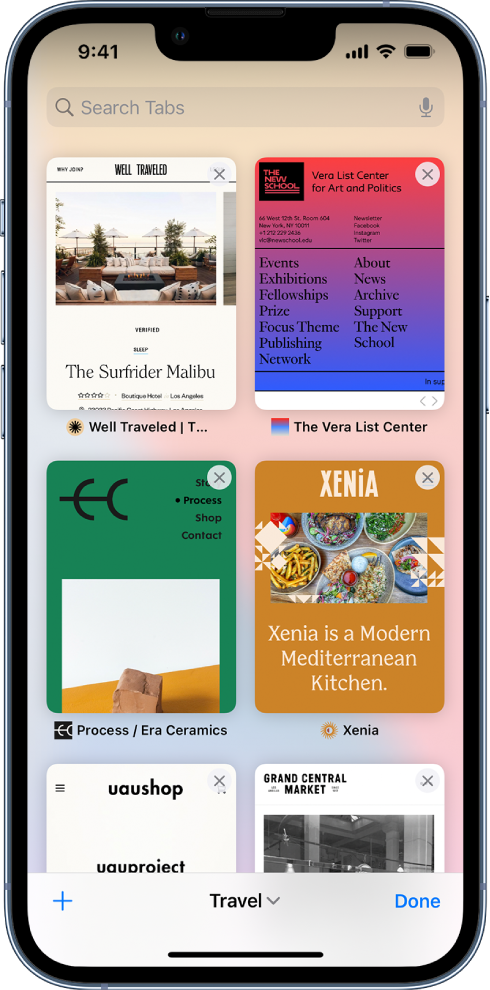
Create a new Tab Group
Tap
 to view your open tabs.
Touch and hold a tab, then choose Move to Tab Group.
Tap New Tab Group, then give it a name.
Tip: To move between your Tab Groups, tap  in the bottom center of the screen.
Reorder tabs in a Tab Group
Tap
to view the open tabs in that Tab Group.Touch and hold a tab in the Tab Group.
In the menu that appears, tap Arrange Tabs By, then choose an option.
Or, just drag the tab to where you want it.
Rename a Tab Group
Tap
, then tap  .
.Tap Edit, then tap
 .
.Tap Rename, enter a name, then tap Save.
Pin a tab at the top of a Tab Group
You can customize your Tab Groups with pinned tabs in each group. The pinned tab stays at the top of the Tab Group.
Tap
to view the open tabs in that Tab Group.Touch and hold the tab you want to pin.
In the menu that appears, tap Pin Tab.
Move a tab to another Tab Group
Touch and hold
, then tap Move to Tab Group.Choose one of the Tab Groups you created previously, or create a new group.