iPod touch User Guide
- Welcome
- Your iPod touch
- What’s new in iOS 15
-
- Calculator
-
- Set up FaceTime
- Make and receive calls
- Create a FaceTime link
- Take a Live Photo
- Use other apps during a call
- Make a Group FaceTime call
- View participants in a grid
- Use SharePlay to watch and listen together
- Share your screen
- Change the video settings
- Change the audio settings
- Add camera effects
- Leave a call or switch to Messages
- Block unwanted callers
-
- View maps
-
- Search for places
- Find nearby attractions, restaurants, and services
- Get information about places
- Mark places
- Share places
- Rate places
- Save favorite places
- Explore new places with Guides
- Organize places in My Guides
- Get traffic and weather info
- Delete significant locations
- Quickly find your Maps settings
-
- Use Siri, Maps, and the Maps widget to get directions
- Select other route options
- Things you can do while following a route
- Get driving directions
- Report traffic incidents in Maps on iPod touch
- Get cycling directions
- Get walking directions
- Get transit directions
- Delete recent directions
- Use Maps on your Mac to get directions
- Get rides
-
- View photos
- Play videos and slideshows
- Delete and hide photos and videos
- Edit photos and videos
- Trim video length and adjust slow motion
- Edit Live Photos
- Make photo albums
- Edit and organize albums
- Filter and sort photos in an album
- Search in Photos
- Share photos and videos
- View photos and videos shared with you
- Watch memories
- Personalize memories
- Find people in Photos
- Show a person or place less often
- Browse photos by location
- Use iCloud Photos
- Share photos with iCloud Shared Albums
- Import photos and videos
- Print photos
-
- Browse the web
- Customize your Safari settings
- Change the layout
- Search for websites
- Use tabs in Safari
- Bookmark favorite webpages
- Save pages to a Reading List
- View links shared with you
- Automatically fill in forms
- Get extensions
- Hide ads and distractions
- Browse the web privately
- Clear your cache
- Use Hide My Email
- Shortcuts
- Stocks
- Tips
-
- Make and receive phone calls
- Hand off tasks between devices
- Wirelessly stream video, photos, and audio to Mac
- Cut, copy, and paste between iPod touch and other devices
- Connect iPod touch and your computer with a cable
- Sync iPod touch with your computer
- Transfer files between iPod touch and your computer
-
- Get started with accessibility features
-
-
- Turn on and practice VoiceOver
- Change your VoiceOver settings
- Learn VoiceOver gestures
- Operate iPod touch using VoiceOver gestures
- Control VoiceOver using the rotor
- Use the onscreen keyboard
- Write with your finger
- Use VoiceOver with an Apple external keyboard
- Use a braille display
- Type onscreen braille
- Customize gestures and keyboard shortcuts
- Use VoiceOver with a pointer device
- Use VoiceOver for images and videos
- Use VoiceOver in apps
- Zoom
- Display & Text Size
- Motion
- Spoken Content
- Audio Descriptions
-
-
- Use built-in security and privacy protections
-
- Keep your Apple ID secure
- Sign in with Apple
- Automatically fill in strong passwords
- Change weak or compromised passwords
- View your passwords and related information
- Share passwords securely with AirDrop
- Make your passwords available on all your devices
- Automatically fill in verification codes
- Manage two-factor authentication for your Apple ID
-
- Control access to information in apps
- Control access to hardware features
- Control app tracking permissions on iPod touch
- Control the location information you share
- Turn on iCloud Private Relay
- Create and manage Hide My Email addresses
- Use a private network address
- Control how Apple delivers advertising to you
- Copyright
Share photos and videos on iPod touch
You can share photos and videos from the Photos app  in Mail or Messages, or other apps you install. Photos even selects your best photos from an event and recommends people you may want to share them with.
Share photos and videos
Share a single photo or video: Open the photo or video, tap
 , then choose a share option.
Share multiple photos or videos: Tap Library, tap All Photos, tap Select, then tap the photos you want to share. Tap
, then choose a share option.Share photos or videos from a day or month: Tap Library, tap Days or Months, tap
 , then tap Share Photos and choose a share option to share all the photos from that day or month.
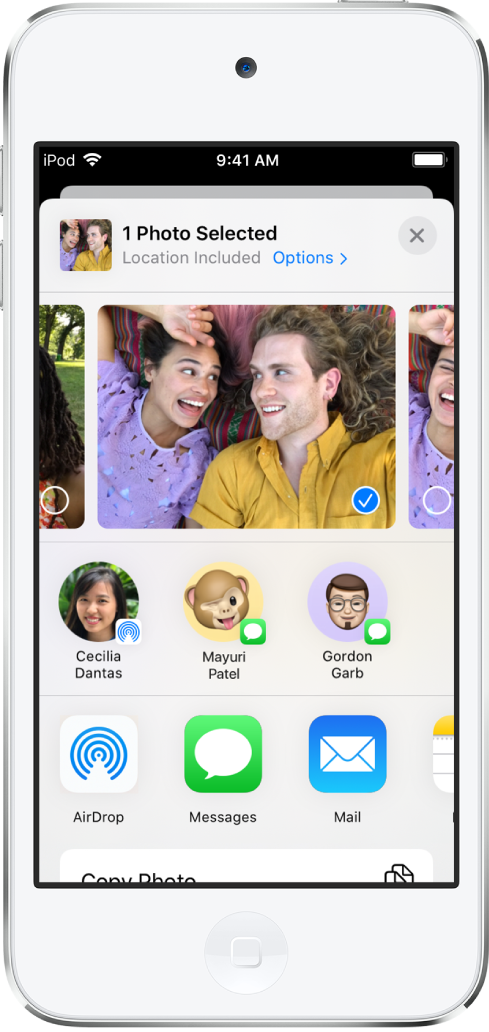
When iCloud Photos is turned on, you can share multiple full-quality photos with an iCloud link. iCloud links remain available for 30 days, can be viewed by anyone, and can be shared using any app, such as Messages or Mail.
You can also use Shared Albums to share photos and videos with just the people you choose. See Share iPod touch photos with Shared Albums in iCloud.
Note: The size limit of attachments is determined by your service provider. For devices or services that don’t support Live Photos, a Live Photo is shared as a still photo.
Share photos with Sharing Suggestions
Sharing Suggestions recommends a set of photos from an event that you may want to share and, based on the people in the photos, who you may want to share them with. After you share your photos, the recipients are prompted to share their photos from the event with you. iCloud Photos must be turned on to see Sharing Suggestions, but the photos you share can be viewed by anyone.
Tap For You, then tap a photo collection in Sharing Suggestions.
Tap Select to add or remove photos, then tap Next.
Photos suggests sharing the photos you took with the people who were also at the event. You can choose who to share with, as well as add others.
Tap Share in Messages.
To send the link to more friends, or to stop sharing it: Tap the collection, tap
 , then choose Copy iCloud Link or Stop Sharing.
To remove a photo collection from Sharing Suggestions: Tap
, then tap Remove Sharing Suggestion.
Save or share a photo or video you receive
From email: Tap to download the item if necessary, then tap
. Or, touch and hold the item, then choose a sharing or saving option.From a text message: Tap the photo or video in the conversation, tap
, then choose a sharing or saving option. You can also tap  in the Messages conversation to save the photo or video directly to your Photos library.
From an iCloud link: Tap
in the Messages conversation to save the collection directly to your Photos library. To share the collection, open Photos, tap For You, then tap the collection under iCloud Links. Tap  , then tap Share.