Final Cut Pro User Guide for Mac
- Welcome
- What’s new
-
- Intro to importing media
- If it’s your first import
- Organize files during import
-
- Import from Image Playground
- Import from iMovie for macOS
- Import from iMovie for iOS or iPadOS
- Import from Final Cut Pro for iPad
- Import from Final Cut Camera
- Import from Photos
- Import from Music
- Import from Apple TV
- Import from Motion
- Import from GarageBand and Logic Pro
- Import using workflow extensions
- Record into Final Cut Pro
- Memory cards and cables
- Supported media formats
-
- Intro to effects
-
- Intro to transitions
- How transitions are created
- Add transitions and fades
- Quickly add a transition with a keyboard shortcut
- Set the default duration for transitions
- Delete transitions
- Adjust transitions in the timeline
- Adjust transitions in the inspector and viewer
- Merge jump cuts with the Flow transition
- Adjust transitions with multiple images
- Modify transitions in Motion
- Add adjustment clips
-
- Add storylines
- Use the precision editor
- Conform frame sizes and rates
- Use XML to transfer projects
-
- Intro to sharing projects
- Share to Apple devices
- Share on the web
- Send a video frame to Pixelmator Pro
- Share in email
- Share stereo or spatial video
- Batch sharing
- Share using Compressor
- Create share destinations
- Change metadata for shared items
- View the status of shared items
- Speed up exports with simultaneous processing
- Glossary
- Copyright and trademarks
Match audio in Final Cut Pro for Mac
The Match Audio function uses equalization (EQ) to let you match a selected clip’s sound to that of another clip. This is particularly useful when you have multiple audio clips recorded in different environments but want the clips to sound similar.
Match audio
In the Final Cut Pro timeline, select the clip or clips whose audio you want to match to that of another clip.
Note: For clips with multiple components (such as dual mono clips, compound clips, multicam clips, and synced clips), make this selection at the component level. See Show expanded audio components.
Do one of the following:
Choose Modify > Match Audio (or press Shift-Command-M).
Click the Equalization pop-up menu in the Audio Enhancements section of the Audio inspector and choose Match.
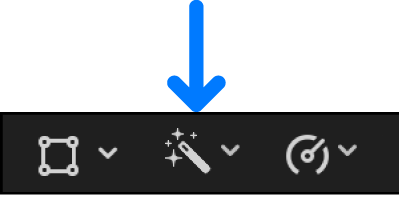
Click the Enhancements pop-up menu below the viewer and choose Match Audio.
Click to select the clip whose sound you want to match.
Click Apply Match.
After you match a clip, you can adjust settings in the Audio Enhancements section of the Audio inspector.
Remove audio matching
In the Audio Enhancements section of the Audio inspector, click the Equalization pop-up menu and choose a different equalization setting.
To remove all equalization, choose the Flat setting.
Download this guide: PDF