
Get started with Numbers on iPhone
Numbers makes it easy to create organised, professional-looking spreadsheets. Here’s how to get started.

Begin with a template
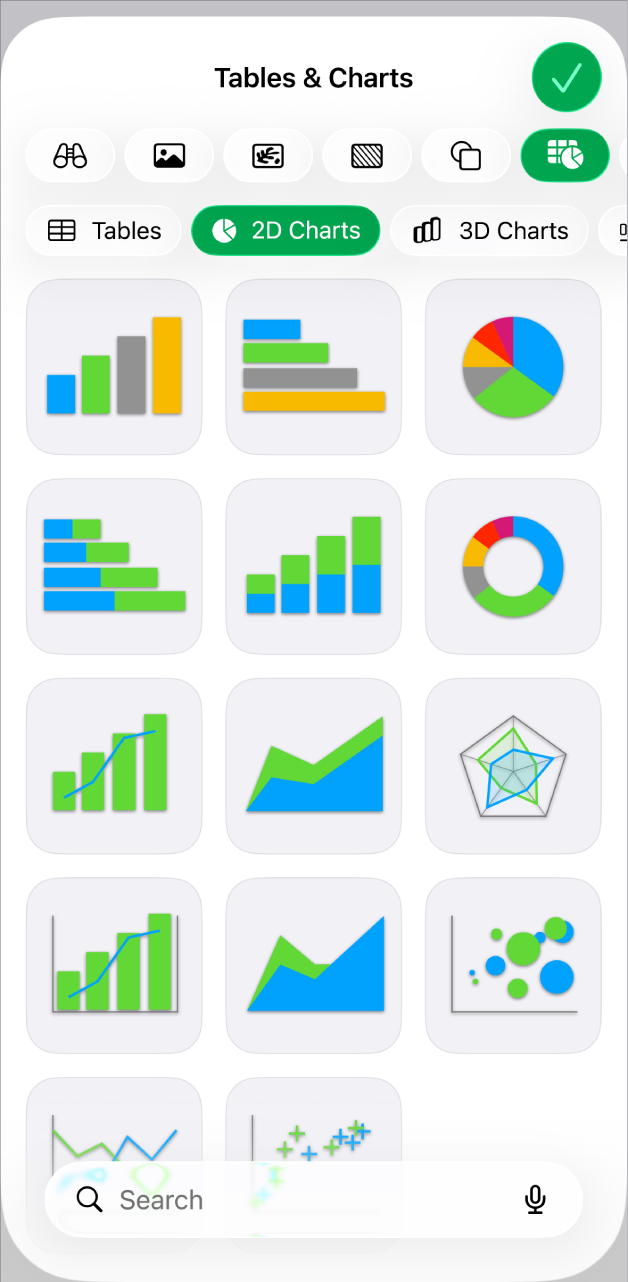
Creating a budget? Tracking your savings? Drafting an invoice? Numbers has templates outfitted with tables, charts and formulas to help you get started. Go to the Numbers app  on your iPhone, tap Choose a Template (or
  ), then tap a template.
 in the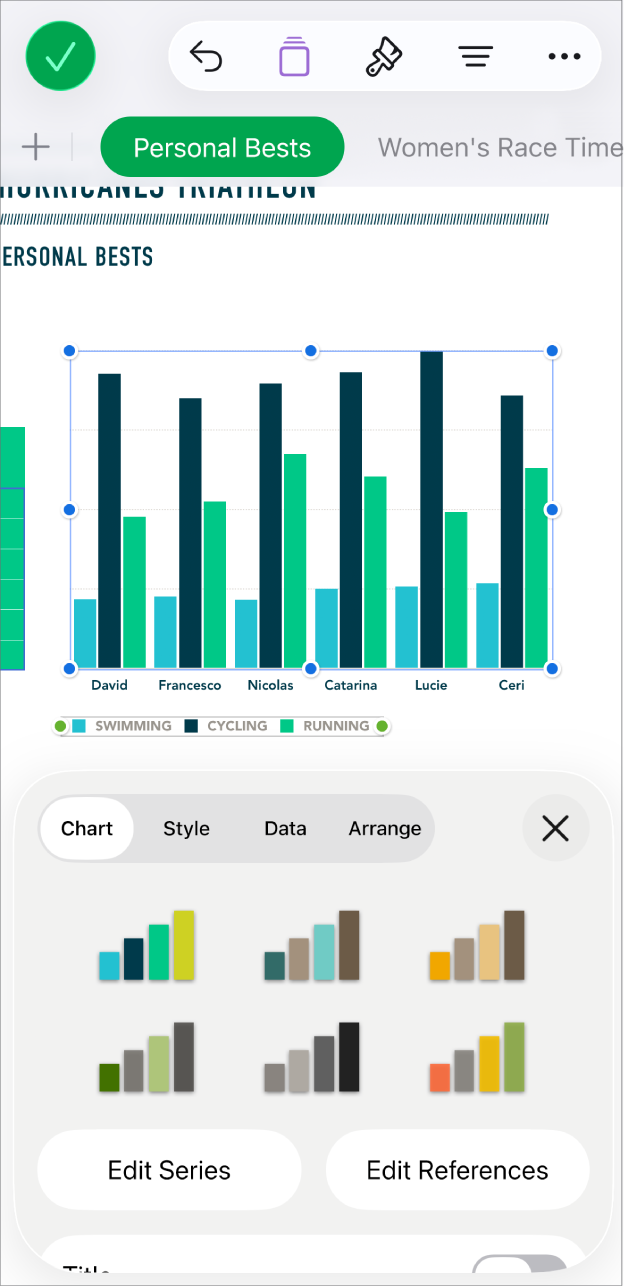
Change the look of your sheet
You can change the look of an object — like its fill colour, border, shadow and more. Tap an object to select it, then tap  to open the formatting controls. Each object has its own formatting options; when you select an image, for example, you see only controls for formatting images.

Work with formulas and functions
You can create simple or complex arithmetic formulas to perform calculations on the values in your tables. To open the formula keyboard, tap a cell, tap  at the bottom of the screen, then tap
  above the keyboard on the right.

Export your spreadsheet
You can send a copy of your spreadsheet as a Numbers file or in another format, such as PDF, Excel or CSV. Tap  in the toolbar, then tap Send Copy or Export and Send, which sends your spreadsheet in a format other than a Numbers file.
Want to learn more?
This guide helps you get started using Numbers 15.3 on your iPhone. (To see which version of Numbers you have, go to Settings  > Apps > Numbers.)
To explore the Numbers User Guide, tap the Table of Contents button at the top of the page, or enter a word or phrase in the search field.
Numbers 15.3 for iPhone requires iOS 18 or later. Numbers is available in the App Store and requires an Apple Account to download. Features are subject to change and some may require internet access. Additional fees and terms may apply.