Final Cut Pro User Guide for Mac
- Welcome
- What’s new
-
- Intro to importing media
- If it’s your first import
- Organize files during import
-
- Import from Image Playground
- Import from iMovie for macOS
- Import from iMovie for iOS or iPadOS
- Import from Final Cut Pro for iPad
- Import from Final Cut Camera
- Import from Photos
- Import from Music
- Import from Apple TV
- Import from Motion
- Import from GarageBand and Logic Pro
- Import using workflow extensions
- Record into Final Cut Pro
- Memory cards and cables
- Supported media formats
-
- Intro to effects
-
- Intro to transitions
- How transitions are created
- Add transitions and fades
- Quickly add a transition with a keyboard shortcut
- Set the default duration for transitions
- Delete transitions
- Adjust transitions in the timeline
- Adjust transitions in the inspector and viewer
- Merge jump cuts with the Flow transition
- Adjust transitions with multiple images
- Modify transitions in Motion
- Add adjustment clips
-
- Add storylines
- Use the precision editor
- Conform frame sizes and rates
- Use XML to transfer projects
-
- Intro to sharing projects
- Share to Apple devices
- Share on the web
- Send a video frame to Pixelmator Pro
- Share in email
- Share stereo or spatial video
- Batch sharing
- Share using Compressor
- Create share destinations
- Change metadata for shared items
- View the status of shared items
- Speed up exports with simultaneous processing
- Glossary
- Copyright and trademarks
Zoom in to and out of the timeline in Final Cut Pro for Mac
Being able to see and get to any point in your project is critical to efficient editing and storytelling. There are many ways to adjust the view of the timeline.
Zoom in to and out of the timeline using commands
In Final Cut Pro, do any of the following:
Zoom in to the timeline: Choose View > Zoom In, or press Command-Plus Sign (+).
Zoom out of the timeline: Choose View > Zoom Out, or press Command-Minus Sign (–).
Zoom in to and out of the timeline using the Zoom tool
In Final Cut Pro, click the Tools pop-up menu in the top-left corner of the timeline and choose Zoom (or press Z).

The pointer changes to the Zoom tool
 .
.Tip: To switch to the Zoom tool temporarily, hold down the Z key. When you release the Z key, the tool reverts to the previously active tool.
Do any of the following:
Zoom in to the timeline: Click the section of the timeline you want to zoom in to. (You can also drag over an area of the timeline to zoom in to just that area.)
Click multiple times to continue zooming in.
Zoom out of the timeline: Option-click the section of the timeline you want to zoom out of.
Option-click multiple times to continue zooming out.
Zoom to fit the timeline contents horizontally
Whether you’re zoomed in to a single clip or zoomed out so far that all the clips in your project appear on the left side of the timeline, you can quickly change the view so that your project fills the visible area of the timeline and no horizontal scrolling is required.
In Final Cut Pro, choose View > Zoom to Fit (or press Shift–Z).

Zoom to fit the timeline contents vertically
You can quickly adjust the height of timeline clips so that the clips fit within the visible part of the timeline and no vertical scrolling is required.
In Final Cut Pro, choose View > Vertical Zoom to Fit (or press Option-Shift–Z).

Zoom in to and out of the timeline using the Zoom slider
In Final Cut Pro, click the Clip Appearance button in the top-right corner of the timeline.
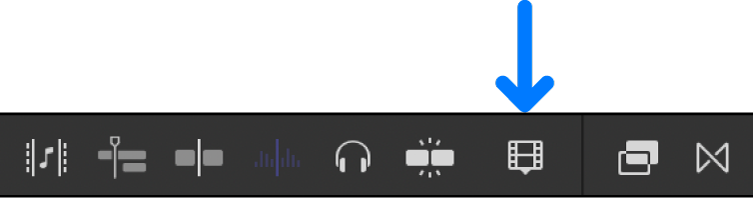
The clip appearance controls appear.
Do any of the following:
Zoom in to the timeline: Drag the Zoom slider to the right, or press Command-Plus Sign (+).
Zoom out of the timeline: Drag the Zoom slider to the left, or press Command-Minus Sign (–).

You can also use a variety of keyboard shortcuts and Multi-Touch gestures to zoom and scroll in the timeline. See Keyboard shortcuts and Multi-Touch trackpad gestures.
Download this guide: PDF