
Use multiple libraries in Music on Mac
You can have more than one music library in Music. For example, you could have a library of holiday music that wouldn’t appear in Music the rest of the year. Or you could keep some of your music in a library on an external storage device.
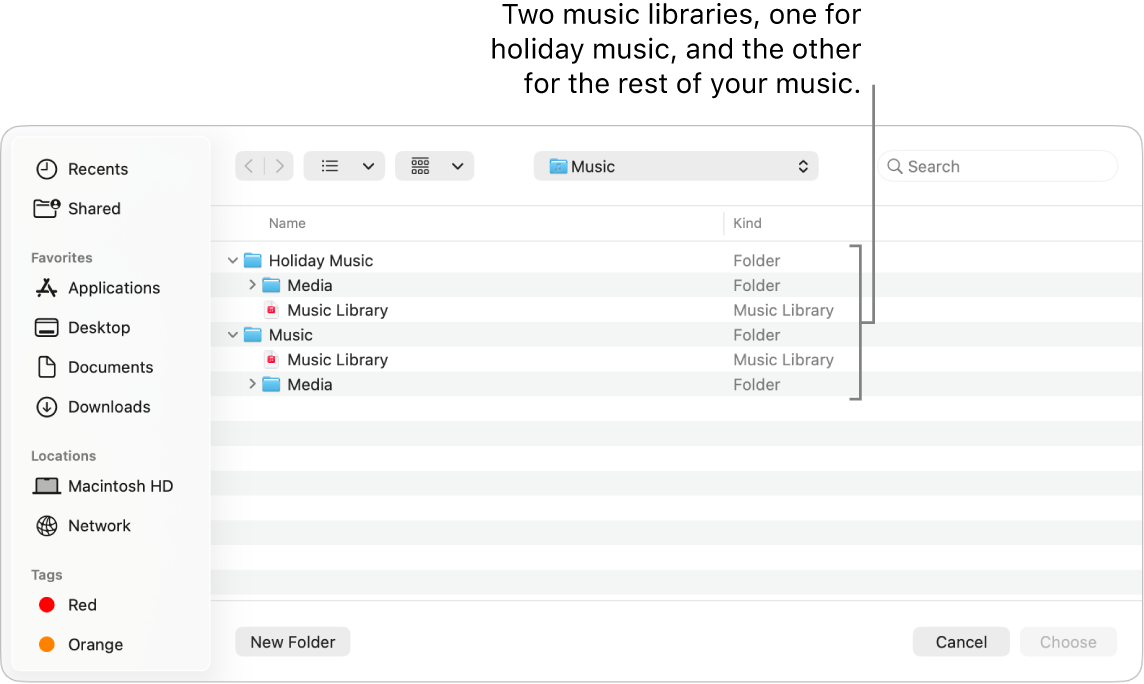
Create or choose a library
Go to the Music app
on your Mac.Choose Music > Quit Music.
Press and hold the Option key while you reopen Music.
In the window that appears, do one of the following:
Create a new library: Click Create Library.
Choose a different library: Click Choose Library.
You can name your new library (the folder containing your Music content) whatever you like. For best results, if you create additional music libraries, don’t name the new libraries “Music” or “New Music.” Make sure each library has a unique name so you’ll know which is which.
Select library settings
In each library you create, you can select different settings for the Media folder, the types of content that appears, and the library name.
Go to the Music app
on your Mac.After choosing a library, choose Music > Settings. See Change Files settings.