iCloud User Guide
- Welcome
-
-
- Sign in and use iCloud.com
- Customise and use the homepage tiles
- Apple Invites
- Keynote
- Numbers
- Pages
-
- Photos on iCloud.com overview
- View your photos and videos
- Find your photos or videos
- Hide your photos and videos
- Upload and download photos
- Add or edit a title, caption or other metadata
- Organise photos and videos
- Add photos and videos to Favourites
- Play a slideshow of photos
- Delete and recover photos and videos
- Recover files and information
- Use iCloud on your Windows device
- Get more help with iCloud
- Legal notices and acknowledgements
- Copyright and trademarks

Customise the appearance of iCloud.com
On iCloud.com, you can choose a different background colour for the homepage. Depending on your device’s settings, you can also use a light or dark appearance for the entire site.
Change the background colour of the homepage
Go to iCloud.com, then sign in to your Apple Account (if necessary).
Scroll to the bottom of the homepage, then select Customise.
If you’re on iCloud.com but not on the homepage, select
 in the toolbar, then select iCloud Home Page.
Select Edit Background, then choose a colour.
Select Done in the top-left corner of the window.
Choose a light or dark appearance
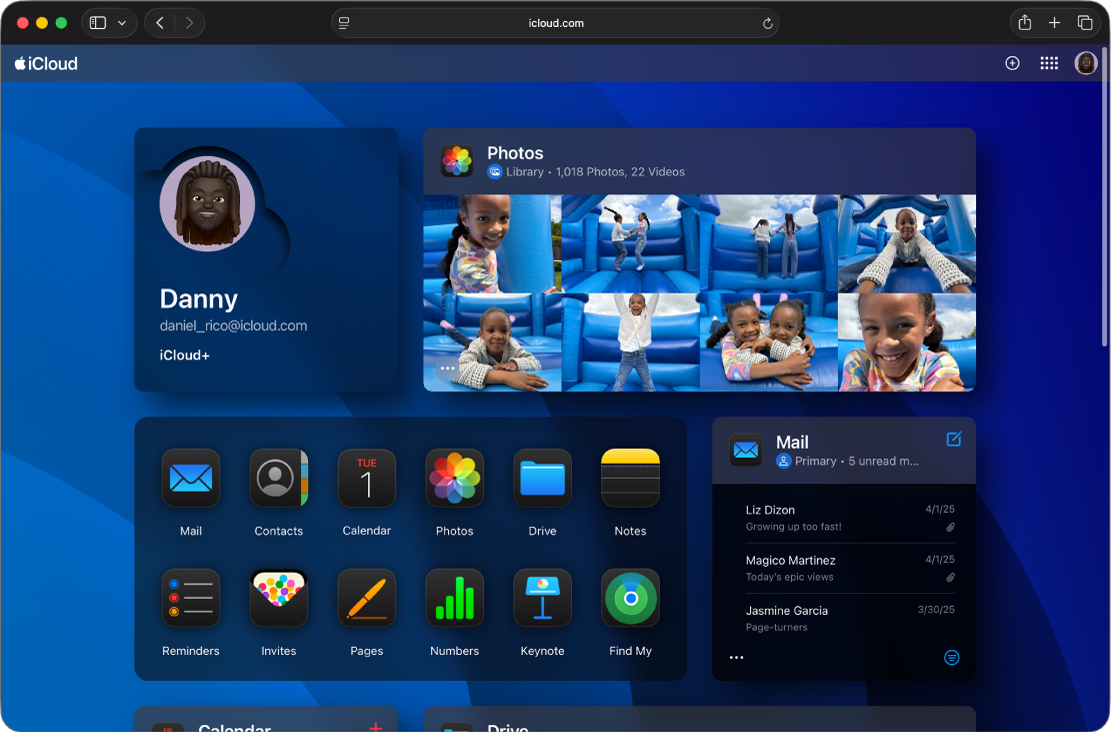
Dark Mode gives iCloud.com a dark colour scheme that’s perfect for low-light environments.
To use Dark Mode on iCloud.com, you need an iPhone, iPad or Mac. When you turn on Dark Mode on your Apple device, you also turn on Dark Mode for iCloud.com. See the following:
For other ways to personalise your iCloud.com experience, see Customise and use the homepage tiles on iCloud.com.