iPad User Guide
- Welcome
-
- Supported models
- iPad Pro 12.9-inch (5th generation)
- iPad Pro 12.9-inch (4th generation)
- iPad Pro 12.9-inch (3rd generation)
- iPad Pro 11-inch (3rd generation)
- iPad Pro 11-inch (2nd generation)
- iPad Pro 11-inch (1st generation)
- iPad Pro 12.9-inch (1st and 2nd generation)
- iPad Pro 10.5-inch
- iPad Pro 9.7-inch
- iPad Air (4th generation)
- iPad Air (3rd generation)
- iPad Air 2
- iPad (8th generation)
- iPad (7th generation)
- iPad (6th generation)
- iPad (5th generation)
- iPad mini (5th generation)
- iPad mini 4
- What’s new in iPadOS 14
-
- Wake and unlock
- Adjust the volume
- Change or turn off sounds
- Access features from the Lock Screen
- Open apps
- Take a screenshot or screen recording
- Change or lock the screen orientation
- Change the wallpaper
- Zoom an app to fill the screen
- Drag and drop
- Search with iPad
- Use AirDrop to send items
- Perform quick actions
- Use and customize Control Center
- Add widgets
- Charge and monitor the battery
- Learn the meaning of the status icons
- Travel with iPad
-
-
- View maps
-
- Use Siri, Maps, and the Maps widget to get directions
- Choose your preferred type of travel
- Get driving directions
- Report traffic incidents
- Get cycling directions
- Find places to stop
- Get walking directions
- Get transit directions
- See an overview of your route or its directions in a list
- Change audio settings for turn-by-turn directions
- Select other route options
- Get directions between places other than your current location
- Delete recently viewed directions
- Use Maps on your Mac to get directions
- Help correct and improve Maps
-
- View photos and videos
- Delete and hide photos and videos
- Edit photos and videos
- Edit Live Photos
- Edit Portrait mode photos
- Organize photos in albums
- Search in Photos
- Share photos and videos
- View Memories
- Find people in Photos
- Browse photos by location
- Use iCloud Photos
- Share photos with iCloud Shared Albums
- Use My Photo Stream
- Import photos and videos
- Print photos
- Shortcuts
- Stocks
- Tips
-
- Set up Family Sharing
- Download family members’ purchases
- Stop sharing purchases
- Turn on Ask To Buy
- Set up Apple Cash Family
- Share Apple Card
- Share subscriptions and iCloud storage
- Share photos, a calendar, and more with family members
- Locate a family member’s missing device
- Set up Screen Time through Family Sharing
-
- Accessories included with iPad
-
- Set up AirPods
- Charge AirPods
- Start and stop audio playback
- Change the AirPods volume
- Make and answer calls with AirPods
- Switch AirPods between devices
- Use Siri with AirPods
- Listen and respond to messages
- Share audio with AirPods and Beats headphones
- Change noise control modes
- Control spatial audio
- Restart AirPods
- Change the name of your AirPods and other settings
- Use other Bluetooth headphones
- Use EarPods
- Check headphone sound levels
- HomePod and other wireless speakers
- External storage devices
- Apple Watch with Fitness+
- Cases and covers
- Printers
-
- Share your internet connection
- Make and receive phone calls
- Use iPad as a second display for Mac
- Hand off tasks between iPad and Mac
- Cut, copy, and paste between iPad and other devices
- Connect iPad and your computer with a cable
- Sync iPad with your computer
- Transfer files between iPad and your computer
-
- Get started with accessibility features
-
-
- Turn on and practice VoiceOver
- Change your VoiceOver settings
- Learn VoiceOver gestures
- Operate iPad using VoiceOver gestures
- Control VoiceOver using the rotor
- Use the onscreen keyboard
- Write with your finger
- Use VoiceOver with an Apple external keyboard
- Use a braille display
- Type onscreen braille
- Customize gestures and keyboard shortcuts
- Use VoiceOver with a pointer device
- Use VoiceOver in apps
- Zoom
- Magnifier
- People detection
- Display & Text Size
- Motion
- Spoken Content
- Audio Descriptions
-
-
- Important safety information
- Important handling information
- Get information about your iPad
- View or change cellular data settings
- Find more resources for software and service
- FCC compliance statement
- ISED Canada compliance statement
- Apple and the environment
- Class 1 Laser information
- Disposal and recycling information
- ENERGY STAR compliance statement
- Copyright
Draw or write in Notes on iPad
Use the Notes app  to draw a sketch or jot a handwritten note with Apple Pencil (on supported models) or your finger. You can choose from a variety of Markup tools and colors and draw straight lines with the ruler.
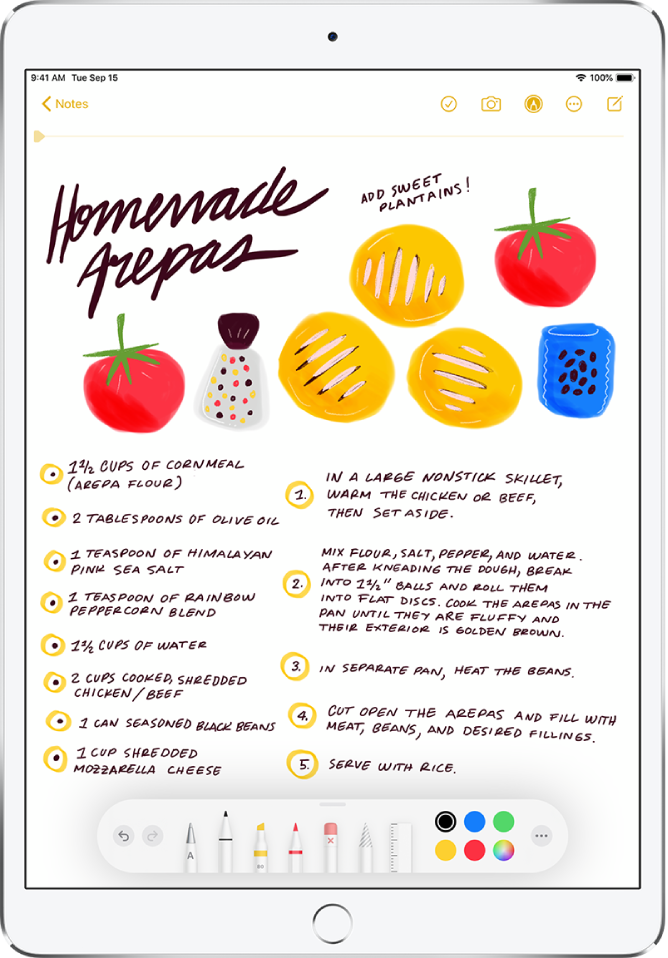
Draw or write in a note
Start drawing or writing in the note with Apple Pencil. Or to draw or write with your finger, tap
 .
.Do any of the following:
Change color or tools: Use the Markup tools.
Adjust the handwriting area: Drag the resize handle (on the left) up or down.
Transcribe your handwriting to typed text as you write with Apple Pencil: Tap the Handwriting tool
 (to the left of the pen), then start writing.
Note: Scribble is available in several languages. See the iOS and iPadOS Feature Availability website. To learn more about writing notes with Apple Pencil, see Enter text with Scribble on iPad.
Tip: You can search handwritten text (in supported languages) in Notes. If the note doesn’t have a title, the first line of handwritten text becomes the suggested title. To edit the title, scroll to the top of the note, then tap Edit.
Select and edit drawings and handwriting
With Smart Selection, you can select handwritten text using the same gestures you use for typed text. You can move, copy, or delete the selection within the note. You can even paste it as typed text in another note or app.
Note: Smart Selection and handwriting transcription work if the system language of your iPad is set to English, Simplified Chinese, or Traditional Chinese in Settings  > General > Language & Region > iPad Language.
In the Markup toolbar, tap the Lasso tool
 (between the eraser and ruler).
Select drawings and handwriting with Apple Pencil or your finger using any of the following methods:
Touch and hold, then drag to expand the selection.
Double-tap to select a word.
Triple-tap to select a sentence.
Adjust the selection by dragging the handles if necessary.
Tap the selection, then choose Cut, Copy, Delete, Duplicate, Copy as Text, or Insert Space Above.
If you choose Copy as Text, you can paste the transcribed text in another note or another app.
Use handwritten addresses, phone numbers, dates, and more
A yellow underline appears below handwritten text that’s recognized as a street or email address, phone number, date, or other data. Tap the underlined text to take action on it. For example, you can see a street address in Maps, compose an email, call a phone number, or add a calendar event.
Note: Data detection works if the system language of your iPad is set to English, Simplified Chinese, or Traditional Chinese in Settings > General > Language & Region.
Show lines or grids in notes
In an existing note: Tap
 , tap Lines & Grids, then choose a style.
Choose the default style for all new notes: Go to Settings
> Notes > Lines & Grids.