Apple Watch User Guide
- Welcome
- What’s new
- Run with Apple Watch
-
- Alarms
- Audiobooks
- Blood Oxygen
- Calculator
- Calendar
- Camera Remote
- ECG
- Medications
- Memoji
- Music Recognition
- News
- Now Playing
- Remote
- Shortcuts
- Siren
- Stocks
- Stopwatch
- Tides
- Timers
- Use the Tips app
- Translate
- Vitals
- Voice Memos
- Walkie-Talkie
- World Clock
- Copyright and trademarks
Listen to radio on Apple Watch
In the Music app on Apple Watch, you can find Radio. It features Apple Music 1, Apple Music Hits, Apple Music Country, Apple Music Club, Apple Música Uno, and Apple Music Chill. These six stations offer the latest music from various genres and exclusive interviews, and you don’t need a subscription to enjoy them.
Siri: You can also use Siri to listen to broadcast radio and curated stations by music experts. For example, ask Siri something like, “Tune in to ESPN Radio.” See Use Siri to listen to broadcast radio.
Listen to Apple Music radio
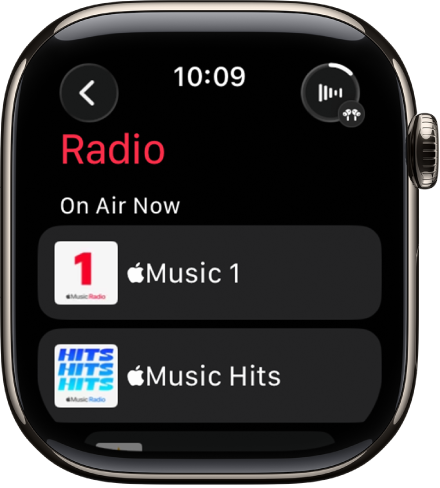
To listen to Apple Music radio, make sure your Apple Watch is near your iPhone or connected to a Wi-Fi network—or a cellular network, if your Apple Watch has a cellular plan.
Go to the Music app
 on your Apple Watch.
From the Home screen, tap
 , tap Radio, then tap an Apple Music station.
Listen to a featured or genre station
Go to the Music app
on your Apple Watch.From the Home screen, tap
, tap Radio, then turn the Digital Crown to scroll through stations and genres created by music experts.Tap a genre to see its stations, then tap a station to play it.
Explore radio options
When playing a radio station, you can see what’s playing next, add music to your library or a playlist, share songs and stations, mark what you do and don’t like, and go to an artist or album screen.
Go to the Music app
on your Apple Watch.Tap Radio, then tap a station to play it.
Tap
 , then choose an option.