iPad User Guide
- Welcome
-
- Supported models
- iPad Pro 12.9-inch (5th generation)
- iPad Pro 12.9-inch (4th generation)
- iPad Pro 12.9-inch (3rd generation)
- iPad Pro 11-inch (3rd generation)
- iPad Pro 11-inch (2nd generation)
- iPad Pro 11-inch (1st generation)
- iPad Pro 12.9-inch (1st and 2nd generation)
- iPad Pro 10.5-inch
- iPad Pro 9.7-inch
- iPad Air (4th generation)
- iPad Air (3rd generation)
- iPad Air 2
- iPad (8th generation)
- iPad (7th generation)
- iPad (6th generation)
- iPad (5th generation)
- iPad mini (5th generation)
- iPad mini 4
- What’s new in iPadOS 14
-
- Wake and unlock
- Adjust the volume
- Change or turn off sounds
- Access features from the Lock Screen
- Open apps
- Take a screenshot or screen recording
- Change or lock the screen orientation
- Change the wallpaper
- Zoom an app to fill the screen
- Drag and drop
- Search with iPad
- Use AirDrop to send items
- Perform quick actions
- Use and customize Control Center
- Add widgets
- Charge and monitor the battery
- Learn the meaning of the status icons
- Travel with iPad
-
-
- View maps
-
- Use Siri, Maps, and the Maps widget to get directions
- Choose your preferred type of travel
- Get driving directions
- Report traffic incidents
- Get cycling directions
- Find places to stop
- Get walking directions
- Get transit directions
- See an overview of your route or its directions in a list
- Change audio settings for turn-by-turn directions
- Select other route options
- Get directions between places other than your current location
- Delete recently viewed directions
- Use Maps on your Mac to get directions
- Help correct and improve Maps
-
- View photos and videos
- Delete and hide photos and videos
- Edit photos and videos
- Edit Live Photos
- Edit Portrait mode photos
- Organize photos in albums
- Search in Photos
- Share photos and videos
- View Memories
- Find people in Photos
- Browse photos by location
- Use iCloud Photos
- Share photos with iCloud Shared Albums
- Use My Photo Stream
- Import photos and videos
- Print photos
- Shortcuts
- Stocks
- Tips
-
- Set up Family Sharing
- Download family members’ purchases
- Stop sharing purchases
- Turn on Ask To Buy
- Set up Apple Cash Family
- Share Apple Card
- Share subscriptions and iCloud storage
- Share photos, a calendar, and more with family members
- Locate a family member’s missing device
- Set up Screen Time through Family Sharing
-
- Accessories included with iPad
-
- Set up AirPods
- Charge AirPods
- Start and stop audio playback
- Change the AirPods volume
- Make and answer calls with AirPods
- Switch AirPods between devices
- Use Siri with AirPods
- Listen and respond to messages
- Share audio with AirPods and Beats headphones
- Change noise control modes
- Control spatial audio
- Restart AirPods
- Change the name of your AirPods and other settings
- Use other Bluetooth headphones
- Use EarPods
- Check headphone sound levels
- HomePod and other wireless speakers
- External storage devices
- Apple Watch with Fitness+
- Cases and covers
- Printers
-
- Share your internet connection
- Make and receive phone calls
- Use iPad as a second display for Mac
- Hand off tasks between iPad and Mac
- Cut, copy, and paste between iPad and other devices
- Connect iPad and your computer with a cable
- Sync iPad with your computer
- Transfer files between iPad and your computer
-
- Get started with accessibility features
-
-
- Turn on and practice VoiceOver
- Change your VoiceOver settings
- Learn VoiceOver gestures
- Operate iPad using VoiceOver gestures
- Control VoiceOver using the rotor
- Use the onscreen keyboard
- Write with your finger
- Use VoiceOver with an Apple external keyboard
- Use a braille display
- Type onscreen braille
- Customize gestures and keyboard shortcuts
- Use VoiceOver with a pointer device
- Use VoiceOver in apps
- Zoom
- Magnifier
- People detection
- Display & Text Size
- Motion
- Spoken Content
- Audio Descriptions
-
-
- Important safety information
- Important handling information
- Get information about your iPad
- View or change cellular data settings
- Find more resources for software and service
- FCC compliance statement
- ISED Canada compliance statement
- Apple and the environment
- Class 1 Laser information
- Disposal and recycling information
- ENERGY STAR compliance statement
- Copyright
View photos and videos on iPad
Use the Photos app  to view your photos and videos organized by years, months, days, and all photos in your photo library. Swipe from the left edge of the screen, or tap
  , to open the sidebar and find photos organized by different categories. You can also use Photos to create albums and then share them with friends and family.
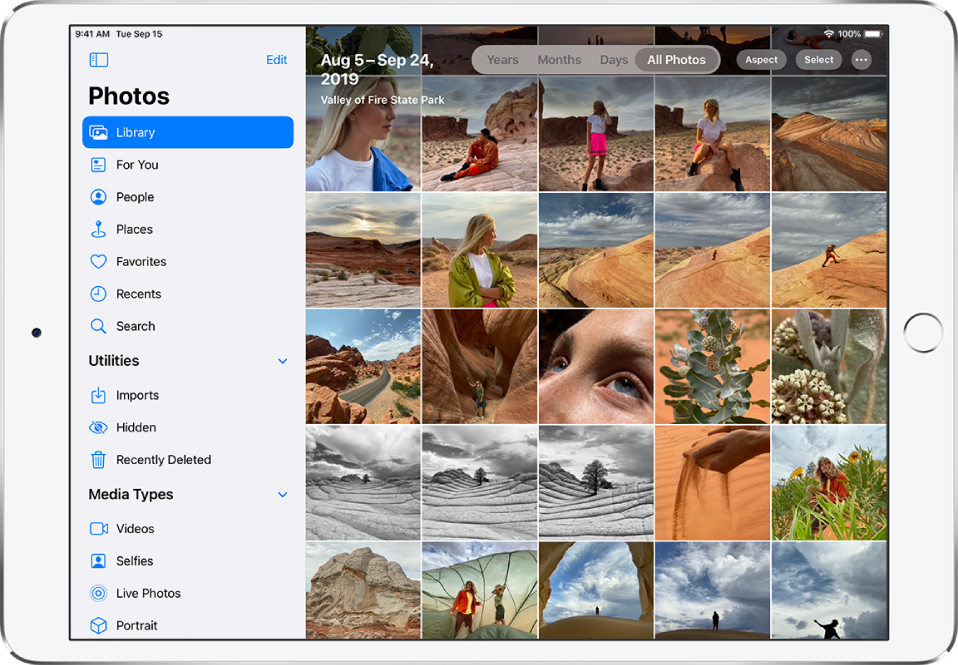
Browse your library
The photos and videos on your iPad are organized in your photo library by Years, Months, Days, and All Photos. You can rediscover your best shots in Years, relive significant events in Months, focus on unique photos in Days, and view everything in All Photos.

To browse your photo library, tap the buttons at the top of the screen to choose a view:
Years: Highlights your best shots from a specific year in your photo library.
Months: Presents collections of photos that you took throughout a month, organized by significant events—like a family outing, birthday party, or trip.
Days: Shows your best shots, grouped by the time or place the photos were taken.
All Photos: Displays all of your photos and videos; tap
 to zoom in or out, view photos by aspect ratio or square, filter photos, or see photos on a map.
Photos removes duplicate photos and clutter (such as screenshots, whiteboards, and receipts) from Days, Months, and Years views. Every photo is shown in All Photos.
View individual photos
Tap a photo thumbnail to view it in full screen, then do any of the following:
Zoom in or out: Double-tap or pinch out to zoom in—while zoomed in, drag to see other parts of the photo; double-tap or pinch closed to zoom out.
Share: Tap
 , then choose how you want to share. See Share photos and videos on iPad.
Add to favorites: Tap
 to add the photo to your Favorites album.

Tap  or drag the photo down to continue browsing or return to the search results.
Add captions and view photo and video details
Captions add context to your photos and videos, and you can search for photos and videos by captions when you use Search. Select a photo or video, then swipe up to add a caption or view a caption in the text field below the image.
When you swipe up on a photo or video, you also see the following details:
Effects you can add to a Live Photo; see Edit a Live Photo.
People identified in your photo; see Find people in Photos on iPad.
Where the photo was taken; see Browse photos by location on iPad.
A link to view other photos taken nearby.
In Shared Albums, you can add comments and likes to photos and videos. Your comments and likes are shared with the album subscribers. See Share iPad photos with Shared Albums in iCloud.
Play a Live Photo
A Live Photo  , which can be taken on supported models, is a moving image that captures the moments just before and after a picture is taken.
Open a Live Photo.
Touch and hold the photo to play it.
Tip: To see all of your Live Photos, swipe from the left edge of the screen or tap to show the sidebar, then tap Live Photos under Media Types.
See Take a Live Photo.
View photos in a Burst shot
Burst mode in Camera takes multiple high-speed photos so that you have a range of photos to choose from. In Photos, Burst shots are saved together in a single photo thumbnail. You can view each photo in the Burst, then select your favorites to save separately.
Open a Burst photo.
Tap Select, then swipe through the collection of photos.
To save specific photos, tap each photo to select it, then tap Done.
Tap Keep Everything to keep the Burst and the photos you selected, or tap Keep Only [number of] Favorites to keep only the ones you selected.
Tip: To see all of your Burst shots, swipe from the left edge of the screen or tap to show the sidebar, then tap Bursts under Media Types.
Play a video
As you browse your photo library, videos auto-play while you scroll. Tap a video to begin playing it in full screen without sound, then do any of the following:
Tap the player controls below the video to pause, play, unmute, and mute; tap the screen to hide the player controls.
Double-tap the screen to toggle between full screen and fit-to-screen.
Play and customize a slideshow
A slideshow is a collection of your photos, formatted and set to music.
View photos by All Photos or Days, then tap Select.
Tap each photo you want to include in the slideshow, then tap
.From the list of options, tap Slideshow.
Tap the screen, then tap Options to change the slideshow theme, music, and more.
To stream a slideshow or video to a TV, see Wirelessly stream videos and photos to Apple TV or a smart TV from iPad.