
Get started with Pages on iPad
Pages makes it easy to create customized, professional-looking documents. Here’s how to get started.

Begin with a template
Drafting a report? Creating a flyer? Writing your novel? You can use Pages to create any kind of document you want, from a simple word-processing document that’s mainly text, to a page layout document with graphics, specialized font treatments, and more. Go to the Pages app  on your iPad, tap Choose a Template (or
  ), then tap a template.

Add text
How you add text depends on the type of document you’re working on. In a word-processing document, simply start typing or tap a placeholder, then start typing. In a page layout document, all text is contained in an object like a text box or shape. To add text, add an object to your document, double-tap the object, then start typing.
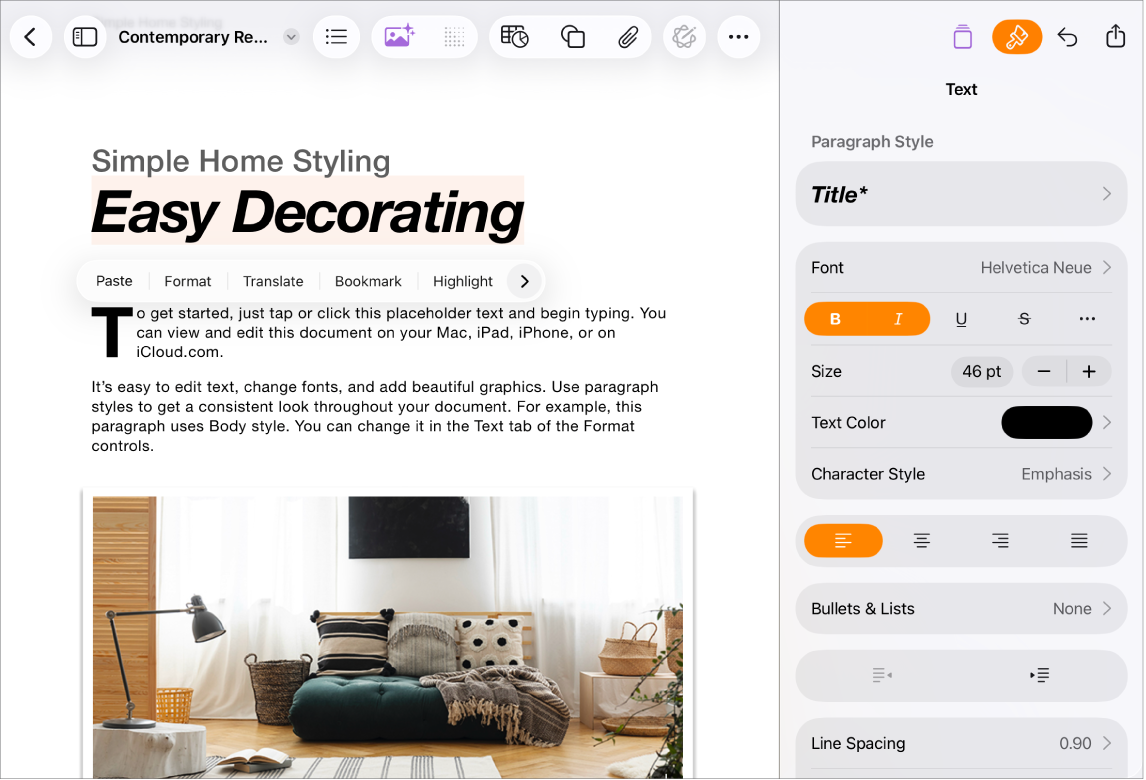
Format text
You can customize the look of text by changing the font, color, alignment, and spacing. For a word processing document, select the text you want to customize, then tap  in the toolbar to view your options. For a page layout document, select the text, tap , then tap the Text tab.
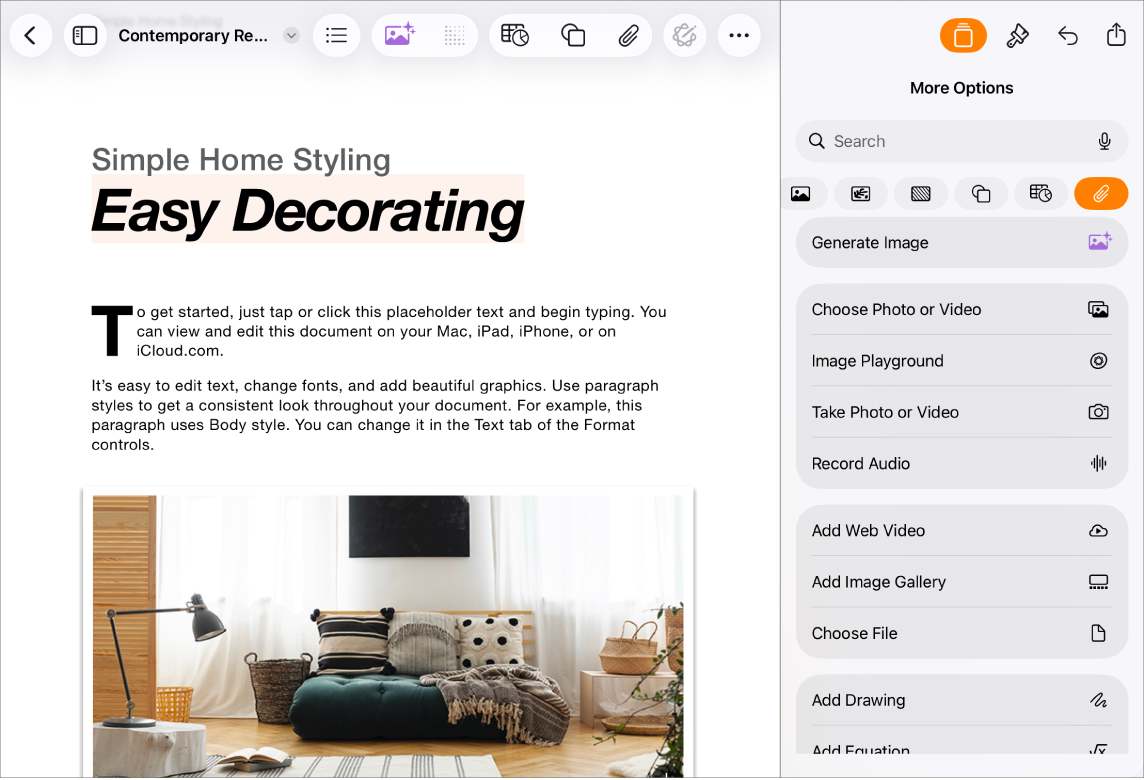
Add objects and media
You can add objects such as text boxes, tables, photos and more to your document. To add an object, tap one of the object buttons in the toolbar, then select an object from the menu. You can also tap  to add objects from the Content Hub.

Export your document
To convert a Pages document to another format, you export it in the new format. You can export your document as a PDF, Word document, EPUB, and more. To export a document, tap  in the toolbar, tap Export and Send, then choose one of the options to save a copy of your document in the new format.
Want to learn more?
This guide helps you get started using Pages 15.3 on your iPad. (To see which version of Pages you have, go to Settings  > Apps > Pages.)
To explore the Pages User Guide, tap the Table of Contents button at the top of the page, or enter a word or phrase in the search field.
Pages 15.3 for iPad requires iPadOS 18 or later. Pages is available in the App Store and requires an Apple Account to download. Features are subject to change, and some may require internet access. Additional fees and terms may apply.