Find places and explore with Apple Watch
Your Apple Watch has a Maps app  for exploring your surroundings and getting directions.
Siri: Say something like:
“Where am I?”
“Find coffee near me.”
WARNING: For important information about avoiding distractions that could lead to dangerous situations, see Important safety information for Apple Watch.
Search the map
Open the Maps app
on your Apple Watch.Tap Search, then tap
 to dictate or
  to scribble. On Apple Watch Series 7 and Apple Watch Series 8 you can also use the QWERTY and QuickPath keyboard (not available in all languages).
To use Scribble on Apple Watch Series 7 and Apple Watch Series 8, swipe up from the bottom of the screen, then tap Scribble.
Note: Scribble is not available in all languages.
Find a nearby service
Open the Maps app
on your Apple Watch.Tap
 , then tap a category such as Restaurants or Parking.
Tap a result, then turn the Digital Crown to scroll the information.
Tap < in the top-left corner to return to the list of results.
Note: Nearby suggestions aren’t available in all areas.

View a guide
Open the Maps app on your iPhone, tap the search field, swipe up, then do any of the following:
Tap a cover that appears below City Guides or Guides We Love.
Tap Explore Guides, browse the guides, then tap a cover.
Tap an entry below Browse by Publisher, then tap a cover.
Swipe up, then tap
 next to a location’s name—the name of a park or restaurant, for example.
Choose the guide you want to add the location to or tap New Guide.
Open the Maps app
on your Apple Watch, scroll down, then tap the guide you added the location to.
Note: Guides are not available in all regions.
See the iPhone User Guide for information about setting up and saving guides in Maps.
See and search your current location and surroundings
Open the Maps app
on your Apple Watch.Tap Location.
To search around your location, tap
 , then tap Search Here.
Tap Transit Map to see nearby transit options.
Note: Transit Map is not available in all regions.

On Apple Watch SE and Apple Watch Series 5 and later, a blue cone on the map shows the direction your watch is facing.
Pan and zoom
Pan the map: Drag with one finger.
Zoom the map in or out: Turn the Digital Crown.
You can also double-tap the map to zoom in on the spot you tap.
Go back to your current location: Tap
 at the bottom right.
Get info about a landmark or marked location
Tap the location marker on the map.
Turn the Digital Crown to scroll the information.
Tap < in the top-left corner to return to the map.
Tip: To call a location, tap the phone number in the location info. To switch to your iPhone, open the App Switcher. (On an iPhone with Face ID, swipe up from the bottom edge and pause; on an iPhone with a Home button, double-click the Home button.) Tap the button at the bottom of the screen to open Phone.
Drop, move, and remove map pins
Drop a pin: Touch and hold the map where you want the pin to go, wait for the pin to drop, then let go.
To drop a pin at your current location, tap the blue dot, then tap Mark My Location.
Move a pin: Touch and hold the pin, then drag it, or drop a new pin in the new location.
Remove a pin: Tap it to see address information, turn the Digital Crown to scroll, then tap Remove Marker.
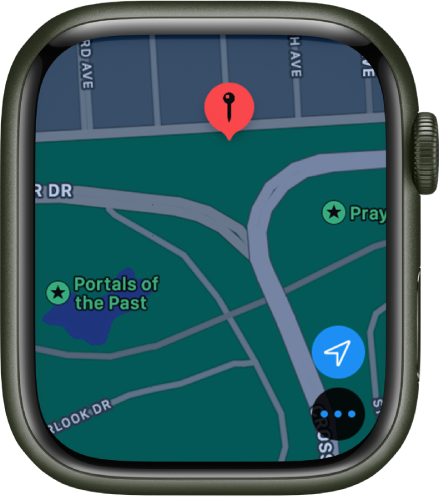
Tip: To find the approximate address of any spot on the map, drop a pin on the location, then tap the pin to see address info.
See recent locations
Open the Maps app
on your Apple Watch.Scroll down, then tap a location listed below Recents.
Recents can also include guides you recently viewed on your iPhone.
Download this guide: Apple Books | PDF