iPhone User Guide
- Welcome
-
- Supported models
- iPhone 8
- iPhone 8 Plus
- iPhone X
- iPhone XR
- iPhone XS
- iPhone XS Max
- iPhone 11
- iPhone 11 Pro
- iPhone 11 Pro Max
- iPhone SE (2nd generation)
- iPhone 12 mini
- iPhone 12
- iPhone 12 Pro
- iPhone 12 Pro Max
- iPhone 13 mini
- iPhone 13
- iPhone 13 Pro
- iPhone 13 Pro Max
- iPhone SE (3rd generation)
- iPhone 14
- iPhone 14 Plus
- iPhone 14 Pro
- iPhone 14 Pro Max
- What’s new in iOS 16
-
- Adjust the volume
- Multitask with Picture in Picture
- Access features from the Lock Screen
- View activities in the Dynamic Island
- Perform quick actions
- Search from the Home Screen or Lock Screen
- Use AirDrop to send items
- Take a screenshot or screen recording
- Get information about your iPhone
- View or change cellular data settings
- Travel with iPhone
-
- Change sounds and vibrations
- Change the wallpaper
- Adjust the screen brightness and color balance
- Keep the iPhone display on longer
- Magnify the screen
- Change the name of your iPhone
- Change the date and time
- Change the language and region
- Use and customize Control Center
- Change or lock the screen orientation
-
- Calculator
- Compass
-
- Set up FaceTime
- Make and receive calls
- Create a FaceTime link
- Take a Live Photo
- Turn on Live Captions in a FaceTime call
- Use other apps during a call
- Make a Group FaceTime call
- View participants in a grid
- Use SharePlay to watch, listen, and play together
- Share your screen
- Hand off a FaceTime call to another device
- Change the video settings
- Change the audio settings
- Add camera effects
- Leave a call or switch to Messages
- Block unwanted callers
-
- Intro to Home
- Upgrade to the new Home architecture
- Set up accessories
- Control accessories
- Control your home using Siri
- Configure HomePod
- Control your home remotely
- Create and use scenes
- Create an automation
- Configure cameras
- Face Recognition
- Unlock your door with a home key
- Configure a router
- Share controls with others
- Add more homes
-
- View maps
- Get rides
-
- Set up Messages
- Send and reply to messages
- Unsend and edit messages
- Keep track of messages and conversations
- Forward and share messages
- Start a group conversation
- Add photos and videos
- Send and receive content
- Watch, listen, or play together using SharePlay
- Collaborate on projects
- Animate messages
- Use iMessage apps
- Use Memoji
- Send recorded audio messages
- Send a Digital Touch effect
- Send, receive, and request money with Apple Cash
- Change notifications
- Block, filter, and report messages
- Delete messages
- Recover deleted messages
-
- View photos
- Play videos and slideshows
- Delete or hide photos and videos
- Edit photos and videos
- Trim video length and adjust slow motion
- Edit Cinematic mode videos
- Edit Live Photos
- Edit Portrait mode photos
- Use photo albums
- Edit and organize albums
- Filter and sort photos and videos in albums
- Duplicate and copy photos and videos
- Find and delete duplicate photos and videos
- Search for Photos
- Find and identify people in Photos
- Browse photos by location
- Share photos and videos
- Share long videos
- View photos and videos shared with you
- Use Live Text to interact with content in a photo or video
- Use Visual Look Up to identify objects in your photos
- Lift a subject from the photo background
- Watch memories
- Personalize your memories
- Manage memories and featured photos
- Import photos and videos
- Print photos
- Shortcuts
- Tips
-
- Keep cards and passes in Wallet
- Set up Apple Pay
- Use Apple Pay for contactless payments
- Use Apple Pay in apps, App Clips, and Safari
- Use Apple Cash
- Use Apple Card
- Use Savings
- Manage payment cards and activity
- Pay for transit
- Use digital keys
- Use your driver’s license or state ID
- Use student ID cards
- Apple Account Card
- Add and use passes
- Manage passes
- Use COVID-19 vaccination cards
-
- Share your internet connection
- Allow phone calls on your iPad, iPod touch, and Mac
- Use iPhone as a webcam
- Hand off tasks between devices
- Wirelessly stream video, photos, and audio to Mac
- Cut, copy, and paste between iPhone and other devices
- Connect iPhone and your computer with a cable
-
- Transfer files between devices
- Transfer files with email, messages, or AirDrop
- Automatically keep files up to date with iCloud
- Transfer files with an external storage device
- Use a file server to share files between your iPhone and computer
- Share files with a cloud storage service
- Sync content or transfer files with the Finder or iTunes
-
- Intro to CarPlay
- Connect to CarPlay
- Use Siri
- Use your vehicle’s built-in controls
- Get turn-by-turn directions
- Report traffic incidents
- Change the map view
- Make phone calls
- Play music
- View your calendar
- Send and receive text messages
- Announce incoming text messages
- Play podcasts
- Play audiobooks
- Listen to news stories
- Control your home
- Use other apps with CarPlay
- Rearrange icons on CarPlay Home
- Change settings in CarPlay
-
- Get started with accessibility features
-
-
- Turn on and practice VoiceOver
- Change your VoiceOver settings
- Learn VoiceOver gestures
- Operate iPhone when VoiceOver is on
- Control VoiceOver using the rotor
- Use the onscreen keyboard
- Write with your finger
- Use VoiceOver with an Apple external keyboard
- Use a braille display
- Type onscreen braille
- Customize gestures and keyboard shortcuts
- Use VoiceOver with a pointer device
- Use VoiceOver for images and videos
- Use VoiceOver in apps
- Zoom
- Display & Text Size
- Motion
- Spoken Content
- Audio Descriptions
-
-
- Use built-in privacy and security protections
- Keep your Apple ID secure
-
- Sign in with passkeys
- Sign in with Apple
- Automatically fill in strong passwords
- Change weak or compromised passwords
- View your passwords and related information
- Share passkeys and passwords securely with AirDrop
- Make your passkeys and passwords available on all your devices
- Automatically fill in verification codes
- Automatically fill in SMS passcodes
- Sign in with fewer CAPTCHA challenges on iPhone
- Manage two-factor authentication for your Apple ID
- Use security keys
- Create and manage Hide My Email addresses
- Protect your web browsing with iCloud Private Relay
- Use a private network address
- Use Advanced Data Protection
- Lockdown Mode
-
- Important safety information
- Important handling information
- Find more resources for software and service
- FCC compliance statement
- ISED Canada compliance statement
- Ultra Wideband information
- Class 1 Laser information
- Apple and the environment
- Disposal and recycling information
- Unauthorized modification of iOS
- Copyright
Organize your notes with tags on iPhone
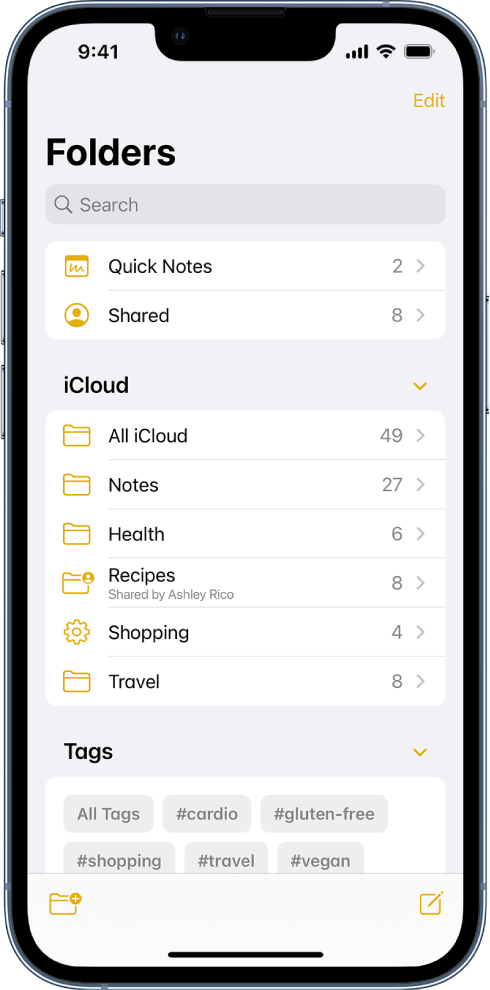
In the Notes app  , you can use tags as a fast and flexible way to categorize and organize your notes. You can add one or more tags to a note, such as #shopping and #work, and easily search and filter your notes across folders using the Tag Browser or Smart Folders.
Add tags to notes
When you create or edit a note, type # followed by the tag name or choose a tag from the menu above the keyboard. A tag can be only one word, but you can use dashes and underscores to combine words. You can add multiple tags to a note.
Rename or delete a tag
Below Tags at the bottom of the screen, touch and hold a tag, then tap Rename Tag or Delete Tag.
When you delete a tag, it’s also removed from all Smart Folders that use it.
View notes with tags
Below Tags at the bottom of the screen, do any of the following:
View all notes with tags: Tap All Tags.
View notes with specific tags: Tap one or more tags, then choose to view notes matching any or all of the selected tags.