Apple Watch User Guide
- Welcome
- What’s new
- Run with Apple Watch
-
- Alarms
- Audiobooks
- Blood Oxygen
- Calculator
- Calendar
- Camera Remote
- ECG
- Medications
- Memoji
- Music Recognition
- News
- Now Playing
- Remote
- Shortcuts
- Siren
- Stocks
- Stopwatch
- Tides
- Timers
- Use the Tips app
- Translate
- Vitals
- Voice Memos
- Walkie-Talkie
- World Clock
- Copyright and trademarks
Silence notifications for extended periods on Apple Watch
When you don’t want to get alerts and notifications for an extended period, you can turn on Silent Mode, Theater Mode, or Do Not Disturb. You can also use a Focus that you can customize with a schedule, allowable notifications, and more.
To immediately silence something such as a phone call or alarm, see Quickly mute notifications with gestures on Apple Watch.
Choose a mode for extended silencing
| Silent Mode | Theater Mode | Do Not Disturb | Focus |
Sounds | Off | Off | Off | Off (with exceptions you set) |
Haptics | On (if you allow) | On (if you allow) | Off | Off (with exceptions you set) |
Visual notifications | On | Off | Off | Off (with exceptions you set) |
Display | On | Off | On | On (except for customizable modes like Sleep) |
Options | — | — | Can turn on for 1 hour, until you leave location, until event ends, or indefinitely | Can set schedules and customize allowed notifications |
Good for | Quiet environments where you want to see and feel notifications | Dark venues like theaters and movies | Meetings, appointments, and instances when you want to prevent all notifications | Sleep, work, and other activities with specific notification needs |
Learn More |


Turn on Silent Mode
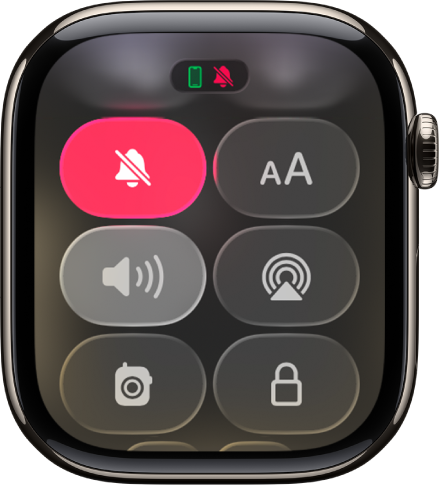
Use Silent Mode to mute all alerts, notifications, and sound effects. You still receive haptic notifications.
Note: While Apple Watch is charging, alarms and timers still sound, even in Silent Mode.
Press the side button to open Control Center on Apple Watch.
Tap
 .
.
You can also go to the Apple Watch app  on your iPhone, tap My Watch, tap Sounds & Haptics, then turn on Silent Mode.
Turn on Theater Mode
Theater Mode prevents the Apple Watch display from turning on when you raise your wrist, so it stays dark. Theater Mode also turns on Silent Mode and makes your Walkie-Talkie status unavailable, but you still receive haptic notifications.
Press the side button to open Control Center on Apple Watch.
Tap
 .
.
When Theater Mode is on,  appears at the top of the screen.
To wake Apple Watch when Theater Mode is on, tap the display, press the side button, or turn or press the Digital Crown.
Turn on Do Not Disturb or a Focus
To prevent sound and haptic notifications, do the following:
Press the side button to open Control Center on Apple Watch.
Tap
 , then choose Do Not Disturb or a Focus.
Tap On or choose an ending point—such as On for 1 hour or On until I leave.