Use Control Center on Apple Watch
Control Center gives you an easy way to check your battery, silence your watch, choose a Focus, turn your Apple Watch into a flashlight, put your Apple Watch in Airplane Mode, turn on theater mode, and more.
Open or close Control Center
Open Control Center: Press the side button once.
Close Control Center: With Control Center open, turn your wrist away from you or press the side button again.

Icon | Description | For more information |
|---|---|---|
 | Turn cellular on or off—Apple Watch models with cellular only. | |
 | Disconnect from Wi-Fi. | |
 | Turn on Schooltime—managed Apple Watch models only. | See Set up Schooltime. |
 | Ping your iPhone. | See Ping your iPhone (Apple Watch Series 8 and earlier) and Ping and find your iPhone (Apple Watch Series 9 only). |
 | Check your battery percentage. | See Charge Apple Watch. |
 | Silence Apple Watch. | See Turn on silent mode. |
 | Lock your watch with a passcode. | |
 | Turn on theater mode. | |
 | Make yourself available for Walkie-Talkie. | |
 | Choose a Focus/Do Not Disturb. | |
 | Turn off Personal Focus. | |
 | Turn off Work Focus. | |
 | Turn off Sleep Focus. | |
 | Turn on the flashlight. | |
 | Turn on Airplane Mode. | |
 | Turn on Water Lock. | |
 | Choose audio output. | See Connect Apple Watch to Bluetooth headphones or speakers. |
 | Check headphone volume. | See Connect Apple Watch to Bluetooth headphones or speakers. |
 | Change text size. | |
 | Turn Accessibility Shortcuts on or off. | |
 | Turn Announce Notifications on or off. | See Listen and respond to incoming notifications with AirPods and Beats headphones on Apple Watch. |
Check Control Center status
Small icons at the top of Control Center indicate the status of certain settings—for example, that your Apple Watch is connected to cellular, your location is being used by an app, and features like Airplane Mode and Do Not Disturb are on.
To view the status icons, press the side button to open Control Center. To get details, tap the icons.

Rearrange Control Center
You can rearrange the buttons in Control Center by following these steps:
Press the side button to open Control Center.
Scroll to the bottom of Control Center, then tap Edit.
Touch and hold a button, then drag it to a new location.
Tap Done when you’re finished.
Remove Control Center buttons
You can remove the buttons in Control Center by following these steps:
Press the side button to open Control Center.
Scroll to the bottom of Control Center, then tap Edit.
Tap
 in the corner of the button you want to remove.
Tap Done when you’re finished.
To restore a button you’ve removed, open Control Center, tap Edit, then tap  in the corner of the button you want to restore. Tap Done when you’re finished.
Turn on Airplane Mode
Some airlines let you fly with your Apple Watch (and iPhone) turned on if you put them in Airplane Mode. By default, turning on Airplane Mode turns off Wi-Fi and cellular (on Apple Watch models with cellular) and keeps Bluetooth turned on. However, you can change which settings are turned on and off when you turn on Airplane Mode.
Turn on Airplane Mode on Apple Watch: Press the side button to open Control Center, then tap
 .
.
Siri: Say something like: “Turn on Airplane Mode.”
Put both your Apple Watch and iPhone in Airplane Mode in one step: Open the Apple Watch app on your iPhone, tap My Watch, go to General > Airplane Mode, then turn on Mirror iPhone. When your iPhone and Apple Watch are within normal Bluetooth range of each other (about 33 feet or 10 meters), any time you switch to Airplane Mode on one device, the other switches to match.
Change which settings are turned on or off in Airplane Mode: On Apple Watch, open the Settings app
 , tap Airplane Mode, then choose whether to turn Wi-Fi or Bluetooth on or off by default when you turn on Airplane Mode.
To turn Wi-Fi or Bluetooth on or off while your Apple Watch is in Airplane Mode, open the Settings app
, then tap Wi-Fi or Bluetooth.
When Airplane Mode is on, appears at the top of the screen.
Note: Even with Mirror iPhone turned on, you must turn off Airplane Mode separately on your iPhone and Apple Watch.
Use the flashlight on Apple Watch
Use the flashlight to light a darkened door lock, alert others when you’re out for an evening run, or light nearby objects while preserving your night vision.
Turn on the flashlight: Press the side button to open Control Center, then tap
 . Swipe left to choose a mode—steady white light, flashing white light, or steady red light.
Adjust the brightness: Turn the Digital Crown up or down.
Turn off the flashlight: Press the Digital Crown or side button, or swipe down from the top of the watch face.
Use theater mode on Apple Watch
Theater mode prevents the Apple Watch display from turning on when you raise your wrist, so it stays dark. It also turns on silent mode and makes your Walkie-Talkie status unavailable, but you still receive haptic notifications.
Press the side button to open Control Center, tap  , then tap Theater Mode.

When theater mode is on, you see  at the top of the screen.
To wake Apple Watch when theater mode is on, tap the display, press the Digital Crown or side button, or turn the Digital Crown.
Disconnect from Wi-Fi
You can temporarily disconnect from a Wi-Fi network and, on Apple Watch models with cellular, use an available cellular connection instead—right from Control Center.
Press the side button to open Control Center, then tap  .
.

Your Apple Watch temporarily disconnects from the Wi-Fi network. If you have an Apple Watch with cellular, the cellular connection activates if you have coverage. When you leave and later return to the place where you were connected to Wi-Fi, your Apple Watch automatically joins that network again unless you’ve forgotten it on your iPhone.
Tip: To quickly open Wi-Fi settings on your Apple Watch, touch and hold the Wi-Fi button in Control Center.
Turn on silent mode
Press the side button to open Control Center, then tap  .
.
Note: If your Apple Watch is charging, alarms and timers will still sound even in silent mode.

You can also open the Apple Watch app on your iPhone, tap My Watch, tap Sounds & Haptics, then turn on silent mode.
Tip: When you get a notification, you can quickly mute your Apple Watch by resting the palm of your hand on the watch display for at least three seconds. You’ll feel a tap to confirm that mute is on. Make sure you turn on Cover to Mute on your Apple Watch—open the Settings app , tap Gestures, then turn on Cover to Mute.
Ping your iPhone (Apple Watch Series 8 and earlier)
Your Apple Watch can help you find your iPhone if it’s nearby.
Press the side button to open Control Center, then tap  .
.
Your iPhone plays a sound so you can track it down.
Tip: In the dark? Touch and hold and your iPhone flashes as well.
If your iPhone isn’t in range of your Apple Watch, try using Find My from iCloud.com.

Ping and find your iPhone (Apple Watch Series 9 only)
On Apple Watch Series 9 you can use Precision Finding to ping your nearby iPhone 15 and get directions to it.

On your Apple Watch Series 9, press the side button to open Control Center, then tap
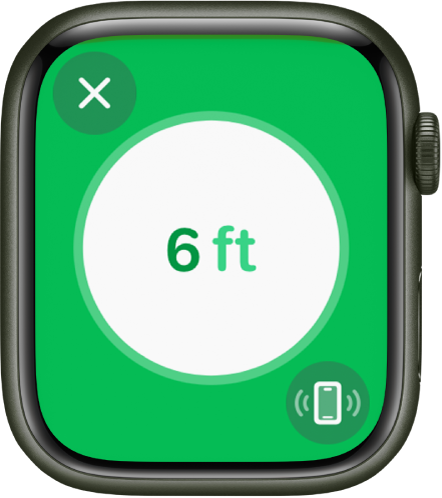
.Your iPhone plays a sound and, if your Apple Watch Series 9 is within range, the screen displays a general heading and distance to your iPhone—77 feet, for example.
To play a sound on your iPhone as you track it down, tap
in the bottom-right corner.Follow the heading shown on the screen, making adjustments as the heading moves.
When you’re close to your iPhone, the watch screen turns green and the iPhone pings two times.
Tip: In the dark? Touch and hold and your iPhone flashes as well.
If your iPhone isn’t in range of your Apple Watch, try using Find My from iCloud.com.
Note: Precision Finding is not available in all regions.
Ping your Apple Watch
You can use your iPhone with iOS 17 to help you find your Apple Watch if it’s nearby.
Open the Settings app on your iPhone.
Tap Control Center, swipe down, then tap
next to Ping My Watch.When you want to ping your Apple Watch, swipe down from the top-right corner of your iPhone to open Control Center, then tap
 .
.
Note: If you have more than one Apple Watch, the sound will play on the watch that’s selected in All Watches in the Apple Watch app on your iPhone.
You can also use Find My to play a sound on your Apple Watch.
See Locate your Apple Watch and the Apple Support article If your Apple Watch is lost or stolen.
Download this guide: PDF