iPhone User Guide
- Welcome
-
- Supported models
- iPhone 13 mini
- iPhone 13
- iPhone 13 Pro
- iPhone 13 Pro Max
- iPhone 12 mini
- iPhone 12
- iPhone 12 Pro
- iPhone 12 Pro Max
- iPhone 11
- iPhone 11 Pro
- iPhone 11 Pro Max
- iPhone XR
- iPhone XS
- iPhone XS Max
- iPhone X
- iPhone SE (3rd generation)
- iPhone SE (2nd generation)
- iPhone SE (1st generation)
- iPhone 8
- iPhone 8 Plus
- iPhone 7
- iPhone 7 Plus
- iPhone 6s
- iPhone 6s Plus
- What’s new in iOS 15
-
- Change sounds and vibrations
- Change the wallpaper
- Set a Live Photo as wallpaper
- Adjust the screen brightness and color balance
- Magnify the screen
- Change the name of your iPhone
- Change the date and time
- Change the language and region
- Use and customize Control Center
- Change or lock the screen orientation
-
- Calculator
- Compass
-
- Set up FaceTime
- Make and receive calls
- Create a FaceTime link
- Take a Live Photo
- Use other apps during a call
- Make a Group FaceTime call
- View participants in a grid
- Use SharePlay to watch and listen together
- Share your screen
- Change the video settings
- Change the audio settings
- Add camera effects
- Leave a call or switch to Messages
- Block unwanted callers
-
- View maps
-
- Search for places
- Find nearby attractions, restaurants, and services
- Get information about places
- Mark places
- Share places
- Rate places
- Save favorite places
- Explore new places with Guides
- Organize places in My Guides
- Get traffic and weather info
- Delete significant locations
- Quickly find your Maps settings
-
- Use Siri, Maps, and the Maps widget to get directions
- Select other route options
- Things you can do while following a route
- Set up electric vehicle routing
- Get driving directions
- Get directions to your parked car
- Report traffic incidents in Maps on iPhone
- Get cycling directions
- Get walking directions
- Get transit directions
- Delete recent directions
- Use Maps on your Mac to get directions
- Get rides
-
- Set up Messages
- Send and receive messages
- Send a message to a group
- Send and receive photos, videos, and audio
- Receive and share content
- Animate messages
- Use iMessage apps
- Use Memoji
- Send a Digital Touch effect
- Send, receive, and request money with Apple Cash
- Change notifications
- Block, filter, and report messages
- Delete messages
-
- View photos
- Play videos and slideshows
- Delete and hide photos and videos
- Edit photos and videos
- Trim video length and adjust slow motion
- Edit Cinematic mode videos
- Edit Live Photos
- Edit Portrait mode photos
- Make photo albums
- Edit and organize albums
- Filter and sort photos in an album
- Search in Photos
- Share photos and videos
- View photos and videos shared with you
- Interact with photos using Live Text and Visual Look Up
- Watch memories
- Personalize memories
- Find people in Photos
- Show a person or place less often
- Browse photos by location
- Use iCloud Photos
- Share photos with iCloud Shared Albums
- Import photos and videos
- Print photos
-
- Browse the web
- Customize your Safari settings
- Change the layout
- Search for websites
- Use tabs in Safari
- Bookmark favorite webpages
- Save pages to a Reading List
- View links shared with you
- Automatically fill in forms
- Get extensions
- Hide ads and distractions
- Browse the web privately
- Clear your cache
- Use Hide My Email
- Shortcuts
- Stocks
- Tips
-
- Keep cards and passes in Wallet
- Set up Apple Pay
- Use Apple Pay for contactless payments
- Use Apple Pay in apps, App Clips, and Safari
- Use Apple Cash
- Use Apple Card
- Manage cards and activity
- Pay for transit
- Use digital keys
- Use student ID cards
- Use your driver’s license or state ID
- Add and use passes
- Manage passes
- Use COVID-19 vaccination cards
-
- Share your internet connection
- Allow phone calls on your iPad, iPod touch, and Mac
- Hand off tasks between devices
- Wirelessly stream video, photos, and audio to Mac
- Cut, copy, and paste between iPhone and other devices
- Connect iPhone and your computer with a cable
- Sync iPhone with your computer
- Transfer files between iPhone and your computer
-
- Intro to CarPlay
- Connect to CarPlay
- Use Siri
- Use your vehicle’s built-in controls
- Get turn-by-turn directions
- Report traffic incidents
- Change the map view
- Make phone calls
- Play music
- View your calendar
- Send and receive text messages
- Announce incoming text messages
- Play podcasts
- Play audiobooks
- Listen to news stories
- Control your home
- Use other apps with CarPlay
- Rearrange icons on CarPlay Home
- Change settings in CarPlay
-
- Get started with accessibility features
-
-
- Turn on and practice VoiceOver
- Change your VoiceOver settings
- Learn VoiceOver gestures
- Operate iPhone using VoiceOver gestures
- Control VoiceOver using the rotor
- Use the onscreen keyboard
- Write with your finger
- Use VoiceOver with an Apple external keyboard
- Use a braille display
- Type onscreen braille
- Customize gestures and keyboard shortcuts
- Use VoiceOver with a pointer device
- Use VoiceOver for images and videos
- Use VoiceOver in apps
- Zoom
- Display & Text Size
- Motion
- Spoken Content
- Audio Descriptions
-
-
- Use built-in security and privacy protections
-
- Keep your Apple ID secure
- Sign in with Apple
- Automatically fill in strong passwords
- Change weak or compromised passwords
- View your passwords and related information
- Share passwords securely with AirDrop
- Make your passwords available on all your devices
- Automatically fill in verification codes
- Automatically fill in SMS passcodes
- Manage two-factor authentication for your Apple ID
-
- Control access to information in apps
- Control access to hardware features
- Control app tracking permissions on iPhone
- Control the location information you share
- Turn on iCloud Private Relay
- Create and manage Hide My Email addresses
- Use a private network address
- Control how Apple delivers advertising to you
- Copyright
Send and receive photos, videos, and audio messages on iPhone
In the Messages app  , you can send photos, videos, and audio messages using iMessage or your SMS/MMS service. You can also share, save, or print attachments. Your carrier may set size limits for attachments; iPhone may compress photo and video attachments when necessary.
For information about sending SMS/MMS attachments on models with Dual SIM, see Manage your cellular plans for Dual SIM.
Send a photo or video
In Messages, do any of the following while writing a message:
Take a photo within Messages: Tap
 , frame the shot in the viewfinder, then tap
  .
.Take a video within Messages: Tap
, choose Video mode, then tap  .
.Choose an existing photo or video: Tap
 to see recent shots, then swipe up to search or browse through all photos and albums. If multiple photos or videos are selected, a number indicates in which order they’ll be sent.
Tap
 to send your message or
  to cancel.
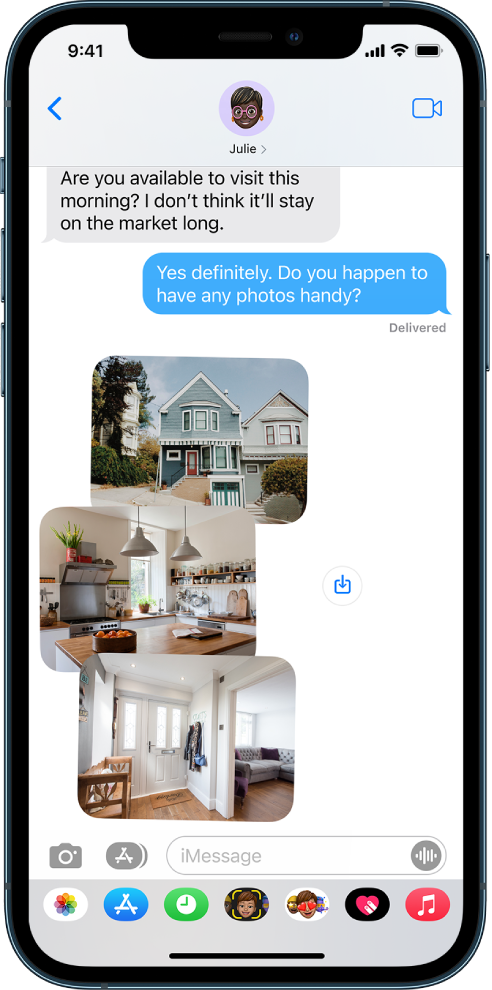
If you receive multiple photos at the same time, they’re automatically grouped into a collage (2-3 photos) or a photo stack (4+ photos). You can swipe through a photo stack to view, reply, or interact with each photo individually.
To save a photo, tap the  next to the photo or collection of photos.
Note: The Messages app can detect nudity in photos on your child’s device before the photos are sent or received, and provide resources to help your child handle the situation (iOS 15.2 or later; not available in all countries or regions). Apple doesn’t get access to the photos as a result of this feature. For more information, see Turn communication safety for messages on or off on a family member’s device.
Mark up or edit a photo
You can mark up or edit a photo before you send it in a Messages conversation.
Tap
in the app drawer, then choose a photo.Tap the photo in the message bubble, then do any of the following:
Tap Markup, use the Markup tools to draw on the photo, then tap Save.
Tap Edit, use the photo editing tools to edit the photo, then tap Done.
Tap Done, add a message, then tap
to send the photo, or tap to remove the photo from the message bubble.
Add camera effects to a photo or video
When you take a photo or video in a Messages conversation, you can add camera effects to it—such as filters, stickers, labels, and shapes.
In a Messages conversation, tap
, then choose Photo or Video mode.Tap
 , then do any of the following:
Tap
 , then choose a Memoji (on supported models).
Tap
 , then choose a filter to apply to your picture.
Tap
 to add a text label, or
  to add a shape.
Tap
 to add a Memoji sticker, or
  to add an Emoji sticker.
Tap
 to close the effect window.
Tap
to take a photo or  to record video.
Tap Done to add the photo or video to the message bubble, where you can add a message, or tap
to send the photo or video directly.
Send an audio message
In a conversation, touch and hold
 to record an audio message.
Tap
 to listen to your message before you send it.
Tap
 to send the message or
  to cancel.
Note: To save space, iPhone automatically deletes audio messages two minutes after you listen to them, unless you tap Keep. To always keep audio messages, go to Settings  > Messages > Expire (below Audio Messages), then tap Never.
Listen or reply to an audio message
Raise iPhone to your ear to play incoming audio messages.
Raise it again to reply.
To turn this feature on or off, go to Settings > Messages, then turn off Raise to Listen.
Share, save, print, copy, or delete a message or attachment
In a conversation, do any of the following with attachments:
Share, save, or print an attachment: Tap the attachment, then tap
 .
.Copy an attachment: Touch and hold the attachment, then tap Copy.
Share items from another app: In the other app, tap Share or
, then tap Messages.Forward a message or attachment: Touch and hold a message or attachment, tap More, select additional items if desired, then tap
 .
.Delete an attachment: Touch and hold a message or attachment, tap More, select additional items if desired, then tap
 .
.
Note: Attachments you send over iMessage (such as photos or videos) may be uploaded to Apple and encrypted so that no one but the sender and receiver can access them. To improve performance, your device may automatically upload attachments to Apple while you are composing an iMessage. If your message isn’t sent, the attachments are deleted from the server after several days.