Apple Watch User Guide
- Welcome
- What’s new
- Run with Apple Watch
-
- Alarms
- Audiobooks
- Blood Oxygen
- Calculator
- Calendar
- Camera Remote
- ECG
- Medications
- Memoji
- Music Recognition
- News
- Now Playing
- Remote
- Shortcuts
- Siren
- Stocks
- Stopwatch
- Tides
- Timers
- Use the Tips app
- Translate
- Vitals
- Voice Memos
- Walkie-Talkie
- World Clock
- Copyright and trademarks
Use the Action button on Apple Watch Ultra models
On Apple Watch Ultra models, the customizable Action button gives you quick, physical control over a variety of functions. It can do things like start a workout, mark a Compass Waypoint, or begin a dive.
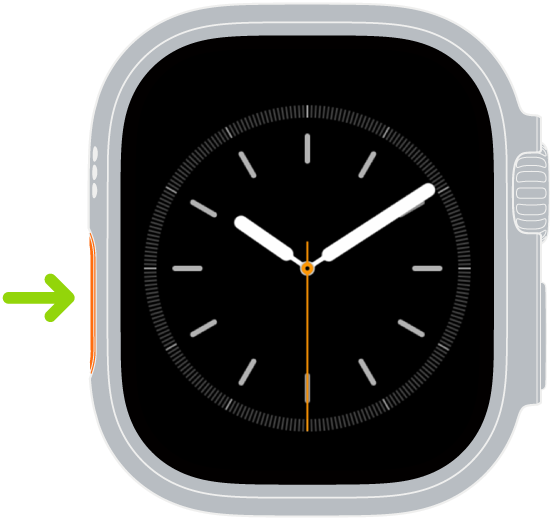
Available functions for the Action button
Some actions offer additional options when you press the Action and side buttons simultaneously. The following list isn’t exhaustive; third-party apps may support the Action button.
Action | What it does |
|---|---|
Workout | Press once: Go to the Workout app or start a selected workout. Press again: Perform a secondary action based on the selected workout. Press the Action button and side button together: Pause. |
Stopwatch | Press once: Start. Press again: Mark a lap. Press the Action button and side button together: Pause. |
Waypoint | Drop a Compass Waypoint |
Backtrack | Press once: Record your route. Press the Action button and side button together: Toggle between Record and Retrace. |
Dive | Press once: Start a dive. Press the Action button and side button together: Perform a secondary action based on the selected diving app. |
Flashlight | Press once: On Press again: Off |
Shortcut | Start the selected shortcut. |
Voice Memo | Press once: Start a voice memo. Press again: Stop recording. |
Translate | Press once: Start translating. Press again: Stop translating. |
Accessibility | Press once: Turn on the selected Accessibility feature. Press again: Turn off the selected Accessibility feature. |
Recognize Music | Press once: Listen and identify music. Press again: Stop. |
Customize the Action button
On Apple Watch Ultra models, you’re asked to choose a function for the Action button during setup. You can change the function any time.
Go to the Settings app
 on Apple Watch Ultra.
Tap Action Button, then do any of the following:
Change the action: Tap Action, then choose an action, such as Workout, Backtrack, or Dive.
Tip: You can change the action later using Quick Switch.
Choose an app: If the selected action is supported by more than one app, tap the app shown, then choose a different app.
Change the actions available in Quick Switch: Tap Quick Switch, then turn on or off any of the available actions. You can also turn off Quick Switch.
Deactivate Siren: If you don’t want to activate Siren by pressing and holding the Action button, turn off “Hold to Turn On.”
Quickly switch the function of the Action button
On Apple Watch Ultra models, you can do the following:
Press and hold the Action button.
Choose an action.

To customize Quick Switch, go to the Settings app , tap Action Button, tap Quick Switch, then choose the actions you want to be included in Quick Switch. You can also turn off Quick Switch.
Turn off the Action button
Go to the Settings app
on Apple Watch Ultra.Tap Action Button, tap Action, then tap None.