
Get started with Books on Mac
Use the Books app to buy books and audiobooks, then read and listen to your library on your Mac or on your other Apple devices.

Sign in to your Apple Account
Before you can buy a book, you need to sign in to your Apple Account in Books. Go to the Books app on your Mac, then click “Sign in” in the lower-left corner. Enter your Apple Account information, click Sign In, and get ready to shop.

Find the perfect book
Apple Books contains millions of books and audiobooks for you to choose from. Find your next book by typing a title, author, or genre into the search field, then press Return. Click the book to read a description and reviews, and click the price to buy it.

Customize how your books look
Adjust a book’s text size, background color, and font to make it easier to read. Move your pointer to the top of a page, then click  to see the available options. Click Customize to make further changes to the book’s appearance.

Read, listen, and explore
In the Books app, Home makes it easy for you to pick up right where you left off—to keep reading, click a book below Continue. You can also find personalized recommendations based on what you’ve been reading, as well as other titles in collections like Top Picks and Want to Read.
Keep your books in sync with iCloud
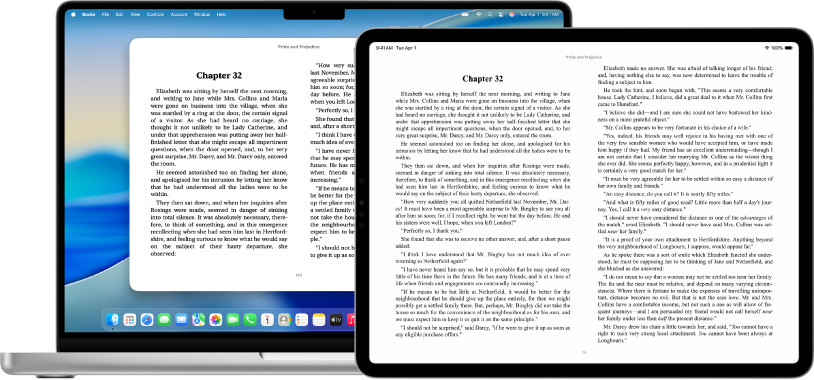
Read a book on your iPad during a flight, and then pick up where you left off on your Mac later at the hotel. When you sign in to the same Apple Account on all of your Apple devices, iCloud keeps track of your progress so you don’t have to. Go to Books > Settings, click General, then select options below Syncing to have iCloud sync your place in a book or audiobook, your bookmarks, and more.
Want to learn more?