Use the Compass app on Apple Watch
The Compass app  shows the direction your Apple Watch SE or Apple Watch Series 5 or later is facing, as well as your current location and elevation. On Apple Watch SE and Apple Watch Series 6 and later, you can create Compass Waypoints and then find the distance and direction between them, be alerted when you’ve exceeded a particular elevation, see an estimate of the point where your Apple Watch was last able to establish a cellular connection or make an SOS call, use Backtrack to retrace your steps, and more.
Note: If you remove the Compass app from your iPhone, itʼs also removed from Apple Watch.
Choose a compass view
On Apple Watch SE and Apple Watch Series 6 and later, the Compass app has five views.
When you first open the Compass app, your bearing is shown at the center of the watch face, with waypoints appearing in the inner ring.

Turn the Digital Crown down to see a large compass arrow with your heading below.

Turn the Digital Crown up two screens to see your incline, elevation, and coordinates in the inner ring of the compass. Your bearing is on the outer ring. Nearby waypoints are shown in the center.

Continue turning the Digital Crown to show the location of waypoints you created as well as the automatically created waypoints that mark where you parked your car, and estimate the last location where your watch or iPhone could make a cellular connection, and where Emergency SOS was last available.

Each screen that shows the compass dial has an Elevation button at the bottom of the display. Tap
 to show a 3D-like view of your waypoint elevations relative to your current elevation.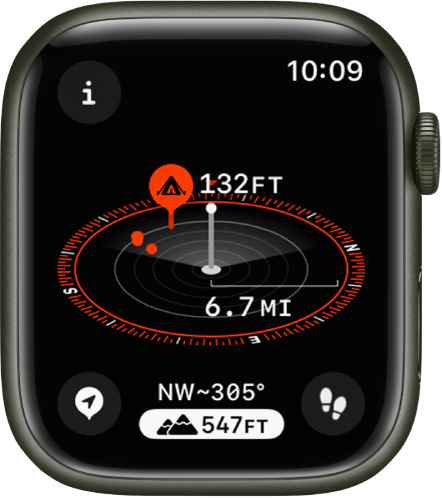
The Compass app on Apple Watch Series 5 provides basic functionality—showing your heading and coordinates. Features such as waypoints, elevation alerts, and Backtrack aren’t supported.
Note: Coordinates and emergency call waypoints may not be available in all regions.
Show compass details
Open the Compass app , then tap  at the top left to see your bearing, incline, elevation, and coordinates (latitude and longitude). In addition, you can view waypoints, add a bearing, and set a target elevation alert.

Browse waypoints
In watchOS 10 you can browse waypoints—those you’ve created in the Compass app as well as waypoints from guides in the Maps app.

Open the Compass app
on your Apple Watch.Tap
at the top left, then tap Waypoints.Tap Compass Waypoints to show the waypoints you’ve created in the Compass app as well as automatically generated waypoints such as the location of your parked car and the last estimated locations where cellular connectivity and Emergency SOS were available.
Tap a guide, such as My Places or a guide you created in the Maps app, to view those waypoints.
To keep a guide’s waypoints from appearing in the Compass app, tap the guide, then turn off Show Waypoints.
Note: Waypoints that are more than 50 miles from you won’t appear on the compass dial.
Add a bearing
Open the Compass app
on your Apple Watch.Tap
, then tap Bearing.Turn the Digital Crown to the bearing, then tap
 .
.To edit the bearing, tap
, scroll down, tap Bearing, turn the Digital Crown to the new bearing, then tap .To clear the bearing, tap
, scroll down, then tap Clear Bearing.
Set a target elevation alert

To help you stay safe and remind you to rest and acclimate as you go, set a target elevation and receive an alert after going beyond it.
Open the Compass app
on your Apple Watch.Tap
, then tap Set Target Alert.Turn the Digital Crown to set the target elevation.
To edit the target, tap
, tap Target Alert, then choose a new elevation. To clear the target, tap , then tap Clear Target.
An alert appears when you exceed your target elevation.
Use true north
To use true north rather than magnetic north, do the following:
Open the Settings app
 on your Apple Watch.
Tap Compass, then turn on Use True North.
You can also choose a grid system—DMS, decimal degrees, MGRS/USNG or UTM—on the Compass settings screen.
If you see a red spinning radar screen
If a red spinning radar screen appears when you open the Compass app, it may be caused by any of the following:
Apple Watch may be in a poor magnetic environment: Compass can be affected by magnetic materials in some watch bands. See the Apple Support article About the accuracy and performance of the Compass app on Apple Watch.
Location Services is turned off: To turn Location Services on or off, open the Settings app
on your Apple Watch, tap Privacy, then tap Location Services.Compass Calibration is disabled: To turn Compass Calibration on or off, open the Settings app on your iPhone, go to Privacy & Security > Location Services, then tap System Settings.
Download this guide: PDF