
Listen to audiobooks in Books on Mac
You can listen to audiobooks on your Mac. You can also listen to audiobooks you’ve purchased on other devices when you’re logged in to the same Apple Account.
Note: To sync your progress in an audiobook across all your Apple devices signed in to the same Apple Account, you need to set up iCloud. See Use iCloud to read and listen on all your devices. For more information about listening to audiobooks on your iPhone, iPad, iPod touch, Apple Watch, or Apple Vision Pro, see the user guide for your device.
Go to the Books app
on your Mac.Do one of the following:
See all your audiobooks: Click Audiobooks below Library in the sidebar, then double-click the audiobook you want to listen to.
See the audiobooks you’re currently listening to: Click Home in the sidebar, then click an audiobook. Audiobooks you’re currently listening to appear in the Continue section.
When you start listening, the audiobook player appears at the bottom of the window.
To control playback, do any of the following:
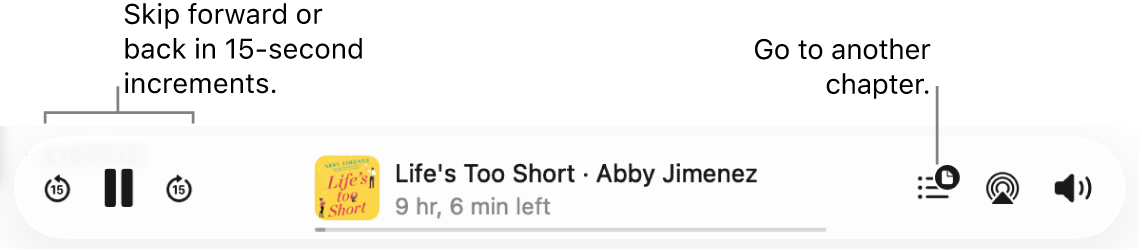
Skip forward or back: Click
 or
or  . You can set how many seconds to skip forward or back in Books Playback settings.
Go directly to a specific chapter: Click
 , then select a chapter.
Set a sleep timer: Choose Controls > Sleep Timer, then select when you want the audiobook to stop playing.
Change the speed of the speaking voice: Choose Controls > Playback Speed, then select a speed. The fastest speed is 2x, and the slowest speed is 0.75x.
Control the playback outside of the Books window: Click
 in the menu bar, then click an option.
Note: If the Now Playing button
isn’t showing, you may need to change an option in System Settings. Choose Apple menu 
 in the sidebar. (You may need to scroll down.) Click the pop-up menu next to Now Playing, then choose Always Show in Menu Bar or Show When Active.
 View a supplemental PDF for the audiobook: Some audiobooks include supplemental PDFs. To find the PDFs, click
 , then click View PDF Content.