iPad User Guide
- Welcome
-
- Supported models
- iPad mini 4
- iPad mini (5th generation)
- iPad mini (6th generation)
- iPad (5th generation)
- iPad (6th generation)
- iPad (7th generation)
- iPad (8th generation)
- iPad (9th generation)
- iPad Air 2
- iPad Air (3rd generation)
- iPad Air (4th generation)
- iPad Air (5th generation)
- iPad Pro 9.7-inch
- iPad Pro 10.5-inch
- iPad Pro 11-inch (1st generation)
- iPad Pro 11-inch (2nd generation)
- iPad Pro 11-inch (3rd generation)
- iPad Pro 12.9-inch (1st and 2nd generation)
- iPad Pro 12.9-inch (3rd generation)
- iPad Pro 12.9-inch (4th generation)
- iPad Pro 12.9-inch (5th generation)
- What’s new in iPadOS 15
-
-
- Set up FaceTime
- Create a FaceTime link
- Make and receive calls
- Take a Live Photo
- Use other apps during a call
- Make a Group FaceTime call
- View participants in a grid
- Use SharePlay to watch and listen together
- Share your screen
- Change the video settings
- Change the audio settings
- Add camera effects
- Leave a call or switch to Messages
- Block unwanted callers
-
- View maps
-
- Search for places
- Find nearby attractions, restaurants, and services
- Get information about places
- Mark places
- Share places
- Rate places
- Save favorite places
- Explore new places with Guides
- Organize places in My Guides
- Get traffic and weather info
- Delete significant locations
- Quickly find your Maps settings
-
- Use Siri, Maps, and the Maps widget to get directions
- Select other route options
- Things you can do while following a route
- Get driving directions
- Report traffic incidents in Maps on iPad
- Get cycling directions
- Get walking directions
- Get transit directions
- Delete recent directions
- Use Maps on your Mac to get directions
-
- Set up Messages
- Send and receive messages
- Send a message to a group
- Send and receive photos, videos, and audio
- Receive and share content
- Animate messages
- Use iMessage apps
- Use Memoji
- Send a Digital Touch effect
- Send, receive, and request money
- Change notifications
- Block, filter, and report messages
- Delete messages
-
- View photos and videos
- Play videos and slideshows
- Delete and hide photos and videos
- Edit photos and videos
- Trim video length and adjust slow motion
- Edit Live Photos
- Edit Cinematic videos
- Edit Portrait mode photos
- Make photo albums
- Edit and organize albums
- Filter and sort photos in an album
- Search in Photos
- Share photos and videos
- View photos and videos shared with you
- Interact with photos using Live Text and Visual Look Up
- Watch memories
- Personalize memories
- Find people in Photos
- Show a person or place less often
- Browse photos by location
- Use iCloud Photos
- Share photos with iCloud Shared Albums
- Import photos and videos
- Print photos
-
- Browse the web
- Customize your Safari settings
- Change the layout
- Search for websites
- Use tabs in Safari
- Bookmark favorite webpages
- Save pages to a Reading List
- View links shared with you
- Automatically fill in forms
- Get extensions
- Hide ads and distractions
- Browse the web privately
- Clear your cache
- Use Hide My Email
- Shortcuts
- Stocks
- Tips
-
- Share your internet connection
- Make and receive phone calls
- Use iPad as a second display for Mac
- Use a keyboard and mouse or trackpad across your Mac and iPad
- Wirelessly stream video, photos, and audio to Mac
- Hand off tasks between devices
- Cut, copy, and paste between iPad and other devices
- Connect iPad and your computer with a cable
- Sync iPad with your computer
- Transfer files between iPad and your computer
-
- Get started with accessibility features
-
-
- Turn on and practice VoiceOver
- Change your VoiceOver settings
- Learn VoiceOver gestures
- Operate iPad using VoiceOver gestures
- Control VoiceOver using the rotor
- Use the onscreen keyboard
- Write with your finger
- Use VoiceOver with an Apple external keyboard
- Use a braille display
- Type onscreen braille
- Customize gestures and keyboard shortcuts
- Use VoiceOver with a pointer device
- Use VoiceOver for images and videos
- Use VoiceOver in apps
- Zoom
- Display & Text Size
- Motion
- Spoken Content
- Audio Descriptions
-
-
- Use built-in security and privacy protections
-
- Keep your Apple ID secure
- Sign in with Apple
- Automatically fill in strong passwords
- Change weak or compromised passwords
- View your passwords and related information
- Share passwords securely with AirDrop
- Make your passwords available on all your devices
- Automatically fill in verification codes
- Manage two-factor authentication for your Apple ID
- Copyright
Switch between apps on iPad
You can use the Dock, the App Switcher, or a gesture to quickly switch from one app to another on your iPad. When you switch back, you can pick up right where you left off.
Open an app from the Dock
From any app, swipe up from the bottom edge of the screen just far enough to reveal the Dock, then tap the app you want to use.
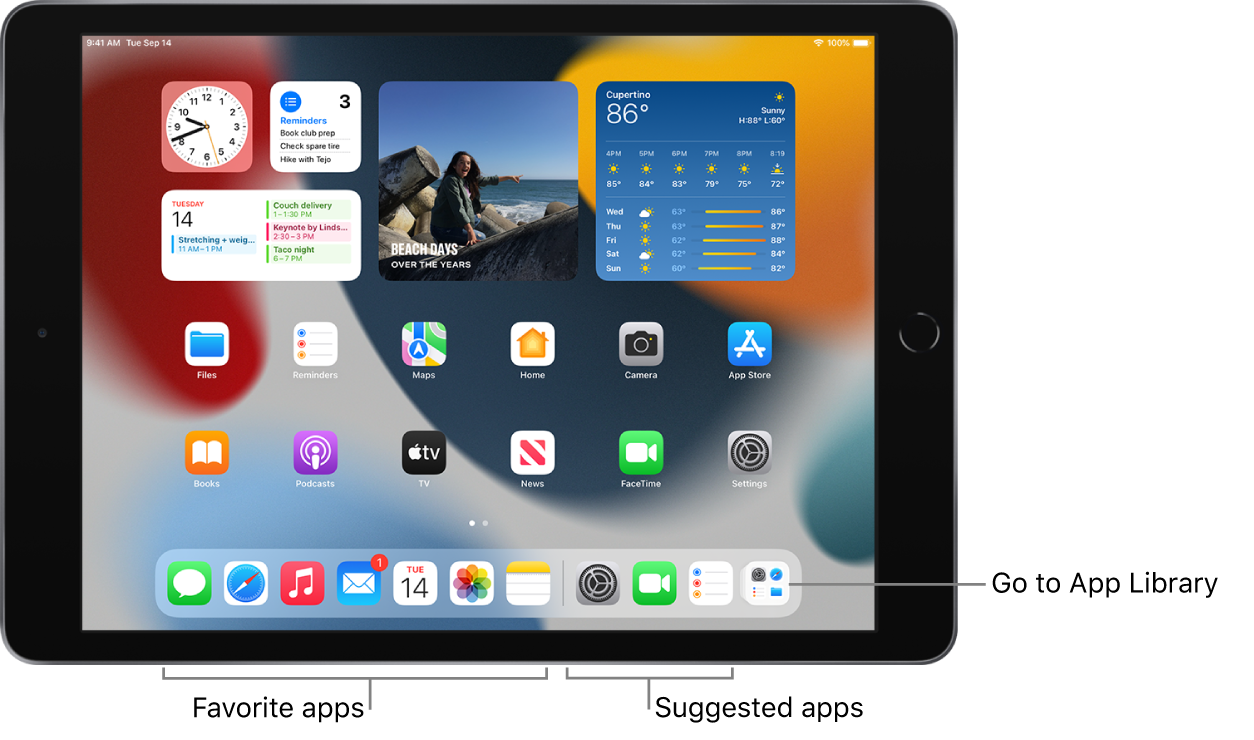
Favorite apps are on the left side of the Dock, and suggested apps—like ones you opened recently and ones open on your iPhone or Mac—appear on the right side of the Dock. The rightmost button in the Dock opens App Library.
Use the App Switcher
To see all your open apps, Split View workspaces, and Slide Over windows in the App Switcher, do one of the following:
On all iPad models: Swipe up from the bottom of the screen, then pause in the center of the screen.
On an iPad with a Home button: Double-click the Home button.
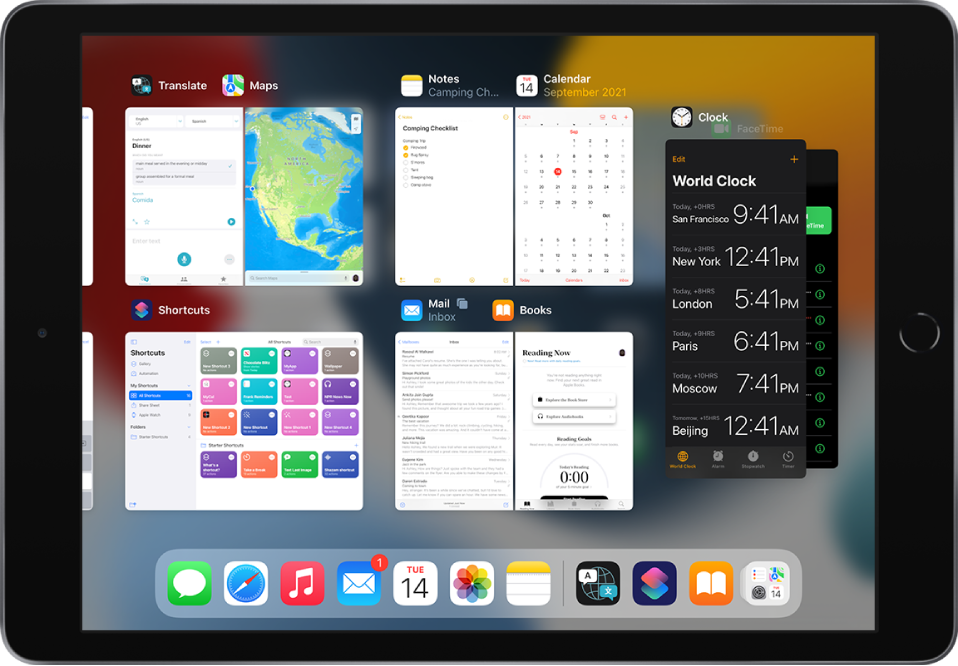
To browse the open apps, swipe right, then tap the app or Split View workspace you want to use.
You can view the Slide Over windows by swiping left, and switch between them by tapping them. See Switch between apps in Slide Over.
Switch between open apps
To switch between open apps, do one of the following:
Swipe left or right with one finger along the bottom edge of the screen. (On an iPad with a Home button, perform this gesture with a slight arc.)
Swipe left or right with four or five fingers.