iPad User Guide
- Welcome
-
- Supported models
- iPad mini (5th generation)
- iPad mini (6th generation)
- iPad (5th generation)
- iPad (6th generation)
- iPad (7th generation)
- iPad (8th generation)
- iPad (9th generation)
- iPad (10th generation)
- iPad Air (3rd generation)
- iPad Air (4th generation)
- iPad Air (5th generation)
- iPad Pro 9.7-inch
- iPad Pro 10.5-inch
- iPad Pro 11-inch (1st generation)
- iPad Pro 11-inch (2nd generation)
- iPad Pro 11-inch (3rd generation)
- iPad Pro 11-inch (4th generation)
- iPad Pro 12.9-inch (1st generation)
- iPad Pro 12.9-inch (2nd generation)
- iPad Pro 12.9-inch (3rd generation)
- iPad Pro 12.9-inch (4th generation)
- iPad Pro 12.9-inch (5th generation)
- iPad Pro 12.9-inch (6th generation)
- What’s new in iPadOS 16
-
-
- Set up FaceTime
- Create a FaceTime link
- Make and receive calls
- Take a Live Photo
- Turn on Live Captions in a FaceTime call
- Use other apps during a call
- Make a Group FaceTime call
- View participants in a grid
- Use SharePlay to watch, listen, and play together
- Share your screen
- Hand off a FaceTime call to another device
- Change the video settings
- Change the audio settings
- Add camera effects
- Leave a call or switch to Messages
- Block unwanted callers
-
- Intro to Home
- Upgrade to the new Home architecture
- Set up accessories
- Control accessories
- Control your home using Siri
- Configure HomePod
- Control your home remotely
- Create and use scenes
- Create an automation
- Configure cameras
- Face Recognition
- Configure a router
- Share controls with others
- Add more homes
-
- Set up Messages
- Send and reply to messages
- Unsend and edit messages
- Keep track of messages and conversations
- Forward and share messages
- Set up a group conversation
- Add photos and video
- Send and receive content
- Watch, listen, or play together using SharePlay
- Collaborate on projects
- Animate messages
- Use iMessage apps
- Use Memoji
- Send a Digital Touch effect
- Send recorded audio messages
- Send, receive, and request money with Apple Cash
- Change notifications
- Block, filter, and report messages
- Delete messages
- Recover deleted messages
-
- View photos and videos
- Play videos and slideshows
- Delete or hide photos and videos
- Edit photos and videos
- Trim video length and adjust slow motion
- Edit Live Photos
- Edit Cinematic videos
- Edit Portrait mode photos
- Use photo albums
- Edit and organize albums
- Filter and sort photos and videos in albums
- Duplicate and copy photos and videos
- Merge duplicate photos
- Search in Photos
- Find and identify people in Photos
- Browse photos by location
- Share photos and videos
- Share long videos
- View photos and videos shared with you
- Use Live Text to interact with content in a photo or video
- Use Visual Look Up to identify objects in your photos
- Lift a subject from the photo background
- Watch memories
- Personalize your memories
- Manage memories and featured photos
- Import photos and videos
- Print photos
- Shortcuts
- Tips
-
- Share your internet connection
- Make and receive phone calls
- Use iPad as a second display for Mac
- Use a keyboard and mouse or trackpad across your Mac and iPad
- Hand off tasks between devices
- Wirelessly stream video, photos, and audio to Mac
- Cut, copy, and paste between iPad and other devices
- Connect iPad and your computer with a cable
-
- Transfer files between devices
- Transfer files with email, messages, or AirDrop
- Automatically keep files up to date with iCloud
- Transfer files with an external storage device
- Use a file server to share files between your iPad and computer
- Share files with a cloud storage service
- Sync content or transfer files with the Finder or iTunes
-
- Get started with accessibility features
-
-
- Turn on and practice VoiceOver
- Change your VoiceOver settings
- Learn VoiceOver gestures
- Operate iPad when VoiceOver is on
- Control VoiceOver using the rotor
- Use the onscreen keyboard
- Write with your finger
- Use VoiceOver with an Apple external keyboard
- Use a braille display
- Type onscreen braille
- Customize gestures and keyboard shortcuts
- Use VoiceOver with a pointer device
- Use VoiceOver for images and videos
- Use VoiceOver in apps
- Zoom
- Hover Text
- Display & Text Size
- Motion
- Spoken Content
- Audio Descriptions
-
-
- Use built-in privacy and security protections
- Keep your Apple ID secure
-
- Sign in with passkeys
- Sign in with Apple
- Automatically fill in strong passwords
- Change weak or compromised passwords
- View your passwords and related information
- Share passkeys and passwords securely with AirDrop
- Make your passkeys and passwords available on all your devices
- Automatically fill in verification codes
- Sign in with fewer CAPTCHA challenges on iPad
- Manage two-factor authentication for your Apple ID
- Use security keys
- Create and manage Hide My Email addresses
- Protect your web browsing with iCloud Private Relay
- Use a private network address
- Use Advanced Data Protection
- Lockdown Mode
-
- Important safety information
- Important handling information
- Find more resources for software and service
- FCC compliance statement
- ISED Canada compliance statement
- Apple and the environment
- Class 1 Laser information
- Disposal and recycling information
- Unauthorized modification of iPadOS
- ENERGY STAR compliance statement
- Copyright
Type with the onscreen keyboard on iPad
On iPad, you can use the onscreen keyboard to enter and edit text.
You can also use Dictation, an external keyboard, and Apple Pencil to enter text.
Enter text using the onscreen keyboard
In any app that allows text editing, open the onscreen keyboard by tapping a text field. You can pinch closed to shrink the keyboard, then tap individual keys to type, or use QuickPath to type by sliding from one letter to the next without lifting your finger (not available for all languages). To end a word, lift your finger. (If you tap  after sliding to type a word, it deletes the whole word.)
You can drag the smaller keyboard from the bottom of the screen to move it wherever you want for easy one-handed typing.
To return to the full-size keyboard, pinch open. On the full-size keyboard, you tap keys to type.
While entering text, you can do any of the following on both the smaller keyboard and the full-size keyboard:
Type uppercase letters: Tap
 , or touch , then slide to a letter.
Turn on Caps Lock: Double-tap
.Quickly end a sentence with a period and a space: Double-tap the Space bar.
Correct spelling: Tap a misspelled word (underlined in red) to see suggested corrections, then tap a suggestion to replace the word, or type the correction.
Enter numbers, punctuation, or symbols: Tap
 or
or  .
.Undo the last edit: Swipe left with three fingers, then tap Undo at the top of the screen; or tap
 .
.Redo the last edit: Swipe right with three fingers, then tap Redo at the top of the screen; or tap
 .
.Hide the onscreen keyboard: Tap
 .
.
Turn on keyboard sounds
You can customize keyboard settings to hear clicking as you type.
Go to Settings  > Sounds, then turn on Keyboard Clicks.
Enter emoji with the onscreen keyboard
Open the onscreen keyboard by tapping a text field.
Switch to the emoji keyboard by tapping
 or
or  .
.To search for an emoji, tap
 at the bottom left, then enter a commonly used word—such as “heart” or “smiley face”—in the search field above the keyboard.
To enter an emoji, tap it.
To see more choices, swipe through the emoji that appear.
To return to the regular keyboard, tap
or , then tap ABC in the lower-left corner.
Turn the onscreen keyboard into a trackpad
Touch and hold the Space bar with one finger until the keyboard turns light gray.
Move the insertion point by dragging around the keyboard.
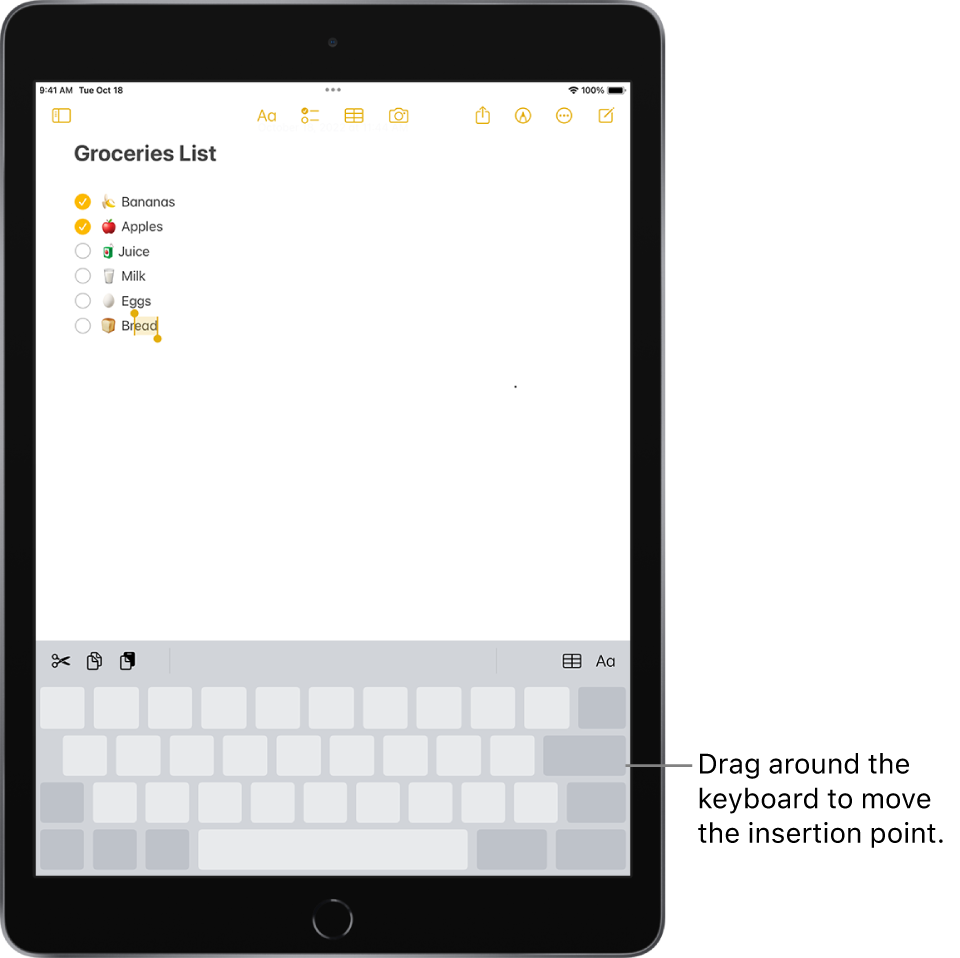
To select text, touch and hold the keyboard with a second finger, then adjust the selection by moving the first finger around the keyboard.
See Select, cut, copy, and paste text for more ways to select text.
Enter accented letters or other characters while typing
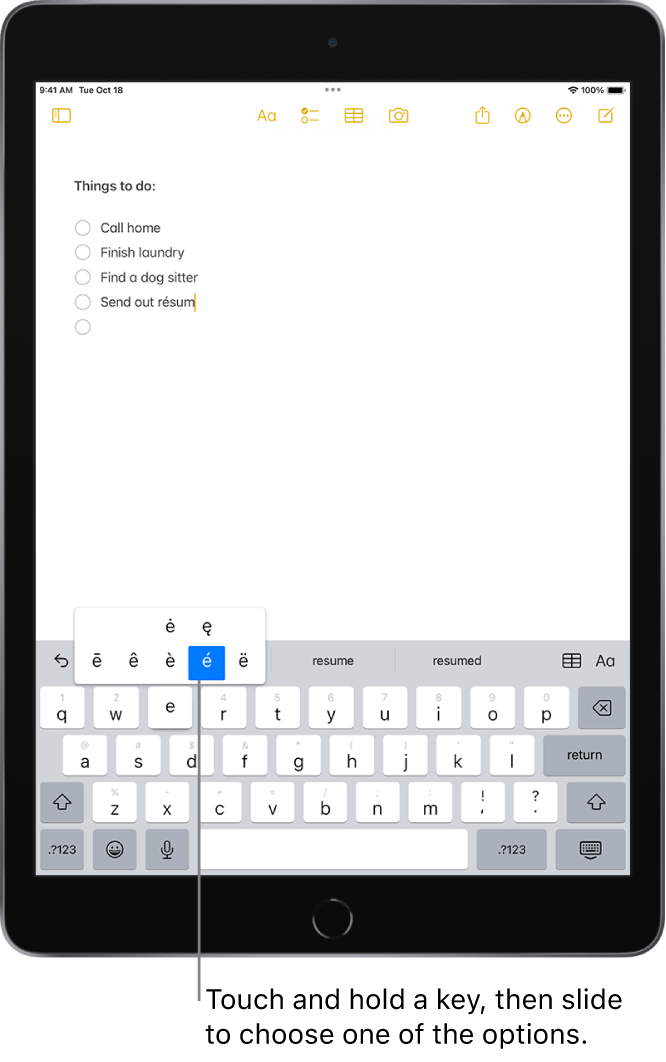
While typing, touch and hold the letter, number, or symbol on the keyboard that’s related to the character you want.
For example, to enter é, touch and hold the e key, then slide to choose a variant.
You can also do any of the following:
On a Thai keyboard: To choose native numbers, touch and hold the related Arabic number.
On a Chinese, Japanese, or Arabic keyboard: Tap a suggested character or candidate at the top of the keyboard to enter it, or swipe left to see more candidates.
Note: To view the full candidate list, tap the up arrow on the right. To return to the short list, tap the down arrow.
Set typing options
You can turn on special typing features—such as predictive text and auto-correction—that assist you when you type on iPad.
While typing using the onscreen keyboard, touch and hold or , tap Keyboard Settings, then turn typing features (below All Keyboards) on or off.