Apple Watch User Guide
- Welcome
- What’s new
- Run with Apple Watch
-
- Alarms
- Audiobooks
- Blood Oxygen
- Calculator
- Calendar
- Camera Remote
- ECG
- Medications
- Memoji
- Music Recognition
- News
- Now Playing
- Remote
- Shortcuts
- Siren
- Stocks
- Stopwatch
- Tides
- Timers
- Use the Tips app
- Translate
- Vitals
- Voice Memos
- Walkie-Talkie
- World Clock
- Copyright and trademarks
Check the weather on Apple Watch
Use the Weather app to track current and upcoming weather conditions, locally or in locations around the globe. You can easily check on current weather details such as clear or cloudy skies, temperature, precipitation, wind, ultraviolet (UV) conditions, visibility, humidity, and air quality.
Siri: Ask Siri something like, “What’s the weather like?” See Ask Siri to get information.
Check the local weather
Go to the Weather app
 on your Apple Watch.
View the current conditions.
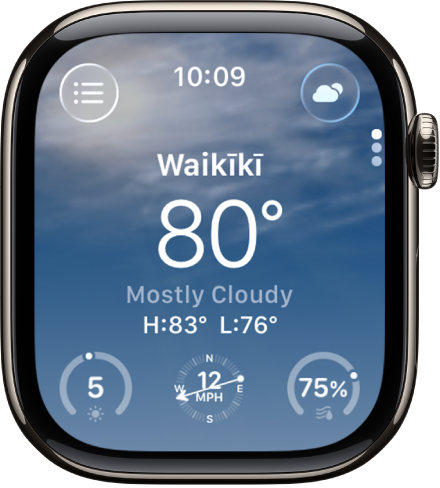
Tap the display to cycle through the following views:
Conditions
Temperature
Precipitation
Wind speed
UV index
Visibility
Humidity
Air quality (not available in all locations)
Tip: You can also see the Weather widget in the Smart Stack.
If the local weather doesn’t appear on your Apple Watch when you open the Weather app, make sure that Location Services is turned on. Go to the Settings app  on your Apple Watch, tap Privacy & Security, tap Location Services, then turn on Location Services. On iPhone, go to Settings > Privacy & Security > Location Services, tap Weather, then choose an option.
See the hourly and 10-day weather forecasts
Go to the Weather app
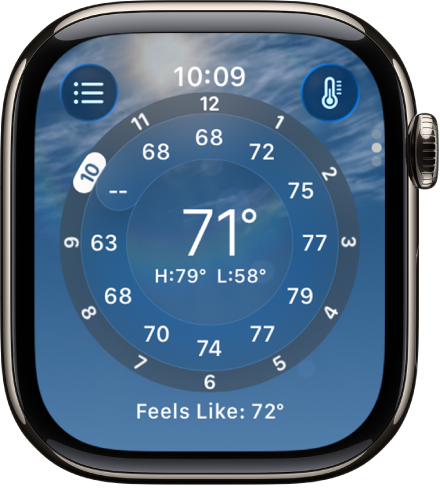
on your Apple Watch.Scroll down one screen to show the forecast for the next 12 hours, including conditions and temperatures.
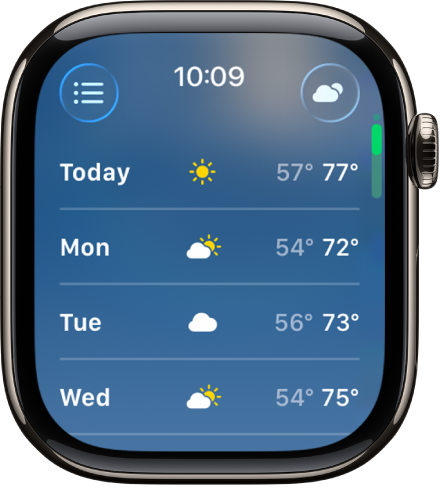
Scroll down again to show the 10-day forecast.
View individual weather metrics
See details about individual weather metrics such as temperature, humidity, and air quality, then show forecast information for just that metric.
Choose a metric: Tap the button at the top right, then select a metric such as air quality. Turn the Digital Crown to show forecast information for just that metric.
Cycle through metrics: Tap the display to cycle through available metrics.
See severe weather alerts
When a significant weather event is predicted, an alert may appear at the top of the Weather app. Tap the alert for more information.
Note: Severe weather alerts aren’t available in all locations.