Navigate Apple TV
The Home Screen on Apple TV provides easy access to apps and settings. Navigate to any of the apps in the top row to see previews of available movies and TV shows, music videos, games, photos, and more.
You can also customize the top row with the apps you use the most.

Navigate to apps and items
To move around on Apple TV, use the remote to do any of the following:
Siri Remote (2nd generation or later): Press up, down, left, or right on the clickpad ring; or swipe up, down, left, or right on the clickpad.

Siri Remote (1st generation): Tap or swipe up, down, left, or right on the touch surface.

Onscreen, a highlighted app or item expands slightly.

When you highlight an app in the top row of the Home Screen, a preview of its content (movies, TV shows, music videos, or memories, for example) plays in the background (if the app supports content previews). Follow the onscreen instructions to access controls for playing in full screen, getting more information, and browsing additional previews.
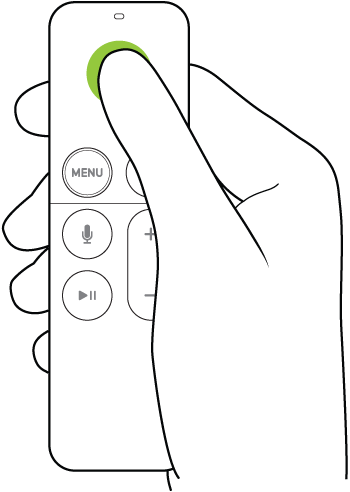
Select an app or item
After you highlight an app or item onscreen, you can select it. When you select an app, it opens. Do one of the following:
Siri Remote (2nd generation or later): Press the clickpad center.

Siri Remote (1st generation): Press the touch surface.
Scroll lists
To scroll through lists of options and indexes, do any of the following:
Siri Remote (2nd generation or later): Press and hold up or down on the clickpad ring; or swipe up or down on the clickpad a few times to scroll quickly.

Siri Remote (1st generation): Swipe up or down a few times on the touch surface to scroll quickly.

Go to the previous screen or Home Screen
Whether you’re browsing in an app, listening to music or watching a movie or TV show, you can easily go back to the previous screen or go straight to the Home Screen.
Siri Remote (2nd generation or later): Press the Back button
 to go to the previous screen; press and hold the Back button to go to the Home Screen.
Siri Remote (1st generation): Press the
 button to go to the previous screen; press and hold the button to go to the Home Screen.
Return to the TV app
On the Siri Remote, press the TV button
 to go to Up Next in the Apple TV app. Press the TV button again to go to the Home Screen.
To change the TV button behavior, see Set the TV button destination on Apple TV.